Payment Methods
Admins who define which tenders cashiers can use at checkout and how those tenders behave.
Before you start
- Confirm the correct brand.
- Decide whether you are creating a basic tender or a gateway-linked method.
- If the method depends on a vendor, confirm the vendor is already configured in Payment Vendors.
Open this page
Open POS Settings -> Payment Methods.
What this page controls
Payment Methods defines the tender buttons and checkout behaviors available on the POS.
Use this page to control:
- tender name and button order
- linked gateway behavior
- surcharge and charge-rate settings
- cash drawer and overpayment behavior
- per-shop enablement
This setup is usually created at brand level and then enabled or configured per shop.
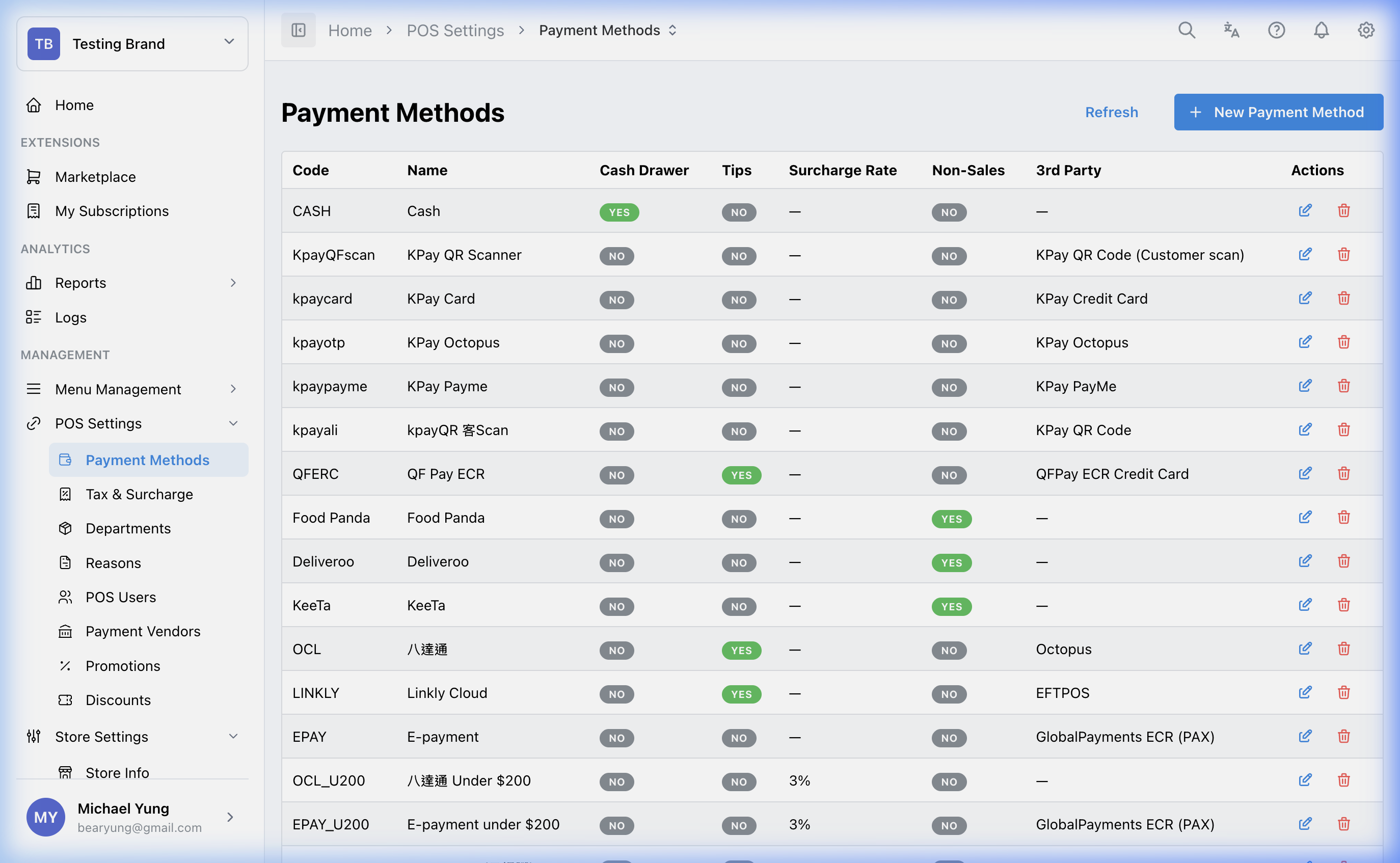
Main sections
Basic fields
| Field | What it controls | When to change it |
|---|---|---|
Code and Name | Internal and POS-facing tender identity | When you add or rename a tender |
Display Index | Button order at checkout | When cashiers need a different tender order |
Linked Gateway | Payment gateway or device driver used by this tender | When the tender should talk to an external terminal or service |
Surcharge Rate | Customer-facing extra charge added during payment | When the tender requires a surcharge |
Tx Charges Rate | Reporting-only merchant fee tracking | When finance needs fee visibility |
Fixed Amount | Immediate tendering of a preset amount | When using fixed-value voucher-style tenders |
POS behavior switches
These switches control how the POS responds when staff tap the tender:
Open Cash DrawerAllow TipsNon-Sales PaymentCash PaymentOver PaymentFX PaymentAuto Remark
Shop settings
After the base method is created, use the shop settings area to enable it only for the shops that should use it. This is the most common step users miss.
Beast Mode
Use Beast Mode when you need to create several payment methods with the same shared behavior.
When Beast Mode is on, enter one row for each payment method with:
CodeName
The shared settings below the row list apply to every payment method created in that save, including Display Index, surcharge and charge-rate settings, behavior switches, linked gateway, and shop settings.
Beast Mode accepts up to 100 rows in one create action. HQ validates the batch before creating methods. If the batch cannot be saved, no payment methods are created; correct the reported duplicate or invalid row and submit the batch again.
Use normal create mode when each payment method needs different checkout behavior, gateway settings, rates, or shop enablement.
Restore a recently removed payment method
Use Show recently removed when a payment method was removed by mistake.
- The toggle only shows payment methods removed in the last 24 hours. Payment methods removed longer ago are not included.
- Recently removed rows use a light gray background.
- A recently removed row only shows the restore action. The edit and delete actions are hidden.
- Select the restore icon to make the payment method active again.
- HQ blocks the restore if another active payment method already has the same
CodeorName.
Steps
- Open
POS Settings->Payment Methods. - Create a new method or open an existing one.
- Enter the
Code,Name, andDisplay Index. - Select a
Linked Gatewayonly if this tender should connect to a payment vendor. - Set rates and behavior switches as needed.
- Open the shop settings area.
- Enable the method for the target shops.
- Save the method.
- If you removed a payment method by mistake, turn on
Show recently removed. - Find the light gray row and select the restore icon.
- If HQ blocks the restore, review any active payment method with the same
CodeorNamebefore trying again.
Create several payment methods at once
- Open
POS Settings->Payment Methods. - Select
New Payment Method. - Turn on
Beast Mode. - Enter one row for each payment method.
- Complete the shared settings below the row list.
- Select
Create. - Review the list and confirm every payment method was created.
If you enter more than 100 rows or a row fails validation, review the message and correct the batch before selecting Create again.
Linked gateways
If the tender depends on a third-party or on-premise payment vendor, configure the vendor first in Payment Vendors.
Do not link a gateway your brand has not installed or configured. A gateway-linked tender without a working vendor setup can fail during checkout.
What changes after you save
Saving the base method creates or updates the tender definition. The tender still needs to be enabled for the correct shops before staff can use it where intended.
How to check your change
- Reopen the method and confirm the base fields saved correctly.
- Confirm the method is enabled for the intended shops.
- If the method is gateway-linked, verify the related vendor setup in Payment Vendors.
- Test the tender in the target shop's checkout flow when practical.
If something goes wrong
- Confirm the issue is not in the shop enablement step.
- Check whether the wrong or missing gateway is linked.
- If a surcharge or cash-drawer behavior is wrong, review only the affected switch before changing other fields.
- If restore is blocked, check whether another active payment method is using the same
CodeorName.
When to ask owner/admin
- The change affects live payment flow.
- You are not sure whether a new vendor or linked gateway is required.
- The tender affects finance, surcharge policy, or multi-shop rollout.