Online Ordering Overview
Admins maintaining customer-facing digital ordering channels such as QR ordering, app ordering, or third-party menu routing.
Before you start
- Confirm the correct brand and target shop or channel.
- Confirm the base menu and item setup already exists.
- Decide whether you are changing category display, menu assignment, shop-level setup, channel availability, or customer-facing text.
What this section is for
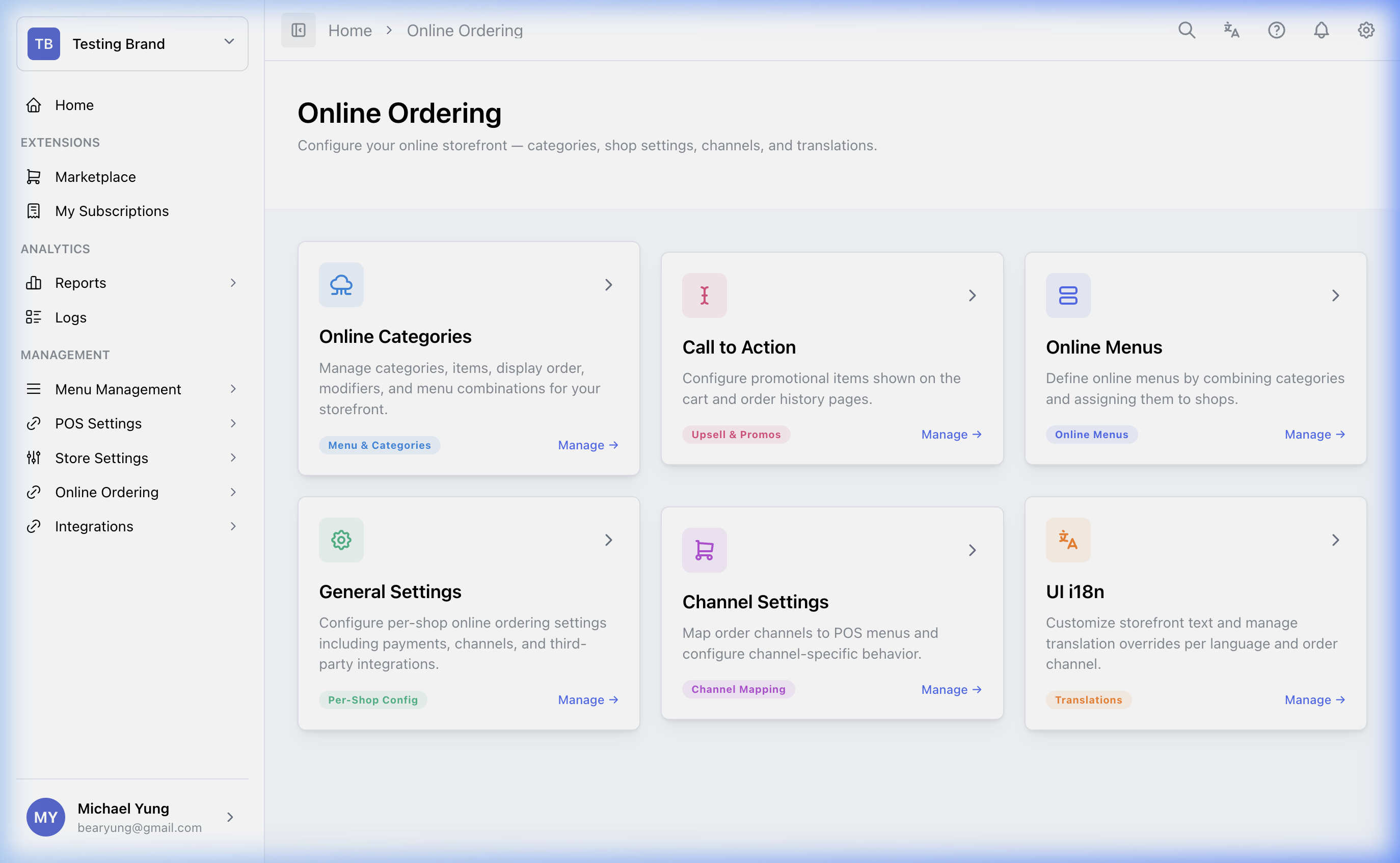
The Online Ordering module manages how your POS Menu catalog is projected to customer-facing channels such as BYOD (Bring Your Own Device) QR Code ordering, native Mobile Apps, and third-party API aggregators.
Rather than managing a separate database of items, Online Ordering syncs directly with your core Menu Catalog, allowing you to selectively publish items, apply different pricing tiers, and override translations specifically for the digital storefront.
How to use this section
Use the child pages in this order when setting up or reviewing a channel:
- Categories and Items: decide what is visible online.
- Menus and Combinations: group online items into usable menus.
- General Settings: open the correct store and manage store-level online ordering setup.
- 3rd Party Platforms: subscribe and configure delivery or integration platforms for one store.
- Channel Settings: control which categories are available on each order channel.
- Call to Action: manage upsell prompts.
- UI Translations: adjust customer-facing wording.
Common tasks
- Publish a new online category: start with Categories and Items.
- Enable a delivery or integration platform for one store: use 3rd Party Platforms.
- Route category availability to a specific ordering channel: use Channel Settings.
- Change customer-facing wording: use UI Translations.
- Adjust operational settings such as ordering rules: use General Settings.
What changes after you save
Online ordering changes affect customer-facing channels, so verify them in the target channel after saving. A correct HQ change can still appear wrong if the wrong channel or menu is being checked.
If something goes wrong
- Confirm the base menu data exists in the core catalog first.
- Confirm you changed the correct channel-specific page.
- Verify the result in the target customer-facing flow rather than only in HQ.
When to ask owner/admin
- The change affects a live customer-facing menu during trading hours.
- You are unsure whether the issue is in the base menu or in online ordering setup.