Channel Settings
Admins who control which online categories are available on each order channel for each shop.
Before you start
- Confirm the correct brand.
- Confirm the online categories you need already exist.
- Confirm the required platform subscription is active in
Marketplaceif you expect to see third-party channels such asDeliverooorFoodpanda.
Open this page
Open Online Ordering -> Channel Settings.
What this page is for
Channel Settings controls which categories are available on each order channel, per shop.
Use this page to:
- enable or disable a category for a specific shop and channel combination
- review coverage by
Category, byShop, or byChannel - make broad changes with row or column checkboxes before saving
This page does not create channels. HQ only shows own-device channels by default. Third-party channels appear after the related platform subscription is active.
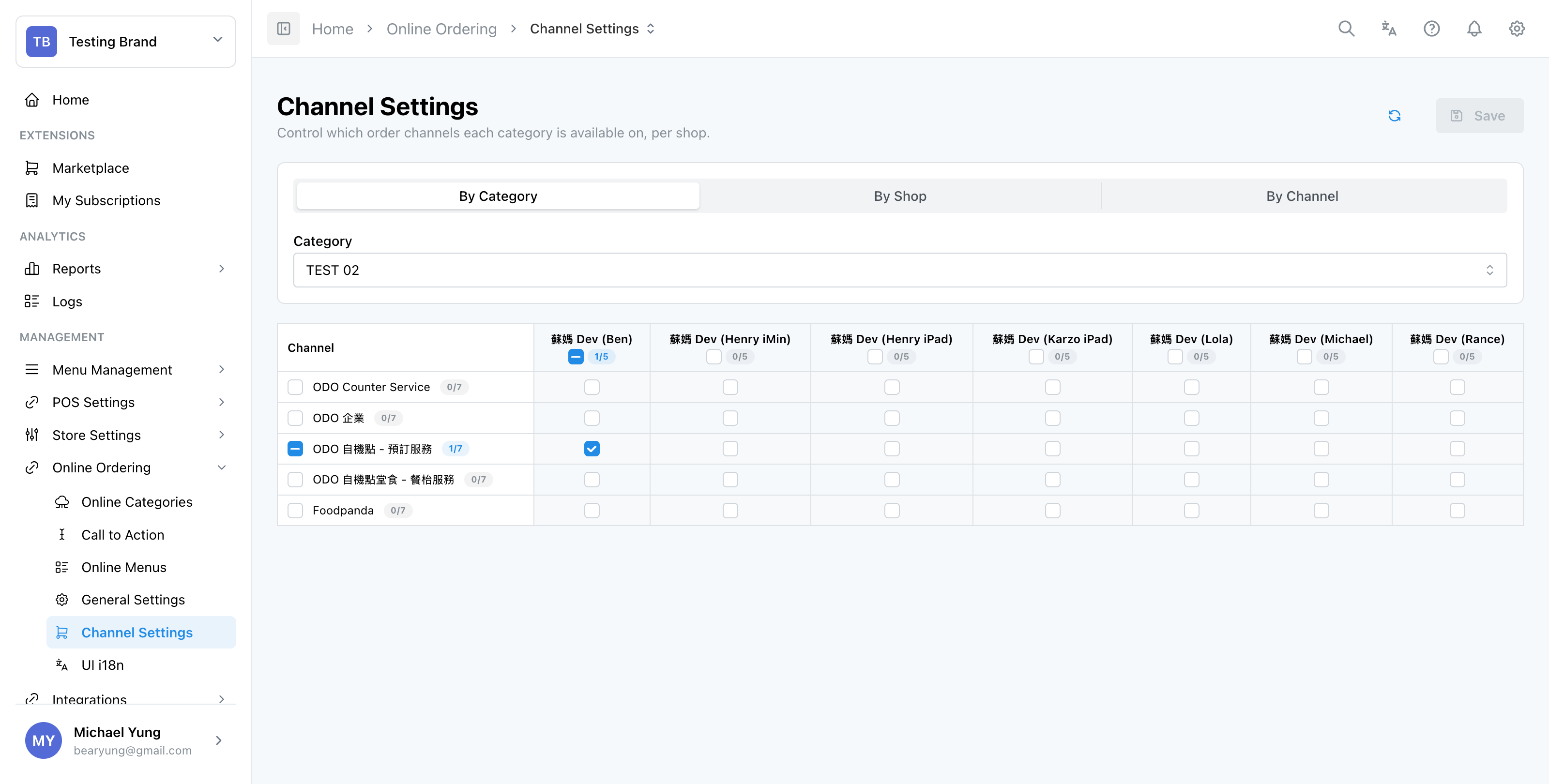
Channel Settings with the By Category view, selector, and checkbox matrix.
Main sections
View selector
Use the segmented control at the top to switch between:
By CategoryBy ShopBy Channel
Choose the view that matches the question you are answering:
- use
By Categorywhen you want to check where one category is available - use
By Shopwhen you want to check all categories for one shop - use
By Channelwhen you want to check what one channel can sell across shops
Selector
After you choose a view, select the matching record:
CategoryShopChannel
Mapping grid
The grid uses checkboxes at three levels:
- cell checkbox: change one category/shop/channel combination
- row checkbox: change one full row
- column checkbox: change one full column
The small count badge helps you confirm how many entries are currently enabled in that row or column.
Steps
- Open
Online Ordering->Channel Settings. - Choose
By Category,By Shop, orBy Channel. - Select the
Category,Shop, orChannelyou want to review. - Select the checkboxes you need in the grid.
- Select
Save.
What changes after you save
The saved mapping changes category availability for the selected shop and channel combinations in HQ.
If a third-party channel is missing from this page, subscribe to that platform first in Marketplace. If the channel is visible but the storefront still looks wrong, verify the related shop setup in 3rd Party Platforms.
How to check your change
- Reopen
Channel Settingsand confirm the same checkboxes are still selected. - Check the affected shop or channel in the target online ordering flow.
- Confirm the category appears only where you intended.
If something goes wrong
- Confirm you edited the correct brand.
- Confirm you were in the correct view before making bulk checkbox changes.
- Check whether the missing channel actually requires a platform subscription first.
- Re-check the related shop setup in General Settings if the channel is present but not usable.
When to ask owner/admin
- The change affects a live delivery or customer ordering channel during trading hours.
- You are unsure whether a category should be hidden for one shop only or for all shops.
- You cannot safely verify the result in the target storefront after saving.