3rd Party Platforms
Admins who subscribe, review, or maintain shop-level delivery and integration platform setup for online ordering.
Before you start
- Confirm the correct brand and target store.
- Gather any platform-provided shop codes, API keys, webhook details, or payment method IDs before you start.
- Confirm whether the platform is delivery-facing, integration-only, or managed mainly by the partner.
Open this page
Open Online Ordering -> General Settings, then open the target store and select 3rd Party Platforms.
What this page controls
3rd Party Platforms manages the platform services connected to one store's online ordering setup.
Use this page to:
- subscribe to a new delivery or integration platform with
Add Platform - review which subscribed platforms are available for this store
- enter or update shop-level platform values
- configure Foodpanda connection, order-total, and automatic-update settings
- send a saved menu to Foodpanda or MeiTuan with
Sync Menu - remove a platform card from the store's saved settings
This page is shop-level. Subscription happens at brand/company level, but the fields you enter here apply to the store you opened.
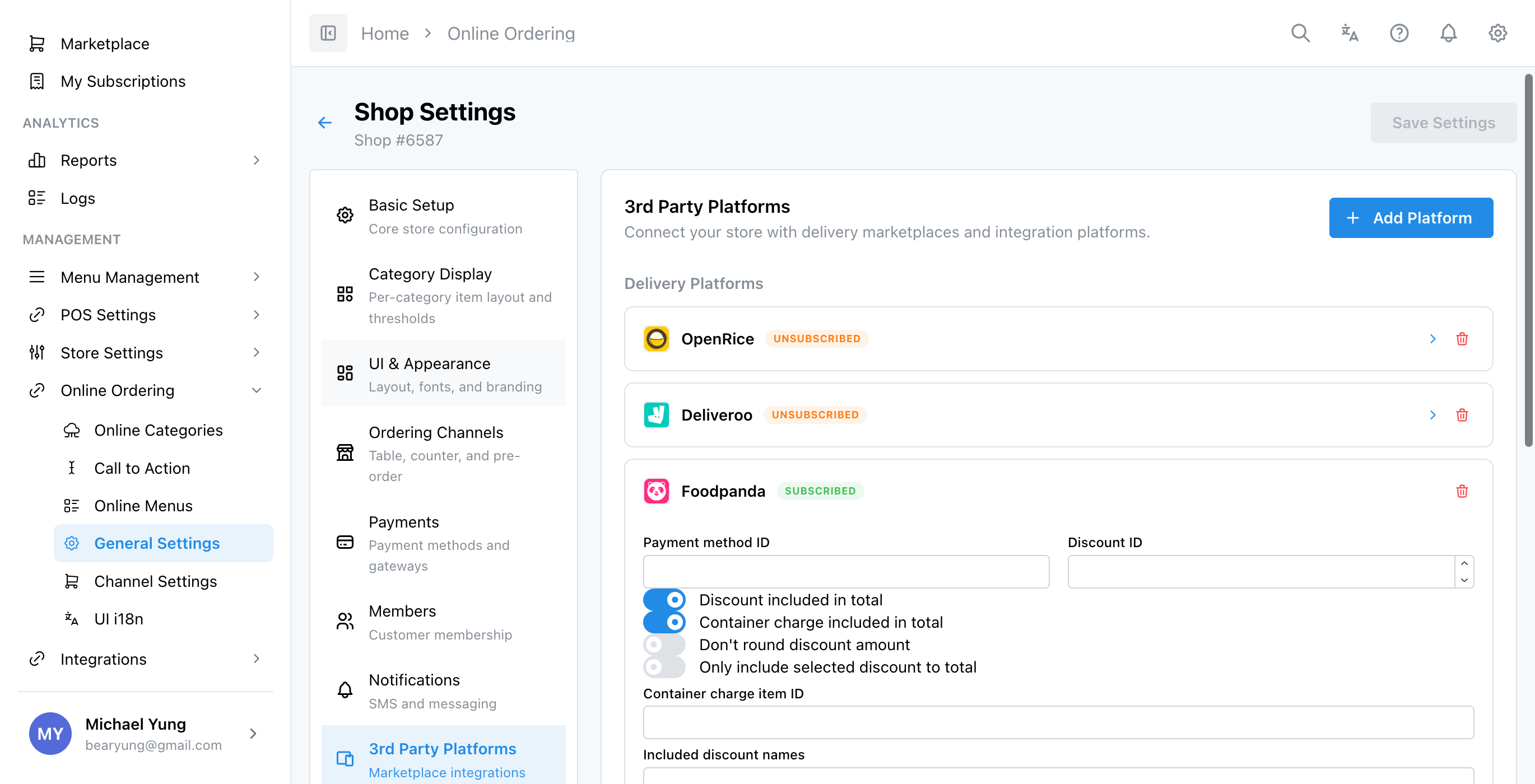
3rd Party Platforms with Add Platform, grouped platform cards, and subscription state badges.
Main sections
Add Platform
Select Add Platform to open a marketplace picker that shows 3rd Party Platforms only.
After you select Subscribe, the modal closes and the platform becomes available back on the 3rd Party Platforms page.
Platform groups
HQ groups cards under:
Delivery PlatformsIntegration PlatformsOther
Platform cards
Each platform card can show one of these states:
Subscribed: the platform is active for useUnsubscribed: the platform is still visible but cannot be edited until you subscribe again- no badge and no fields: the platform has no active shop setup yet
Some cards show editable fields. Some show No configuration required — this integration is managed by the partner platform.
The MeiTuan card includes its payment, discount, service-charge, webhook, and menu-sync settings. When webhook access is supplied by the partner, also enter API URL, Shop ID, Access Token, Refresh Token, and Token expiry date/time. Treat both token fields as confidential credentials.
Needed file: hq/online-ordering/meituan-webhook-settings.png
Save action
Changes on the card do not fully apply until you use the page-level Save Settings button in Shop Settings.
Foodpanda
The Foodpanda card starts with Connect Foodpanda. Enter the partner-provided API URL, API Username, and API Password, then complete Foodpanda store details with Chain Code, Remote ID, and Vendor ID.
In Order totals, choose the Payment method and optional Discount from the searchable selectors. The selectors can be cleared. If a saved ID is no longer available, HQ keeps it as Unavailable ID ({id}) so you can identify and replace it.
The same section contains Include discount in order total and Include container charge in order total. When the container charge switch is on, choose one sellable item in the Container charge item picker. The picker supports Search Items and Browse by Category; search by item code, name, or alternate name, then select the item.
Expand More order options only when the partner requires them. The available controls are Don't round discount amount, Only include selected discount to total, and Discounts to include. Enter discount names exactly as they appear in X1, separated by commas.
Under Automatic updates, use Receive order updates and Sync menu automatically to choose which updates Foodpanda exchanges with X1.
Manual menu synchronization
Foodpanda and MeiTuan show a Menu synchronization section with Sync Menu. Save the page first. While there are unsaved changes, the button is disabled and the page shows Save the settings before syncing the menu. After saving, select Sync Menu to send the latest saved menu. A successful request shows Menu sync request sent.
Needed files:
hq/online-ordering/foodpanda-settings-and-menu-sync.pnghq/online-ordering/meituan-webhook-settings.png
Steps
- Open
Online Ordering->General Settings. - Find the correct
Store Name. - Select the edit action for that store to open
Shop Settings. - Select
3rd Party Platforms. - Select
Add Platformif the platform is not listed yet. - Select
Subscribefor the platform you need. - Expand the platform card if fields are available.
- Enter the required shop-level values.
- For
Foodpanda, completeConnect Foodpanda,Foodpanda store details, and the requiredOrder totalsmappings. - For
MeiTuan, enter the partner-providedAPI URL,Shop ID,Access Token,Refresh Token, andToken expiry date/timebefore enablingWebhook enabled. - Select
Save Settings. - If the platform shows
Menu synchronization, selectSync Menuafter the settings have saved.
What changes after you save
Saving updates the selected store's platform settings.
The subscription itself also affects other HQ areas:
- the platform can appear in
3rd Party Platforms - related channels can appear in
Channel Settings - unsubscribing the platform later can remove its saved shop-level setup
How to check your change
- Reopen the same store and confirm the platform card is still present.
- Confirm the saved values remain on the card after refresh.
- Check
Channel Settingsif the platform should unlock a related order channel. - Verify the downstream storefront or partner flow if you have a safe test path.
If something goes wrong
- Confirm the platform was actually subscribed from
Add Platform. - Confirm you edited the correct store, not only the correct brand.
- For
MeiTuan, confirm the API URL, shop ID, tokens, and expiry date/time came from the integration partner. Do not guess or reuse credentials from another store. - For
Foodpanda, replace anyUnavailable ID ({id}), confirm the selectedContainer charge item, and save before selectingSync Menu. - If
Sync Menuis disabled, save the page first. Do not use a partially edited menu as the sync source. - If the card shows
Unsubscribed, subscribe again before you try to edit it. - If the card has no fields, do not keep retrying. The integration may be partner-managed.
- If the platform disappeared after unsubscribe, return to
MarketplaceorAdd Platformand subscribe again before re-entering values.
When to ask owner/admin
- You do not have the platform credentials or shop identifiers.
- The platform affects live customer orders, delivery dispatch, or settlement.
- You are planning to unsubscribe a platform that might still be in use by active stores.