Call to Action
Admins who manage promotional prompts or upsell banners in the customer online ordering flow.
Before you start
- Confirm the correct brand.
- Confirm the related online categories or landing links already exist.
- Decide whether the prompt should open a category in the storefront or send the customer to a web link.
Open this page
Open Online Ordering -> Call to Action.
What this page is for
Call to Action controls promotional banners shown during the customer online ordering journey.
Use this page to:
- choose where a prompt appears in the storefront
- enter the banner title and description
- connect the prompt to a category or a full URL
- add alternate-language text for bilingual storefronts
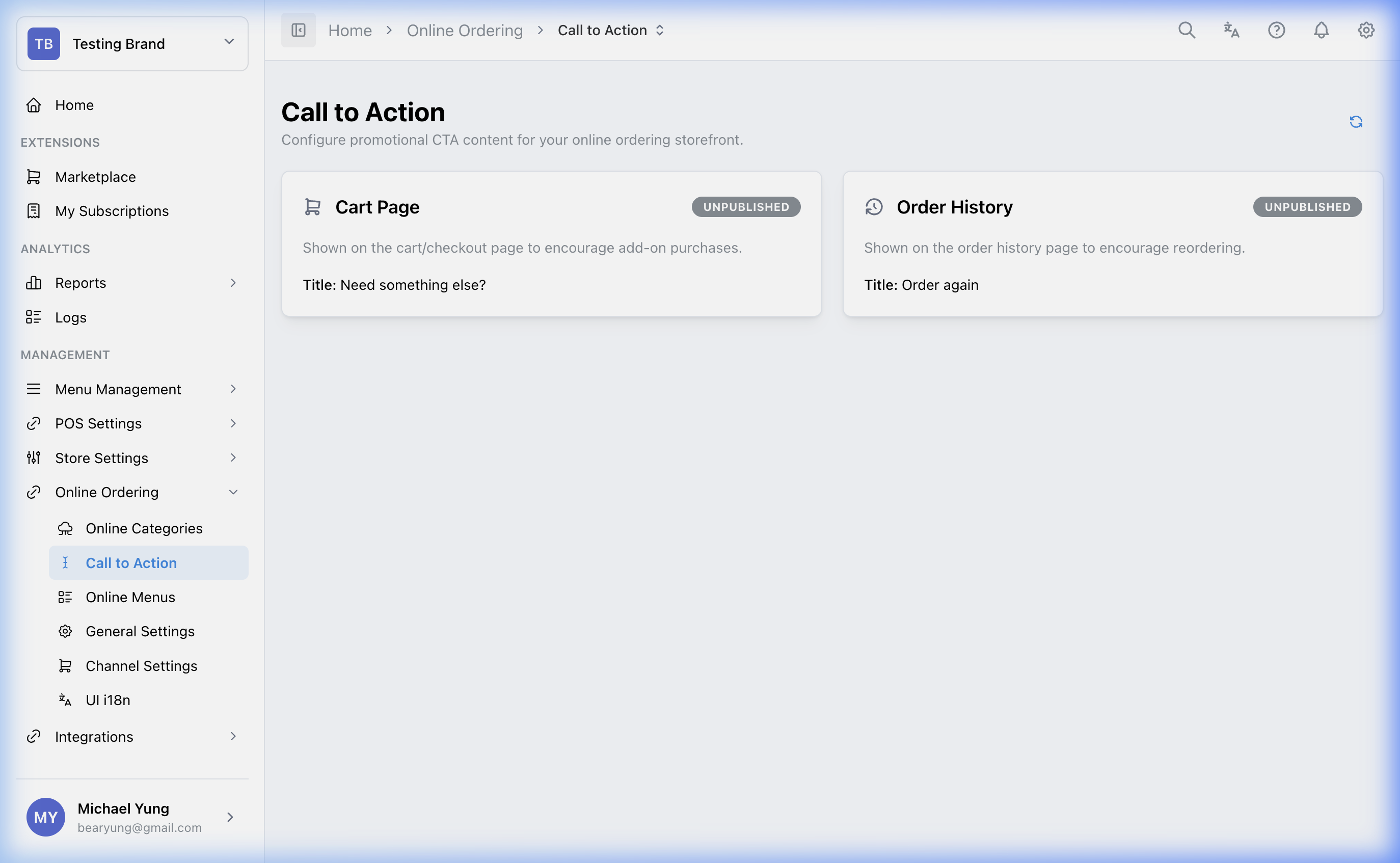
Main sections
Placement slots
CTA prompts can appear in different storefront positions:
Cart Placement: shown when the customer opens the basket before checkout.Order History Placement: shown after payment on the digital receipt or order-history screen.
Use the slot that matches the customer moment you want to influence.
Banner content
For each CTA slot, enter:
TitleDescriptionAlt TitleAlt Description
Use concise action-focused text. If your storefront supports more than one language, fill in the alternate-language fields as well.
CTA destination
Each CTA can use one of these destination types:
Target Smart Category: opens the selected category directly in the storefrontAction URL: sends the customer to a fullhttps://web link instead
Choose one clear destination. Do not mix category-based upsell behavior with an unrelated external link unless that is the intended customer flow.
Steps
- Open
Online Ordering->Call to Action. - Select the CTA slot you want to edit.
- Enter the
TitleandDescription. - Enter
Alt TitleandAlt Descriptionif the storefront is bilingual. - Select the target smart category, or enter the full
https://link inAction URL. - Select
Save.
What changes after you save
The CTA update changes what customers see in the selected storefront position.
If you used a category target, customers can open that category directly from the banner. If you used a URL, customers will be redirected to that destination instead.
How to check your change
- Open the target online ordering flow.
- Go to the relevant storefront position such as basket or post-payment history.
- Confirm the CTA text appears in the correct language.
- Select the banner and confirm it opens the expected category or link.
If something goes wrong
- Confirm you edited the correct brand.
- Confirm the target category still exists and is available online.
- If translated users see blank text, fill in
Alt TitleandAlt Description. - If the CTA opens the wrong destination, re-check whether you saved a category target or an
Action URL.
When to ask owner/admin
- The CTA links to an external campaign, survey, or promotion you do not own.
- The prompt affects a live customer promotion during trading hours.
- You are unsure whether the message should appear in basket flow or after payment.