Categories and Items
Admins who decide which POS categories and items appear in customer-facing online ordering channels.
Before you start
- Confirm the correct brand.
- Confirm the base POS categories and items already exist in the catalog.
- Decide whether you are publishing content, updating images, changing online-only pricing, or editing descriptions.
Open this page
Open Online Ordering -> Online Categories.
What this page is for
Online Categories is the main page for exposing POS categories and items to online ordering.
Use this page to:
- publish categories to customer-facing channels
- control which items become available online through those categories
- upload item or category images
- maintain online descriptions
- apply online price overrides where needed
Items are not available online just because they exist in the base catalog. They must be mapped through this page first.
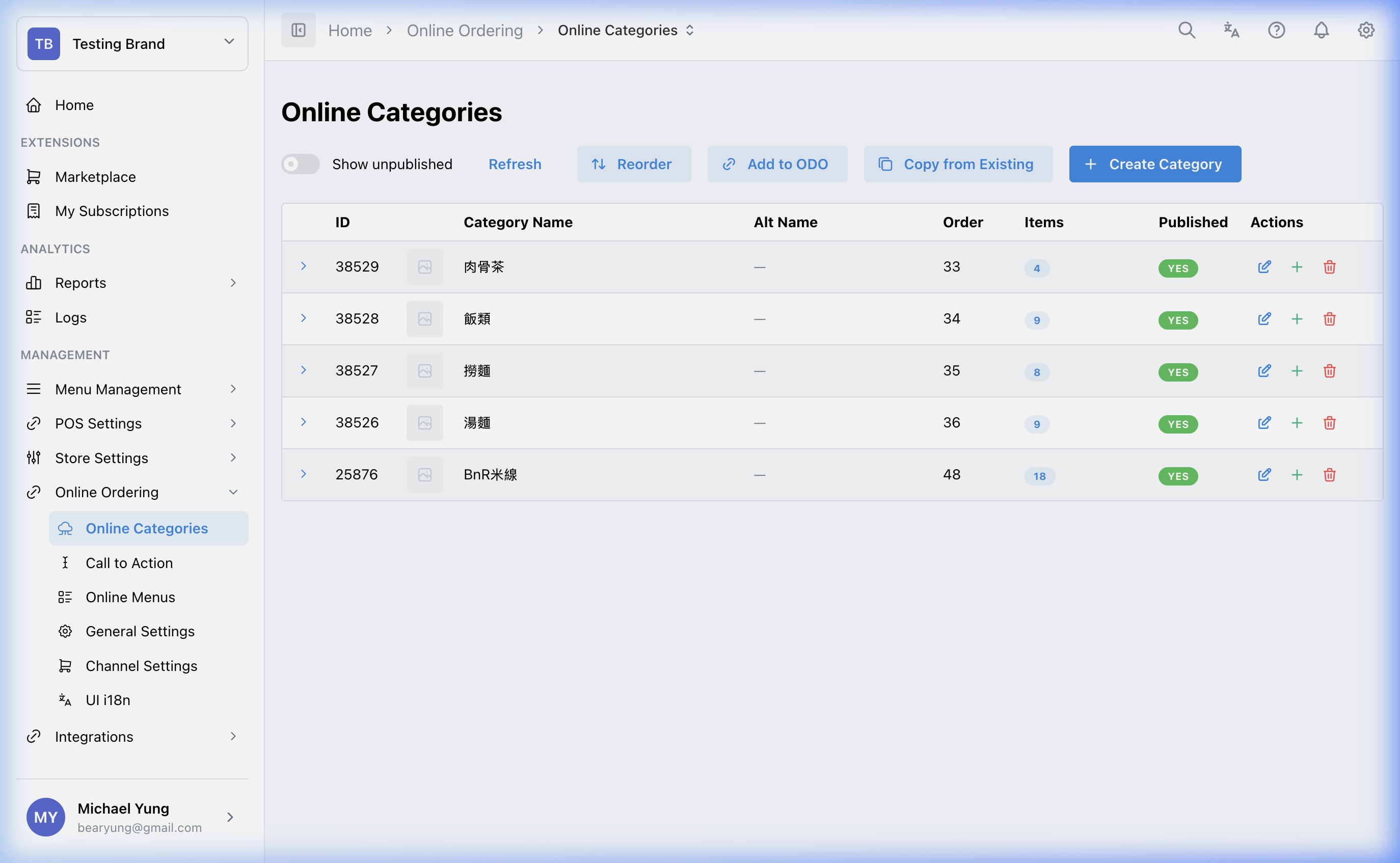
Main sections
Category publishing
Publish content in groups instead of item by item.
You can map:
Smart CategoriesStandard Categories
Once a category is mapped for online use, the items inside that category can be sold through online ordering.
The list uses Published to show whether an online category is available. Use Show unpublished when a category is missing from the default list. Online categories are shared with POS, so changes made here can also affect POS displays.
When a category is added to online ordering, HQ creates the new shop mapping as enabled/public by default. Review the shop display settings before saving if the category should be hidden from a shop.
Beast Mode
Use Beast Mode when you need to create several online categories with the same shared setup.
When Beast Mode is on, enter one row for each online category with:
NameName Alt
The shared settings below the row list apply to every online category created in that save. Use normal create mode when each online category needs different setup.
If the required Button Style does not exist yet, use Create button style beside the selector, enter Style Name, choose Color Palette, check Preview, and select Create Style.
Images
Use the row editor for a category or item to upload product images.
This is the customer-facing image set for online ordering, so use clear images that help customers recognise the product quickly.
Online pricing
If online prices need to differ from in-store POS prices, use the online pricing controls on the item.
This is useful when delivery or platform commissions require a different online selling price.
Descriptions
Use the online description field for customer-facing copy such as:
- short product details
- selling points
- allergen or important ordering notes
Steps
- Open
Online Ordering->Online Categories. - Find the category or item you need to update.
- Publish or map the required category for online use.
- Open the related row or editor panel.
- Upload the image, update the description, or change the online price override as needed.
- Select
Save. - If the category is not listed, turn on
Show unpublishedand check itsPublishedstatus.
Create several online categories at once
- Open
Online Ordering->Online Categories. - Select the new-category action.
- Turn on
Beast Mode. - Enter one row for each online category.
- Complete the shared settings below the row list.
- Select
Create. - Review the online category list and confirm every category was created.
What changes after you save
Saved changes affect how categories and items appear in the online storefront.
Depending on the change, customers may see a category become available, a new image, updated description text, or a different online selling price.
How to check your change
- Reopen the same category or item and confirm the saved values remain.
- Open the target online ordering channel.
- Confirm the category is visible and the item content matches what you saved.
- If you changed online price, confirm the storefront shows the expected value.
- Confirm the category shows
Publishedfor the intended shops.
If something goes wrong
- Confirm the category was actually mapped for online use.
- If an item is missing online, check whether it is in the published category you edited.
- If the item should stay visible but not sellable temporarily, do not remove it from the online category. Use POS inventory control to mark it sold out instead.
- If the wrong price appears, re-check whether you changed the online override or only the base POS price.
- If the category is visible in HQ but not in the storefront, check both
Publishedand the shop'sPublic Displaysetting.
When to ask owner/admin
- The category or item change affects a live customer menu during trading hours.
- You are unsure whether the online price should differ from the in-store price.
- The content includes compliance, allergen, or brand-copy requirements you do not control.
Needed file: hq/online-ordering/online-categories-publication-status.png