General Settings
Admins who manage shop-level online ordering settings after the brand and menu structure are already in place.
Before you start
- Confirm the correct brand.
- Confirm you know which store you need to edit.
- Decide whether you need base store behavior, payments, channels, notifications, or 3rd Party Platforms.
Open this page
Open Online Ordering -> General Settings.
What this page is for
General Settings is the entry point for store-level online ordering setup.
Use this page to:
- review all stores available for the selected brand
- check whether each store is marked
In use - open
Shop Settingsfor the specific store you need to edit
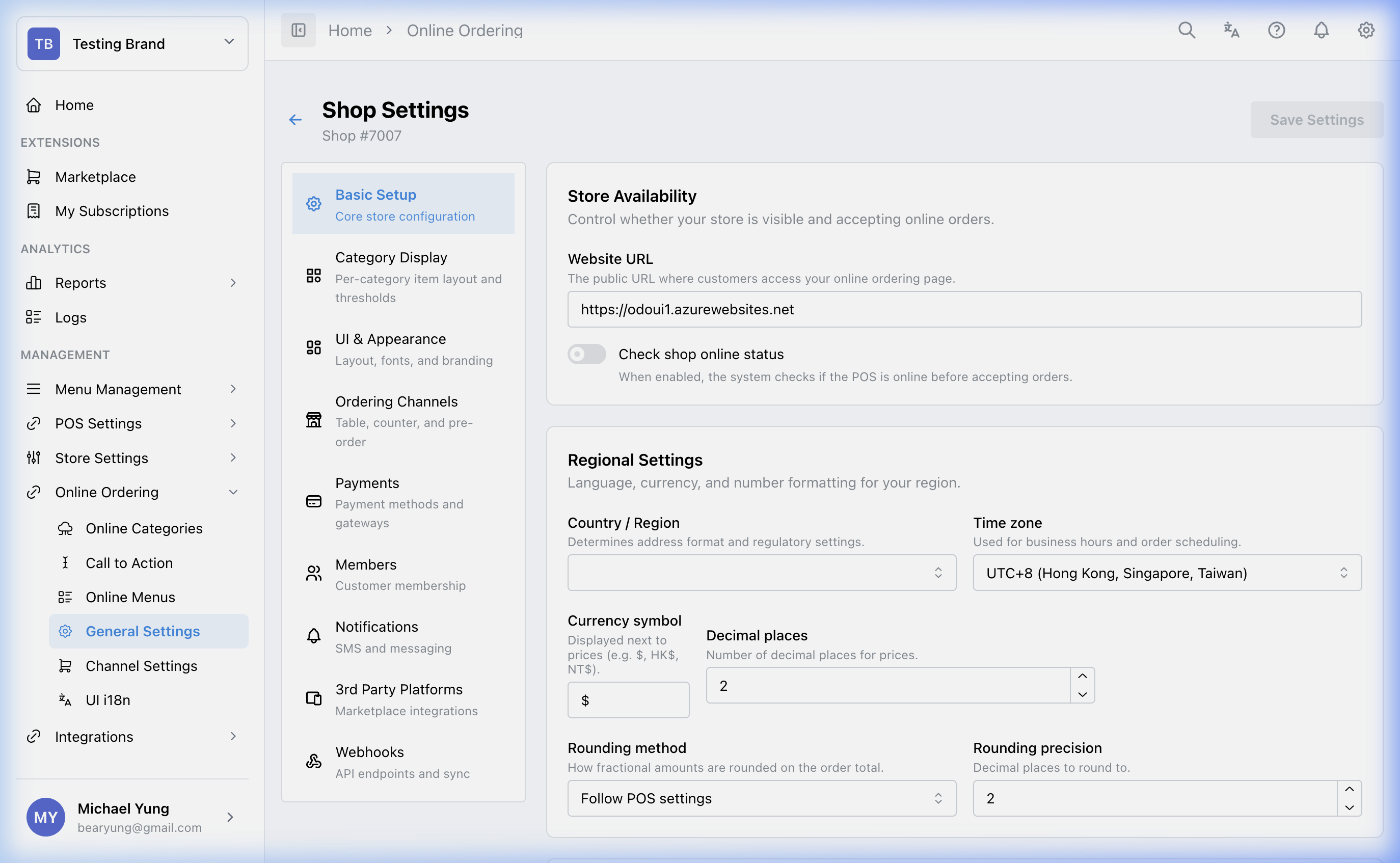
After you open a store, Shop Settings gives you separate sections such as Basic Setup, Ordering Channels, Payments, 3rd Party Platforms, and Webhooks.
Main sections
Store list
The main General Settings page shows one row per store.
Key columns:
Store NameIn useActions
Use the edit action on the correct row to open Shop Settings.
Shop Settings
Inside one store, the left navigation can include:
Basic SetupCategory DisplayUI & AppearanceOrdering ChannelsPaymentsMembersNotifications3rd Party PlatformsWebhooks
Use the section that matches the change you are making instead of editing unrelated settings on the same visit.
Steps
- Open
Online Ordering->General Settings. - Confirm the correct brand.
- Find the correct row under
Store Name. - Check the
In usestatus if you need to confirm the store already has online ordering settings. - Select the edit action for that store.
- In
Shop Settings, open the section you need. - Select
Save Settingsafter you finish the store-level change.
What changes after you save
Changes apply to the store you opened in Shop Settings.
Some changes only affect storefront behavior for that one store. Other changes also affect channel availability or partner integrations for that store.
How to check your change
- Return to
General Settingsand reopen the same store. - Confirm the updated values are still present in the section you changed.
- Verify the result in the relevant storefront or downstream setup page.
If something goes wrong
- Confirm you edited the correct store row before opening
Shop Settings. - Re-check whether the change belongs in
Payments,Ordering Channels, or 3rd Party Platforms. - If a related order channel is missing, check the platform subscription in Marketplace.
When to ask owner/admin
- You are unsure which store should receive the change.
- The change affects live online ordering during trading hours.
- You need credentials or approval for payment, webhook, or third-party platform settings.