Menus and Combinations
Admins who build customer-facing online menus and decide which shops use each menu.
Before you start
- Confirm the correct brand.
- Confirm the required online categories are already prepared.
- Decide whether one menu can be shared across shops or whether different shops need different online menus.
Open this page
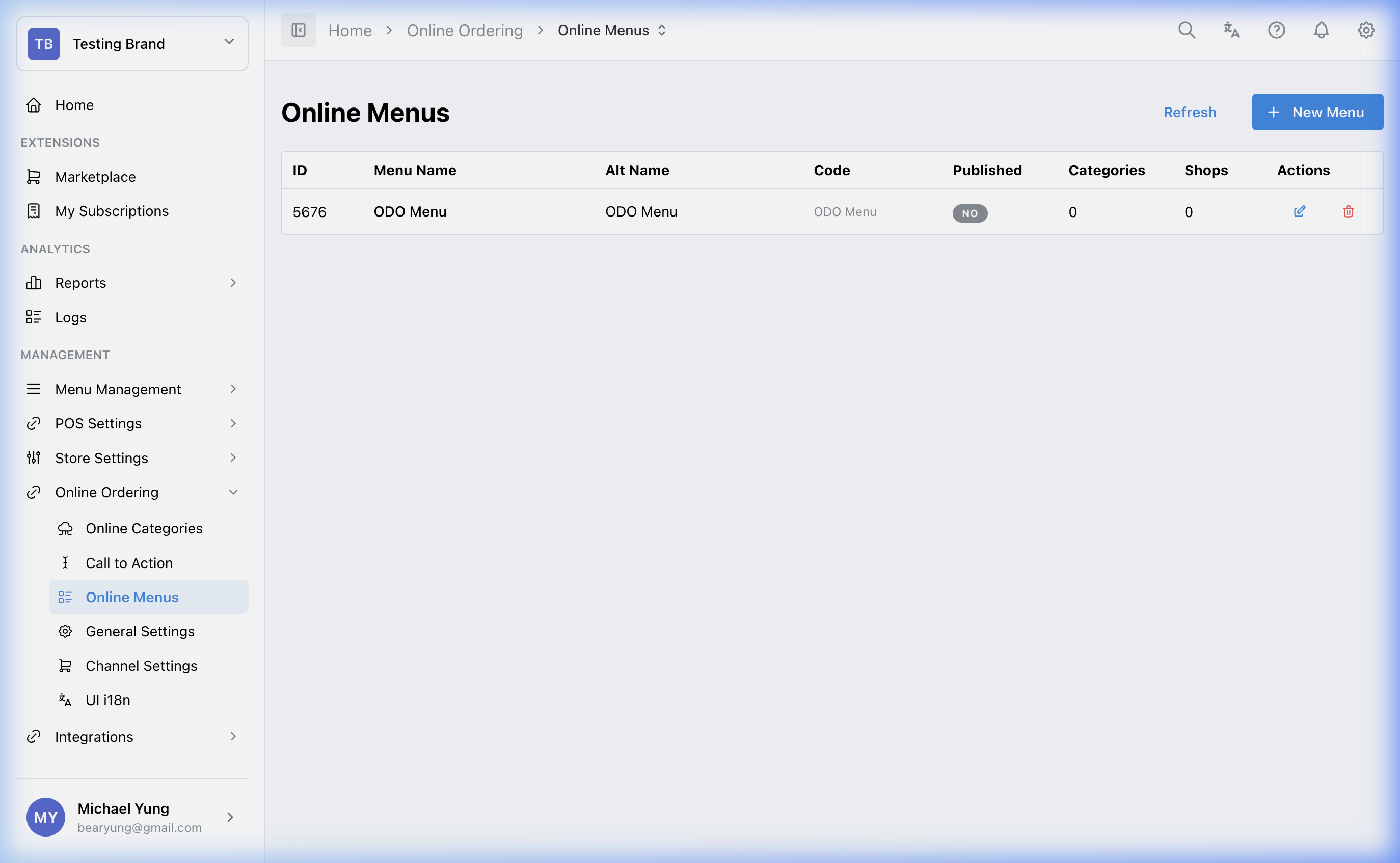
Open Online Ordering -> Online Menus.
What this page is for
Online Menus controls how published online categories are grouped into storefront menus.
Use this page to:
- create a new online menu shell
- define the menu
Menu Name,Alt Name,Code, andPublishedstate - add the required categories into the menu
- assign the menu to shops and edit the
Shop Schedule
An online menu is the menu wrapper customers browse after opening a store link.
Main sections
Menu combination
A menu combination is the outer menu customers see, such as:
Lunch Delivery MenuDinner Pickup Menu
Different combinations let you separate menus by service type, trading period, or shop-specific availability.
Menu details
When creating or editing a menu, check:
Code: used for linking or integration referenceMenu Name: shown to customers in the storefrontAlt Name: optional alternate menu namePublished: whether the menu is available- category selection: controls what appears inside the menu
Visible in ODO: whether the menu is exposed in the ODO ordering flow
Category order
After categories are added, arrange them in the order customers should see first.
Use the display order controls to keep high-priority or most-used categories near the top.
Shop assignment
Online menus can be reused across multiple shops, but they still need to be assigned to the correct shops.
If two shops sell the same online assortment, one menu may be enough. If their assortment or selling rules differ, build separate menus.
Open Shop Schedule ({count}) to review each shop's Public state and schedule. Newly assigned shops are enabled/public by default; turn Public Display off for shops that should not show the menu.
Steps
- Open
Online Ordering->Online Menus. - Select
New Menuif you need a new menu. - Enter
Menu Name, optionalAlt Name, andCode. - Set
Publishedas needed, then selectCreate. - Open the menu and use
Categories ({count})to add or remove categories. - Use
Shop Schedule ({count})to review each shop'sPublicstate andPublic Displaysetting. - Use
Details->Visible in ODOand selectSave Detailswhen the storefront visibility needs to change.
What changes after you save
The saved menu controls what customers can browse after opening the related store or ordering entry point.
If the menu is assigned to multiple shops, the change can affect all of them at once.
How to check your change
- Reopen the menu and confirm the saved categories and order remain.
- Check the
Publishedstate and assigned shop mapping. - Confirm each intended shop's
Publicvalue isYes. - Open the target storefront and confirm customers see the correct menu structure.
If something goes wrong
- Confirm the categories were already published for online use.
- Confirm the menu was assigned to the correct shops.
- If one shop should not share the same assortment, split the setup into separate online menus instead of reusing one menu.
- If customers see the wrong menu name or order, re-check
Menu Nameand category ordering. - If a menu is missing from ODO, check
Published,Visible in ODO, and the shop'sPublic Displaysetting.
When to ask owner/admin
- The menu change affects a live storefront during trading hours.
- You are unsure whether shops should share one online menu or use separate menus.
- The menu structure affects platform-specific trading, pricing, or compliance rules.
Needed file: hq/online-ordering/online-menu-publication-and-shop-schedule.png