Dashboard
Store owners and general managers monitoring top-level daily activity and active connected stores.
Before you start
- Sign in to the correct workspace and brand.
- Decide whether you are checking status only or trying to find the next setup page.
Open this page
Open Dashboard.
What this page is for
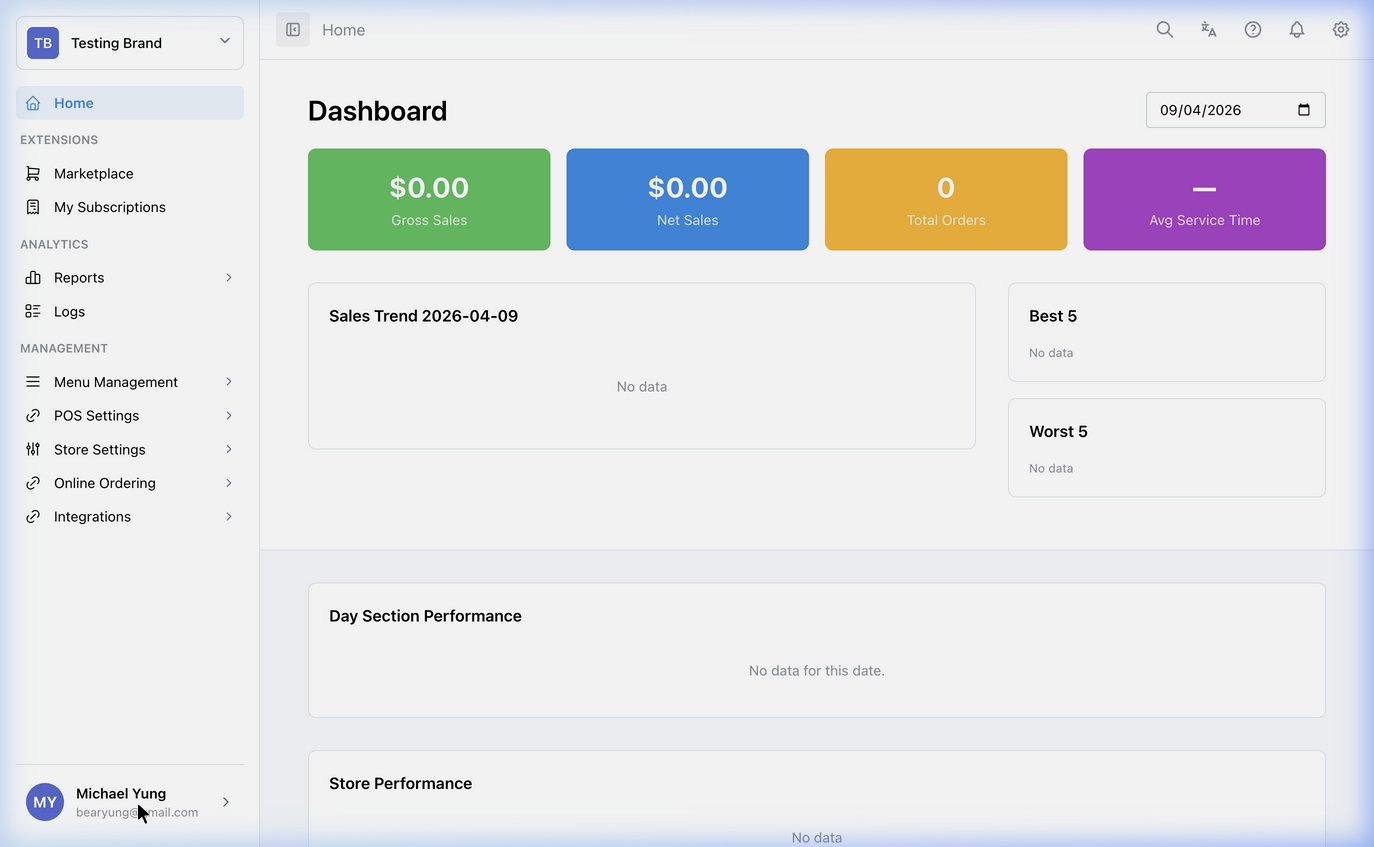
Dashboard is the main landing page after sign-in. Use it to check high-level activity and jump to the next area of HQ.
Main sections
- Daily KPI cards:
Gross Sales,Net Sales,Total Orders, andAvg Service Timefor the selected date. - Performance charts: sales trend, best/worst items, store, category, hourly, department, payment method, and dine-in/takeaway views.
- Header tools: search, language switch, support, notifications, and settings.
- Workspace and brand selector: the upper-left selector controls which workspace and brand the dashboard is showing.
How to use this page
Use the dashboard to decide which section you need next:
- go to Workspace Administration for workspace members, business structure, and HQ business access
- go to Store Settings Overview for shop-specific setup
- go to POS Settings Overview for POS behavior and payment setup
- go to Menu & Catalog Overview for item and menu maintenance
- go to Reports Overview for analytics
To update your own personal login details, click your profile avatar in the navigation bar. To switch workspace or brand, use the selector in the upper-left corner.
New workspace onboarding
When a workspace has no company, brand, or shop yet, HQ shows a setup prompt instead of dashboard metrics.
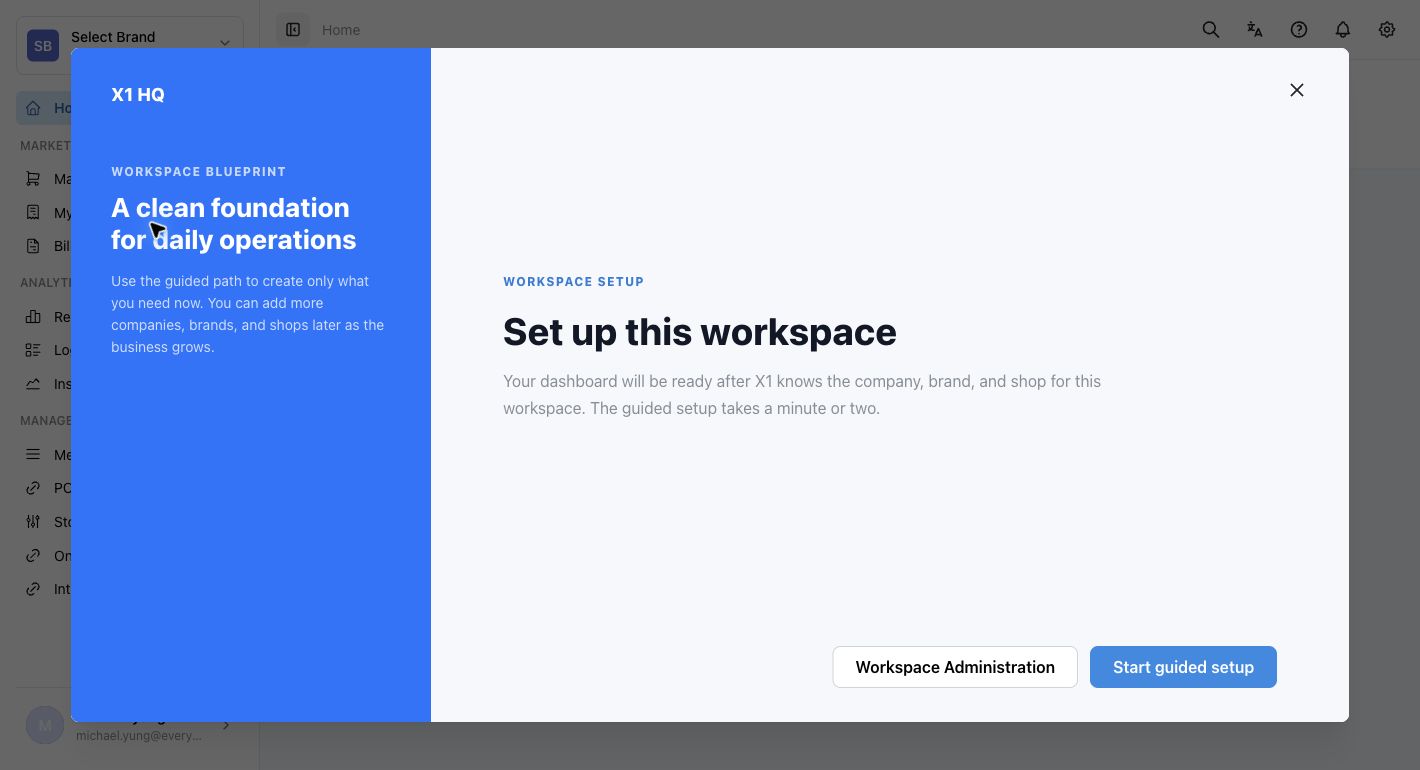
Use Start guided setup if you are ready to create the first operating structure. Use Workspace Administration if you want to review members and access first.
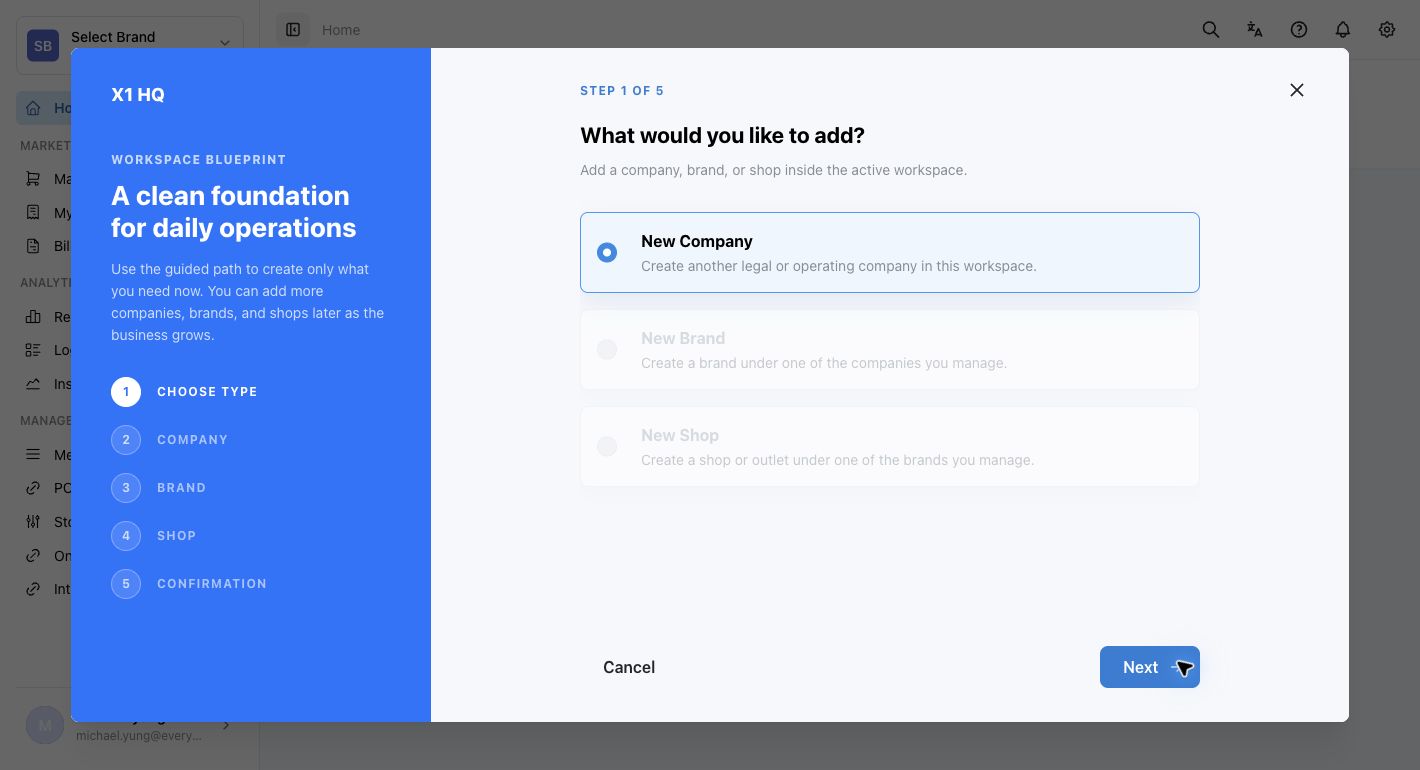
The guided setup starts with What would you like to add? and walks through Choose Type, Company, Brand, Shop, and Confirmation.
What changes after you save
The dashboard is mainly a monitoring and navigation page. Use it to locate the correct setup section before you edit data elsewhere.
If something goes wrong
- Confirm you are in the correct workspace and brand.
- If the numbers look wrong, open the related report or setup section before editing anything.
- If you see
Set up this workspace, create the first company, brand, and shop before expecting reports or POS settings to show normal data.
When to ask owner/admin
- You cannot find the correct workspace or brand.
- The dashboard shows unexpected store status or metrics and you do not know which section owns the issue.