Tax & Surcharge
Who this is for
Admins and finance-aware managers who maintain tax and surcharge rules used by the POS.
Before you start
- Confirm the correct brand.
- Confirm whether you are creating tax logic, service charge logic, or another surcharge.
- Verify the expected rate and shop rollout before saving.
Open this page
Open POS Settings -> Tax & Surcharge.
What this page controls
This page defines automatic or manual financial additions used on orders.
Use it to manage:
- tax entries
- surcharge entries
- calculation order
- auto-calculate behavior
- per-shop activation
These definitions are created at brand level and then enabled per shop.
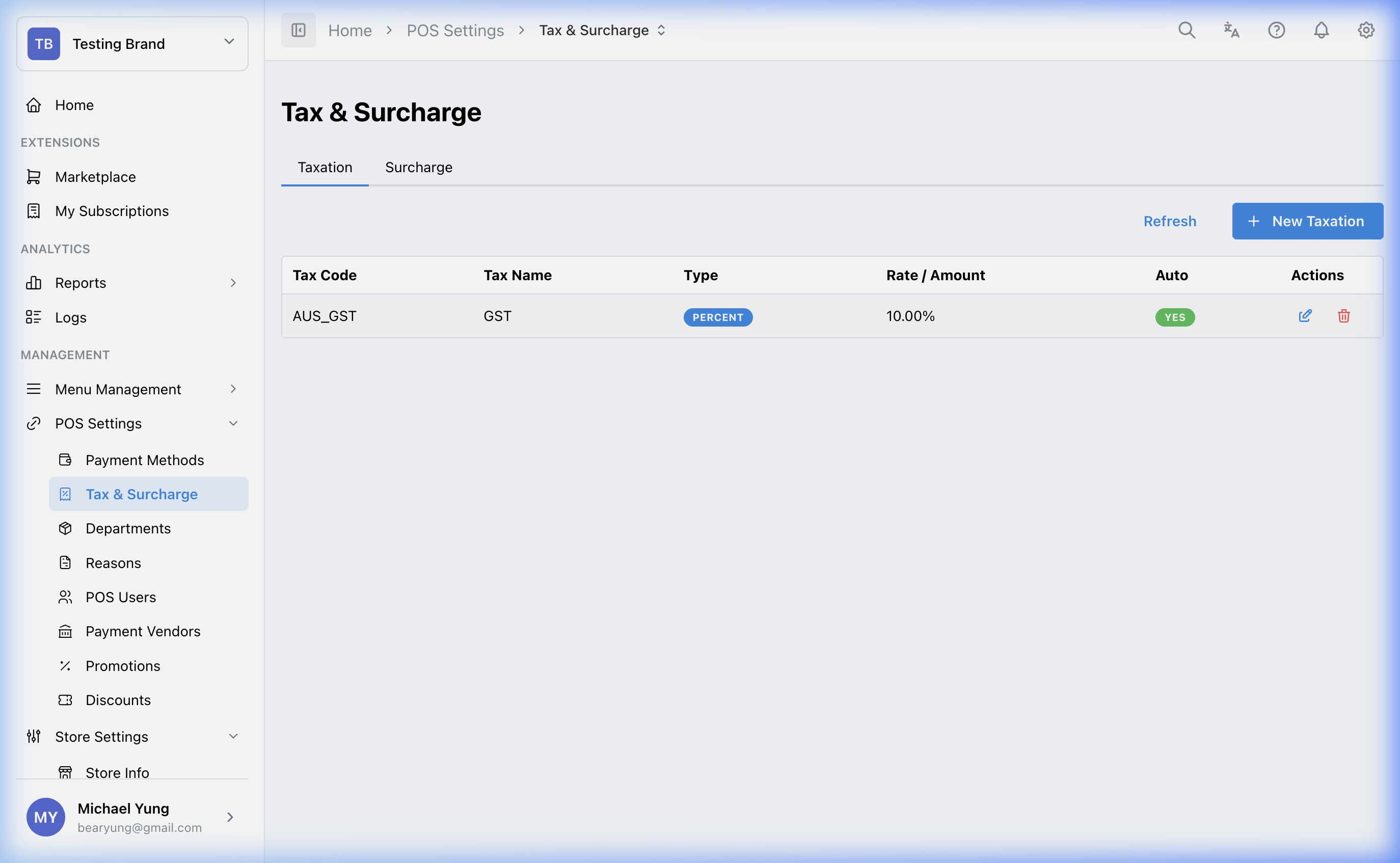
Main sections
Shared fields
| Field | What it controls | When to change it |
|---|---|---|
Code and Name | Internal identity and receipt label | When you add or rename a rule |
Priority | Order of calculation | When more than one rule can apply |
Fixed Amount vs percentage | Whether the rule is flat or percentage-based | When the business rule requires one model or the other |
Amount or percentage value | The actual charge value | When the business rate changes |
Calculation modifiers
Auto Calculate: applies the rule automatically when enabledOpen Amount: prompts the user for a value instead of using one fixed amount
Shop settings
Use the shop settings area to enable the rule only for the shops that should apply it.
Restore a recently removed tax or surcharge
Use Show recently removed on the relevant list when a tax or surcharge rule was removed by mistake.
- The
Taxationlist and theSurchargelist each have their own recently removed toggle. - The toggle only shows taxations or surcharges removed in the last 24 hours. Records removed longer ago are not included.
- Recently removed rows use a light gray background.
- A recently removed row only shows the restore action. The edit and delete actions are hidden.
- Select the restore icon to make the taxation or surcharge active again.
- HQ blocks the restore if another active taxation or surcharge already has the same
CodeorName.
Steps
- Open
POS Settings->Tax & Surcharge. - Create or open the target tax or surcharge rule.
- Enter the
CodeandName. - Set the calculation
Priority. - Choose fixed amount or percentage.
- Enter the value.
- Turn
Auto CalculateorOpen Amounton only if required. - Enable the rule for the target shops.
- Save the rule.
- If you removed a tax or surcharge rule by mistake, turn on
Show recently removedin the relevant list. - Find the light gray row and select the restore icon.
- If HQ blocks the restore, review any active taxation or surcharge with the same
CodeorNamebefore trying again.
What changes after you save
Saving the rule updates the brand-level definition. The rule only affects the shops where it is enabled.
How to check your change
- Reopen the rule and confirm the saved values.
- Confirm the intended shops are enabled.
- Verify the result in the target POS calculation flow or receipt output when practical.
If something goes wrong
- Confirm the issue is not caused by shop enablement.
- Check
Priorityif multiple rules are interacting unexpectedly. - Review whether the rule should be automatic or manual before changing the rate itself.
- If restore is blocked, check whether another active taxation or surcharge is using the same
CodeorName.
When to ask owner/admin
- The change affects legal tax handling or customer-facing surcharges.
- You are unsure about calculation order between multiple rules.
- The change affects multiple shops and you cannot verify all of them safely.