System Parameters
Owner/admin users maintaining advanced shop behavior and technical operating parameters.
Before you start
- Confirm the correct brand and shop.
- Do not edit this page unless you understand the target parameter and expected value.
- Record the current value before you change anything.
Open this page
Open Store Settings -> System Parameters.
What this page controls
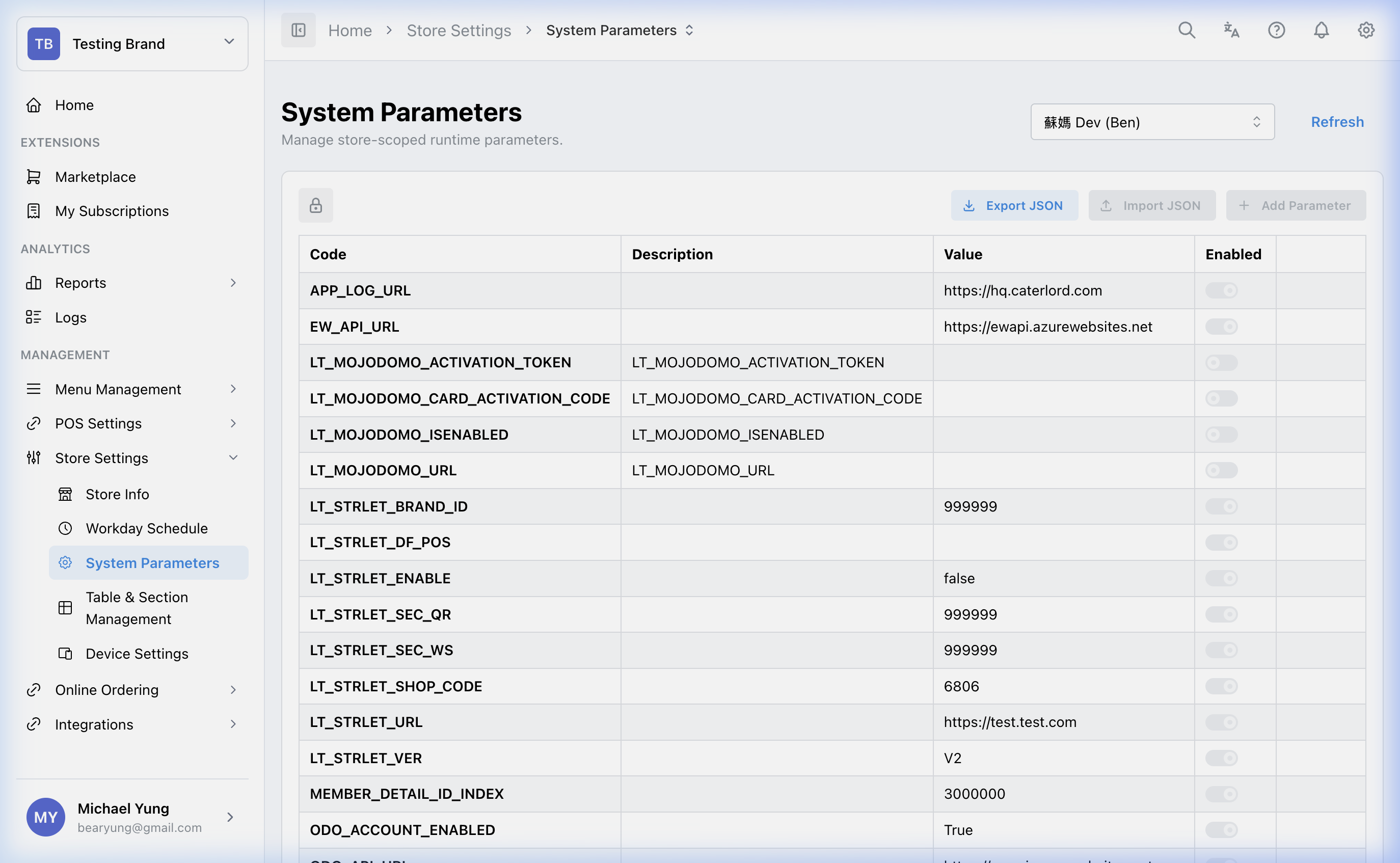
System Parameters stores advanced configuration values that can affect how the POS behaves, prints, or connects to other systems.
This page is high risk. Changes here can affect live operations immediately or on the next sync/use of the parameter.
Changing system parameters without a confirmed reason can break device connectivity, printing behavior, or reporting logic. Use this page only when you have a known target value and a way to verify the result.
Main sections
Locked table
The page opens in a locked read-only state.
To edit:
- Select the padlock or unlock control.
- Review the unlock warning.
- Confirm the unlock action.
Parameter rows
Each row includes:
CodeDescriptionValueEnabled
Code identifies the parameter. Value is the active setting. Enabled turns the parameter on or off without deleting it.
Dirty-row save behavior
The page uses row-level save controls. When you change a row, that row shows save and reset actions.
Use:
- row
Saveto keep that specific change - row
Resetto undo unsaved changes on that row
JSON import and export
The JSON tools help copy parameters from one shop to another.
Use them only when you are confident the source and target shops should share the same advanced configuration.
Steps
- Open
Store Settings->System Parameters. - Confirm the selected shop.
- Unlock editing.
- Find the target parameter row.
- Update only the field you intend to change.
- Save that row.
- Repeat only if you have another confirmed parameter to update.
Copying parameters with JSON
- Open the source shop and export the parameter JSON.
- Switch to the target shop.
- Unlock editing.
- Import the JSON file.
- Review the diff carefully.
- Select only the rows you want to apply.
- Apply the changes.
What changes after you save
These changes affect the selected shop's advanced operating behavior. Depending on the parameter, the effect may appear in printing, device interaction, reporting, or POS workflow.
How to check your change
- Reopen the row and confirm the value saved correctly.
- Verify the real behavior in the part of the system that uses that parameter.
- If you used JSON import, review the affected rows after the import completes.
If something goes wrong
- Revert the affected row to the previous confirmed value.
- Stop making additional parameter changes until the effect is understood.
- If the issue came from JSON import, identify the changed rows before retrying.
When to ask owner/admin
- You do not know the correct target value.
- The parameter affects payments, printing, device communication, or reporting logic.
- The issue appears after an imported parameter set and you cannot isolate the changed row safely.