Reservations
Owners, admins, and managers who control table booking rules, run the daily booking board, and review booking results for one shop.
Before you start
- Confirm the correct brand and shop.
- Confirm the shop already has its dine-in tables and floorplan set up. See Tables & Floorplan.
- Decide whether customers can book online immediately or each booking must be approved by staff first.
- Know which time zone the shop operates in. Booking slot times follow the shop's time zone.
- Avoid changing booking rules during a busy service period unless the manager on duty knows about the change.
Open this page
Open Bookings in the main menu, then choose the page you need:
Booking Board: review and act on bookings for a selected date.Booking Reports: review booking volume, covers, and outcome rates for a date range.Booking Settings: control public booking rules and the booking slot grid for the shop.X1 Floor access: grant or revoke host-stand access for the selected shop.
The Bookings menu also includes Calendar (demand by week), Guest Book (booking history per guest contact), Public Booking Page (the public link and policy preview), and Availability Rules (a read-only view of the timing and table rules).
All changes on these pages are shop-level. Always select the correct Shop first.
What this page controls
Bookings controls the shop's native table booking board and public booking rules.
Use it to:
- review reservations for a selected date
- create a reservation for a guest who calls or walks in
- confirm, reject, or cancel a booking
- mark a guest as arrived or seated
- assign or review the linked table
- review every status change of a booking in
Status history - enable or disable public booking for the shop
- set booking limits such as party size, lead time, and advance booking window
- set the time zone and slot grid used by the public booking page
- review booking volume, covers, no-show rate, and cancellation rate in
Booking Reports - grant
HostorManageraccess to staff who use theX1 Floorhost-stand app
Screenshot pending: static/img/hq/store-settings/reservations_board.png
Main pages
Booking Board
Booking Board shows the reservations for the selected shop and date.
The board includes:
TimeGuestPartyTableStateActions
In the Actions column, the eye icon opens Booking details. A quick Confirm action shows for Pending bookings and a quick Mark arrived action shows for Confirmed bookings. Use Refresh to reload the list and New booking to create a staff-entered reservation.
Booking details and status history
Open a booking from the board to see Booking details. The dialog shows the guest's Phone, Email, Party, Table, Guest note, and Staff note. You can change the Table and Staff note here.
Only the actions that are valid for the booking's current state are shown:
| Current state | Available actions |
|---|---|
Pending | Confirmed, Rejected, Cancelled, Arrived, Seated, No-show |
Confirmed | Arrived, Seated, Cancelled, No-show |
Arrived | Seated, Cancelled, No-show |
Seated, Rejected, Cancelled, No-show | None. The dialog shows This booking is in a final state and no further actions are available. |
Status history lists every status change with who made it and when:
- HQ staff changes show the HQ user.
- Changes made on the POS show as
POS:followed by the POS user name. - Cancellations made by the guest online show as
Guest.
Screenshot pending: static/img/hq/store-settings/reservations_detail_history.png
Booking Settings
Booking Settings controls whether customers can make public bookings for this shop and which time slots they can choose.
| Field | What it controls | When to change it |
|---|---|---|
Enable public booking | Whether guests can book from the public booking page. | Turn on when the shop is ready to take online bookings. |
Require manual approval | New public requests stay Pending until staff confirm them. | Turn on when staff should review every request. |
Public booking slug | The last part of the public booking page URL. Lowercase letters, numbers, and hyphens only. The slug must be unique across all shops. | Set once before going live. Change only for brand reasons. |
Maximum party size | The largest party a guest can book online. | Match the largest table or combination you accept online. |
Booking duration (minutes) | How long each booking holds the table. | Match your typical seating time. |
Buffer after booking (minutes) | Extra time blocked after each booking before the table can be booked again. | Increase when tables need turnaround time. |
Minimum lead time (minutes) | How far in advance a guest must book. | Increase when the kitchen or floor needs notice. |
Maximum advance window (days) | How far into the future guests can book. | Match your planning horizon. |
Time zone | The time zone used to interpret the slot times below. Shop default follows the shop's own time zone. | Pick an explicit zone such as Asia/Hong_Kong only when the shop default is wrong for this shop. |
First slot time | The earliest booking start time offered each day. | Match the start of service. |
Last slot time | The latest booking start time offered each day. | Set early enough for the booking duration to finish before close. |
Slot interval (minutes) | The gap between booking times offered to guests. | Use shorter intervals for higher turnover. |
Booking policy text | The policy text guests see on the public booking page. | Update when house rules change. |
First slot time, Last slot time, and Slot interval (minutes) build the grid of times guests can choose on the public booking page. All slot times are interpreted in the shop's time zone.
Screenshot pending: static/img/hq/store-settings/reservations_settings.png
Booking Reports
Booking Reports shows booking volume and outcomes for a date range.
- Choose a preset range:
Last 7 days,Last 30 days, orLast 90 days, or chooseCustomand setFromandTo. A report can cover at most 366 days; a longer range is adjusted automatically. - The stat cards show
Total bookings,Total covers,No-show rate, andCancellation rate. Daily breakdownlists each day withDate,Bookings,Covers,Honoured,No-shows,Cancellations, and aDistributionbar.By statebreaks the range down by final booking state.By sourcesplits bookings betweenPublic booking pageandHQ(staff-entered).
Screenshot pending: static/img/hq/store-settings/reservations_reports.png
X1 Floor access
X1 Floor access controls who can open the X1 Floor host-stand app for the selected shop.
Use this page when front-of-house staff need to manage table flow, waitlist, blocked tables, table turns, or floor-side open-table actions without giving them full HQ admin access.
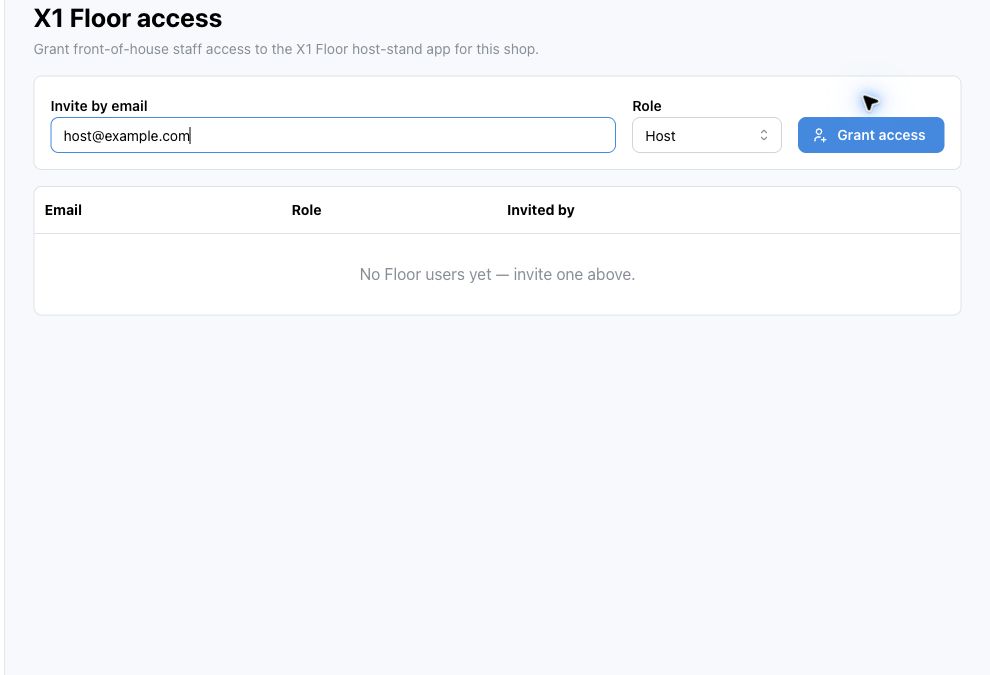
The page includes:
Invite by email: the staff email address that should receive access.Role: chooseHostfor normal host-stand use orManagerfor staff who can manage higher-impact floor actions.Grant access: saves the access grant for the selected shop.- the access table, showing
Email,Role,Invited by, and aRevokeaction for existing users.
Booking states and who can change them
A booking moves through states: Pending, Confirmed, Arrived, Seated, and the final outcomes Rejected, Cancelled, and No-show.
- HQ staff can apply any action valid for the current state from
Booking BoardorBooking details. - POS staff can mark
Arrived,Seat,No-show, orCancelfrom the POSReservationsboard. - Guests can view and cancel their own booking online (see the public booking page), but only while it is
PendingorConfirmed.
Rejected means staff declined a Pending request, for example when the shop cannot take the party. Only HQ staff can reject, and only while the booking is Pending.
Seated, Rejected, Cancelled, and No-show are final. A booking in a final state cannot be changed again; create a new booking instead.
Steps
- Open
Bookings->Booking Settings. - Select the correct
Shop. - Turn on
Enable public bookingif customers should be able to request bookings from the public booking page. - Turn on
Require manual approvalif staff must confirm each customer request before it becomes confirmed. - Enter a short
Public booking slugusing lowercase letters, numbers, and hyphens. - Set
Maximum party size. - Set
Booking duration (minutes)andBuffer after booking (minutes). - Set
Minimum lead time (minutes)andMaximum advance window (days). - Set
Time zone. KeepShop defaultunless this shop needs a different zone. - Set
First slot time,Last slot time, andSlot interval (minutes). - Enter clear
Booking policy textfor guests. - Select
Save. If the slug is already used by another shop, the save is rejected; choose a different slug. - Open
Bookings->Booking Board. - Select the service
Date. - Review the list and use
ConfirmorMark arrivedwhen the reservation reaches that stage, or openBooking detailsfor other actions.
Grant X1 Floor access
Use this when a host or floor manager needs access to the host-stand app for one shop.
- Open
Bookings->X1 Floor access. - Confirm the correct
Shopis selected when the shop selector is shown. - Enter the staff member's email in
Invite by email. - Choose
HostorManagerinRole. - Select
Grant access. - Check that the staff member appears in the access table.
- If access was granted to the wrong person, select
Revokeon that row.
Create a staff-entered reservation
Use New booking when a guest contacts the shop directly.
- Open
Bookings->Booking Boardand select the correctShop. - Select
New booking. - Enter the reservation
Time. - Enter the guest
NameandPhone. - Enter the guest's
Emailif the guest should receive booking emails. - Enter the
Partysize. - Select a
Tableif the table is already known. - Add
Guest noteorStaff noteif needed. - Select
Create booking. - If no table is free at that time, the page asks
No table is available at this time — create anyway?. SelectCreate anywayonly when the shop can genuinely take the party; otherwise pick another time. - Check that the new reservation appears on
Booking Board.
The public booking page and guest self-service
The shop's public booking page is published at:
{booking site}/book/{slug}
where {slug} is the Public booking slug saved in Booking Settings. The full link is shown on the Public Booking Page page under Public booking URL.
Guests who book with an email address automatically receive emails in the language they booked in:
- when their request is received
- when the booking is confirmed
- when the booking is rejected
- when the booking is cancelled
Guests can also manage their own booking at {booking site}/manage using their booking reference and the phone number used for the booking. From there they can view the booking and cancel it while it is still Pending or Confirmed. Guest cancellations appear in Status history as Guest.
What changes after you save
Booking settings affect the selected shop only.
If Enable public booking is on, guests can use the public booking page for that shop. If Require manual approval is on, new customer requests stay Pending until staff confirm them. Slot grid changes (Time zone, First slot time, Last slot time, Slot interval (minutes)) change the times guests can choose on the public booking page.
Reservation board actions are operational records. They change what HQ, POS, and connected assistant tools show for that booking, and each action is added to the booking's Status history. Status changes made on the POS sync back to HQ automatically, normally within a minute while the POS is online.
X1 Floor access changes only who can open the host-stand app for the selected shop. It does not create a normal HQ workspace member by itself, and it does not change booking rules, public booking availability, or table layout.
How to check your change
- Reopen
Bookings->Booking Settings. - Confirm the selected
Shopstill shows the expected values. - Open the public booking page URL and confirm the offered times match the shop's service hours in the shop's time zone.
- Open
Bookings->Booking Boardfor today's date. - Create a test booking if the shop is not live.
- Check that the POS
Reservationsboard shows the same booking for the same shop. - After staff or guest actions, open
Booking detailsand confirmStatus historyrecorded them. - If you granted
X1 Floor access, ask the staff member to sign in toX1 Floorand confirm the venue appears in their venue picker.
If something goes wrong
- If a guest cannot book online, confirm
Enable public bookingis on and thePublic booking slugis correct. - If saving settings fails with
This public booking link is already used by another shop., choose a differentPublic booking slug. - If saving settings fails with a slug format message, use only lowercase letters, numbers, and hyphens in the slug.
- If guests see the wrong booking times, check
Time zone,First slot time,Last slot time, andSlot interval (minutes). - If a valid booking time is blocked, check
Minimum lead time (minutes),Maximum advance window (days), and the shop schedule. - If a booking appears under the wrong shop, stop and check the selected brand and shop before editing more reservations.
- If POS does not show the booking, refresh the POS
Reservationsboard and confirm the terminal is using the same shop. - If a report range warning appears, the range was longer than 366 days and the end date was adjusted.
- If
Grant accessis disabled, check thatInvite by emailcontains a valid email address. - If a staff member cannot see the shop in
X1 Floor, confirm they were granted access for the same shop and email address they used to sign in.
When to ask owner/admin
- You are not sure whether online bookings should be public for this shop.
- You need to change approval policy for a live service period.
- A customer dispute depends on the booking's
Status history. - The public booking page should use a different URL or policy text for brand reasons.
- No-show or cancellation rates in
Booking Reportslook unusual and may need a policy change. - You are not sure whether a floor staff member should receive
HostorManageraccess.