Device Settings
Admins and setup staff who register or maintain the hardware records for a specific shop.
Before you start
- Confirm the correct brand and shop.
- Gather the terminal, printer, or cash drawer details before you start.
- If the devices are already live, record the current setup first.
Open this page
Open Store Settings -> Device Settings.
What this page controls
Device Settings is the main hardware setup page for a shop.
Use it to register and maintain:
- terminals
- printers and KDS endpoints
- cash drawers
This page is shop-level.
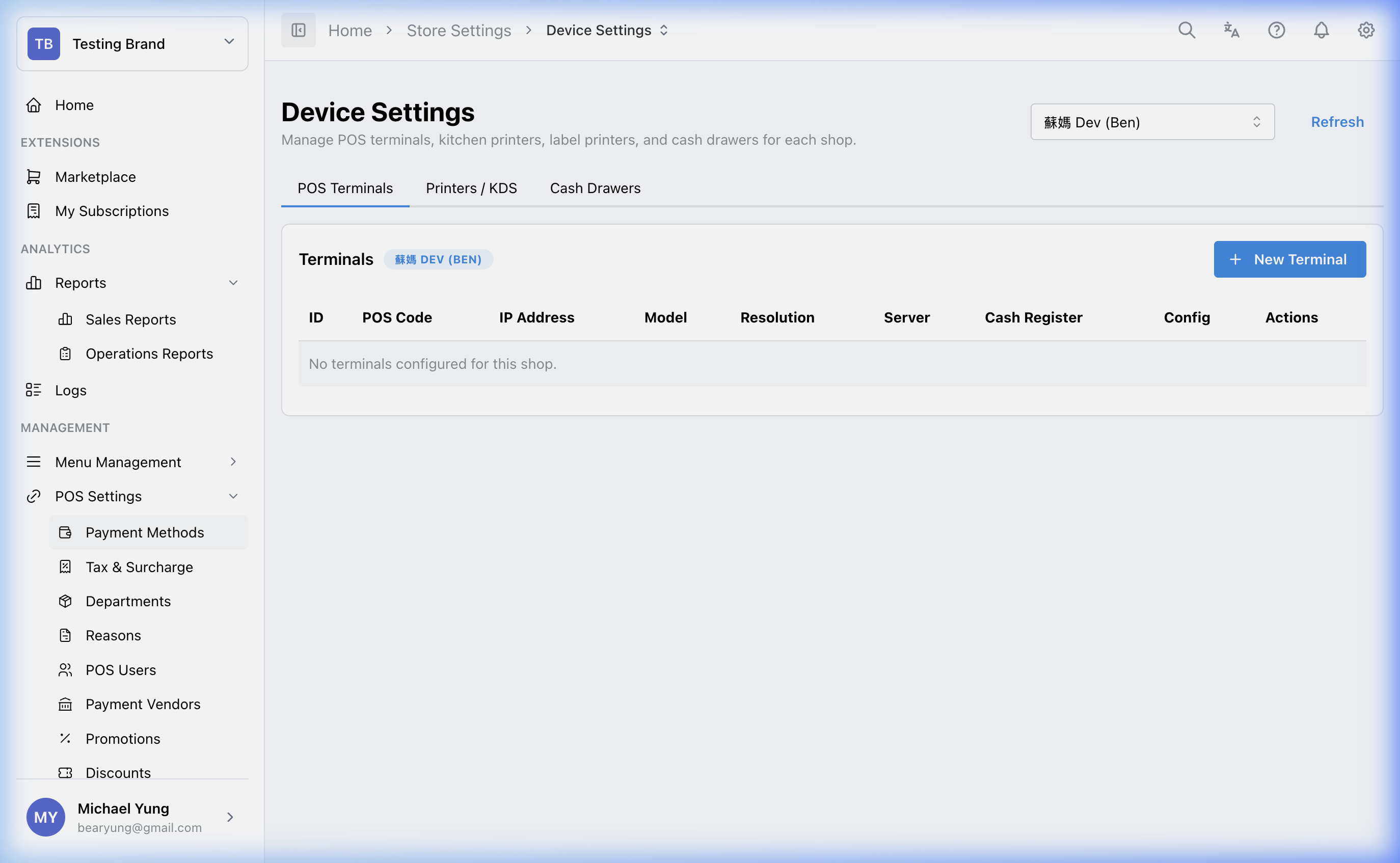
Main sections
Terminals
A terminal represents a physical POS tablet or kiosk.
Common fields include:
POS CodeIP Address- terminal role such as server or cash register
- model or resolution
Printers and KDS
Use this area to register kitchen printers, receipt printers, label printers, or KDS screens.
This is also where routing decisions such as dine-in versus takeaway printing behavior may be maintained.
Use Beast Mode in the printer/KDS create flow when the shop needs several printer or KDS records that share the same setup. Enter one Printer Name per row, then complete the shared settings before saving.
Use normal create mode when each printer or KDS record needs different routing or connection details.
Cash drawers
Use this area to link physical cash drawers to the relevant terminal or trigger behavior.
Steps
- Open
Store Settings->Device Settings. - Confirm the selected shop.
- Add or review the required terminal records.
- Add or review printers or KDS endpoints.
- Add or review cash drawer records.
- Save the changes.
Create several printers or KDS records at once
- Open
Store Settings->Device Settings. - Confirm the selected shop.
- Open the
Printers/KDScreate flow. - Turn on
Beast Mode. - Enter one
Printer Nameper row. - Complete the shared printer or KDS settings.
- Select
Create. - Review the
Printers/KDSlist and confirm every record was created for the selected shop.
What changes after you save
These changes affect how the selected shop's hardware is registered and used. Incorrect values can affect printing, payment flow, or drawer operation.
How to check your change
- Reopen the page and confirm the hardware records are present.
- Verify the target device appears in the expected list.
- Test the related function in the target shop, such as printing or drawer opening, when practical.
If something goes wrong
- Confirm you edited the correct shop.
- Check whether the issue is in the terminal record, printer/KDS record, or cash drawer link.
- Revert only the affected hardware record first instead of changing all related devices again.
When to ask owner/admin
- You do not have the correct hardware details.
- The change affects live printing, cash drawer behavior, or payment flow.
- You cannot safely test the device after saving.