Info Settings
Admins and managers who maintain the identity, address, contact details, and timezone of a specific shop.
Before you start
- Confirm the correct brand and shop.
- Gather the official shop name, receipt address text, contact details, and timezone before you start.
- If receipts are already in live use, record the current address and business details before editing them.
Open this page
Open Store Settings -> Info Settings.
What this page controls
Info Settings manages the main identity of a shop.
Use this page to maintain:
- shop name and alternate name
- internal shop code and descriptions
- address and alternate address details
- contact details
- currency and delivery notes
- timezone
- overall shop enabled status
This page is shop-level. Changes here should be verified in the selected shop.
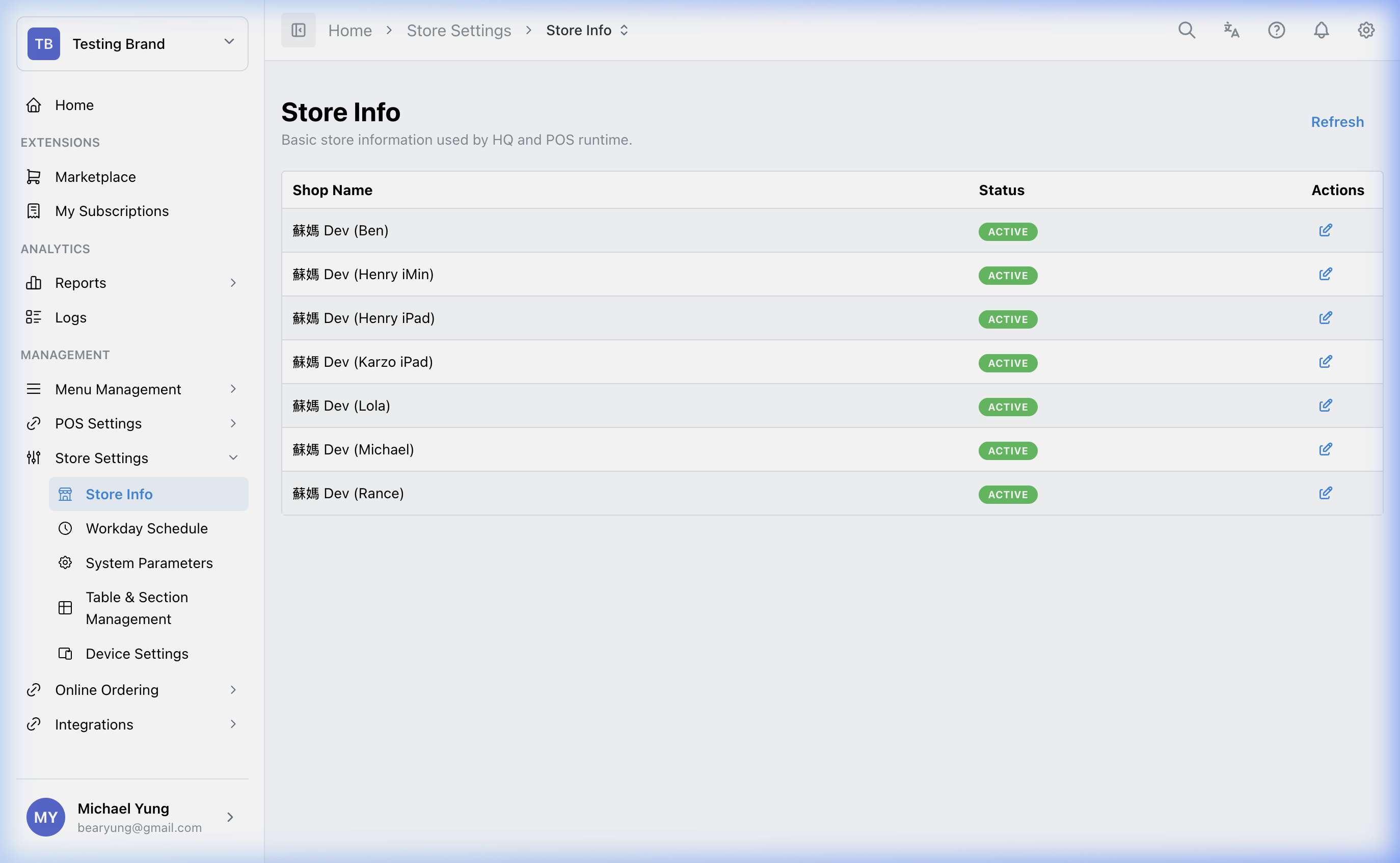
Main sections
Basic information
This area defines how the shop is identified in HQ and in related store-facing workflows.
| Field | What it controls | When to change it |
|---|---|---|
Shop Name | Main display name of the branch | When the official operating name changes |
Alt Name | Alternate display name, often for another language | When the shop needs a localized name |
Shop Code | Internal code used for filtering or integration mapping | When finance or integrations require a stable branch code |
Description and Alt Description | Internal descriptive notes | When you need extra branch context in HQ |
Address
Use the standard address fields for business and operational information. Use the alternate address fields when receipt output needs different text.
Receipt logos
Use Receipt Logos when printed output needs a brand or shop logo.
For each logo setting:
- Upload a high-contrast JPG image.
- Choose
HeaderorFooter. - Choose the shops that should use the logo, or select all shops.
- Choose the printout types that should show the logo, such as
Invoice / Receipt,Takeaway Receipt,Kitchen Item Checklist, orODO Slip.
ODO Slip controls the logo on ODO ticket slips printed by POS.
Alt address
The alternate address fields can affect printed receipt content. Use them carefully.
If you change alternate address lines, check a real receipt or receipt preview after saving so legal or customer-facing text is still correct.
Contact information
Use this area for branch phone, fax, and primary contact details.
Currency and delivery
Use the currency fields only when the selected shop should trade in that currency. Keep the symbol and code aligned.
Timezone and status
Timezone controls how the shop aligns with date-based operations and reporting.
If the timezone is wrong, sales and end-of-day reporting can fall into the wrong dates or cutoffs.
Steps
- Open
Store Settings->Info Settings. - Confirm the selected shop at the top of the page.
- Update the shop identity fields you need to change.
- Update address and alternate address details if required.
- Update contact and currency details if required.
- Update
Receipt Logosif receipt or ODO slip branding needs to change. - Confirm the timezone matches the physical shop location.
- Review the
Shop Enabledstate before saving. - Save the change.
What changes after you save
These changes apply to the selected shop. Depending on the field, they can affect:
- HQ shop details
- POS shop selection and display
- printed receipt information
- ODO slip logo output when
ODO Slipis selected in receipt logo printout types - time-based reporting behavior
How to check your change
- Reopen the page and confirm the updated values were saved.
- If you changed receipt-related text, print or preview a receipt from the target shop.
- If you changed receipt logo settings, print or preview each selected printout type, including
ODO Slipif selected. - If you changed timezone, verify the shop's operational date and reports behave as expected.
If something goes wrong
- Confirm you edited the correct shop.
- Compare the saved values against the previous record or screenshot.
- If a logo does not print on an ODO ticket slip, confirm the logo setting includes
ODO Slipand the target shop. - If receipts or reports look wrong, revert only the affected field first instead of changing multiple fields again.
When to ask owner/admin
- The change affects legal business details.
- You are unsure which address lines appear on receipts.
- You are changing timezone for a live shop and cannot test the reporting impact safely.