套用服務費
適用對象
需要在結賬前新增或移除服務費的收銀員。
開始前
- 您已登入並位於
Ordering。 - 您已開啟正確的訂單。
- 已確認門店的服務費規則。
步驟
- 套用服務費
- 取消服務費
- 在
Ordering開啟目標訂單。 - 按功能按鈕。
- 在
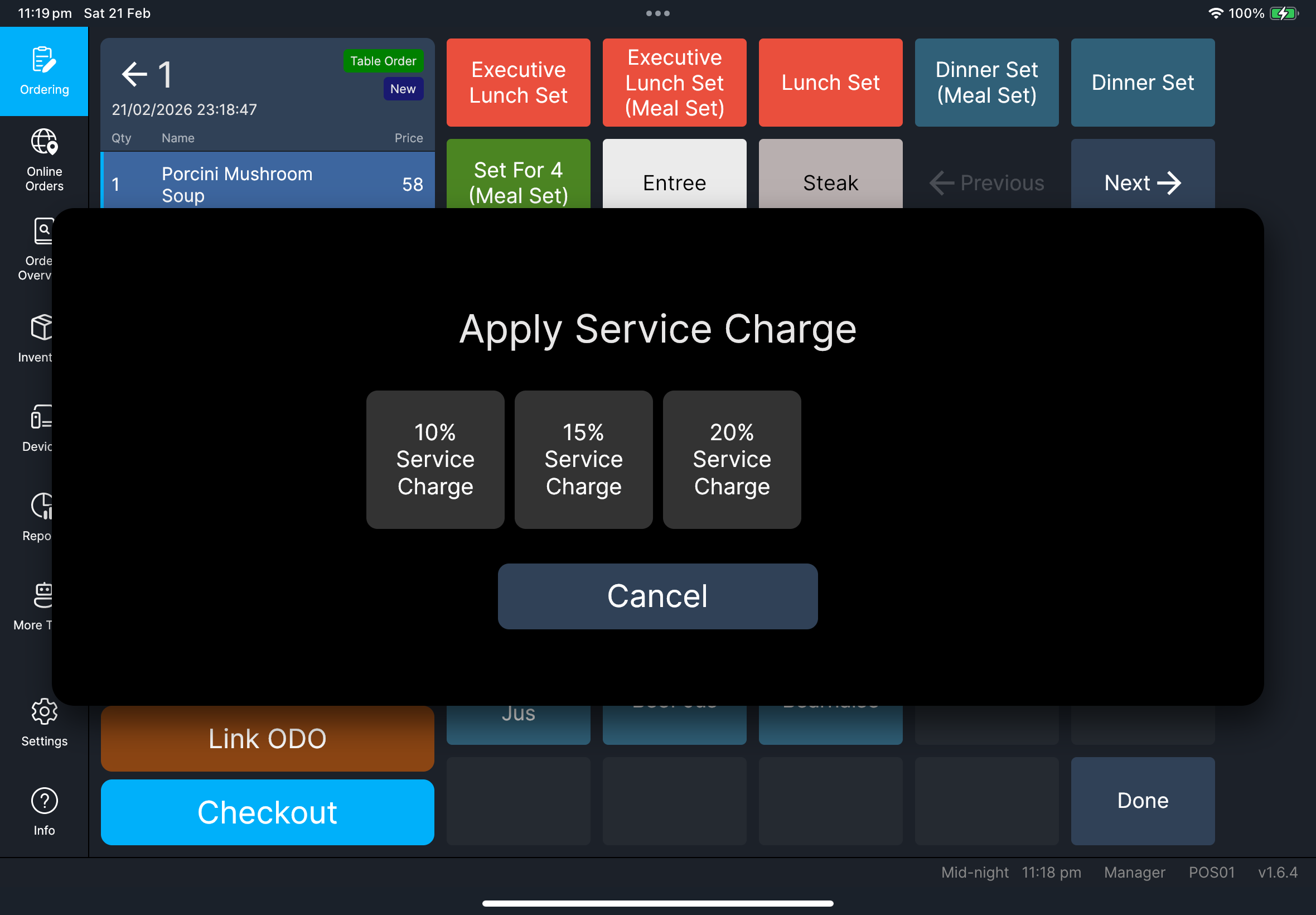
Select Function中按Apply Service Charge。 - 如果
Apply Service Charge在其他頁,按Previous或Next。 - 選擇服務費選項。
- 確認套用服務費。
- 在
Ordering開啟目標訂單。 - 按功能按鈕。
- 在
Select Function中按Cancel Service Charge。 - 如果
Cancel Service Charge在其他頁,按Previous或Next。 - 選擇要移除的服務費。
- 確認取消。
您會看到
- 套用
Apply Service Charge後,訂單會出現服務費行,總額會提高。 - 取消
Cancel Service Charge後,服務費行會移除,總額會回復。
如果出現問題
Apply Service Charge或Cancel Service Charge不見了:請檢查此帳號的角色權限。- 服務費清單是空白的:請檢查門店設定,然後重新開啟訂單。
- 確認後總額沒有更新:先關閉再重新開啟訂單,然後再查看一次。
何時需要找經理/管理員
Manager only:如果出現經理授權提示而您無法繼續。- 服務費選項與門店政策不一致。
- 已套用服務費,但結賬驗證仍然阻擋付款。