代收 / 代支
適用對象
在服務期間記錄錢箱進出款的收銀員和更班經理。
Manager only:有些門店會按角色和權限限制 Pay In / Pay Out。
開始前
- 請先確認您已登入。
- 請先確認目前有營業時段。
- 請先確認門店已設定代收 / 代支原因。
步驟
- 按
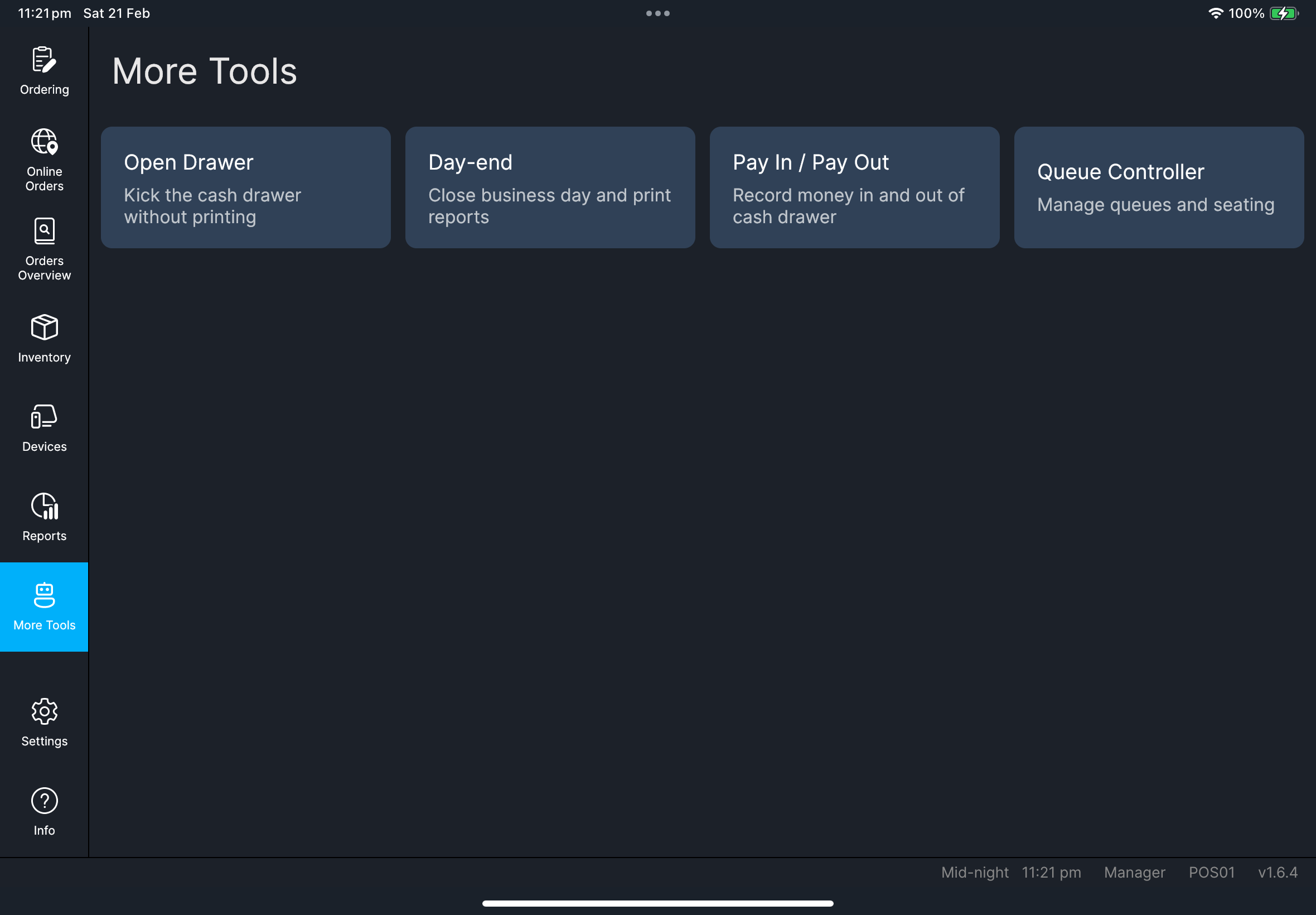
More Tools。 - 按
Pay In / Pay Out。 - 按
Pay In或Pay Out。 - 在
Select Pay In reason或Select Pay Out reason選擇原因。 - 在出現
Please enter amount時輸入金額。 - 檢查
Confirm this record?,然後按OK。
您會看到
- 新紀錄會出現在
Pay In / Pay Out清單,並更新Reason、Amount、User和Time。 - 如果門店已啟用單據列印,系統會列印代收 / 代支單。
Screenshot pending:
fn-pay-in-out-dialog.pngScreenshot pending:fn-pay-in-out-confirm-record.png
如果出現問題
- 如果看到
No active business day. Please try again later.,請先查看日結狀態。 - 如果看到
No Pay In reasons are available或No Pay Out reasons are available,代表原因設定尚未建立。 - 如果看到
Amount must be greater than zero,請輸入正數金額。 - 如果看到
Unable to save Pay In / Pay Out record,請先確認網絡,再重試一次,之後交由經理/管理員處理。
何時需要找經理/管理員
- 您因角色限制而無法進入
Pay In / Pay Out。 - 原因清單遺失或不正確。
- 儲存重複失敗,或列印單據與記錄金額不符。