Pay In / Pay Out
Who this is for
Cashiers and shift managers who record cash drawer movements during service.
Manager only: some stores restrict Pay In / Pay Out by role and permission settings.
Before you start
- Confirm you are signed in.
- Confirm there is an active business day.
- Confirm your store has pay-in/pay-out reasons configured.
Steps
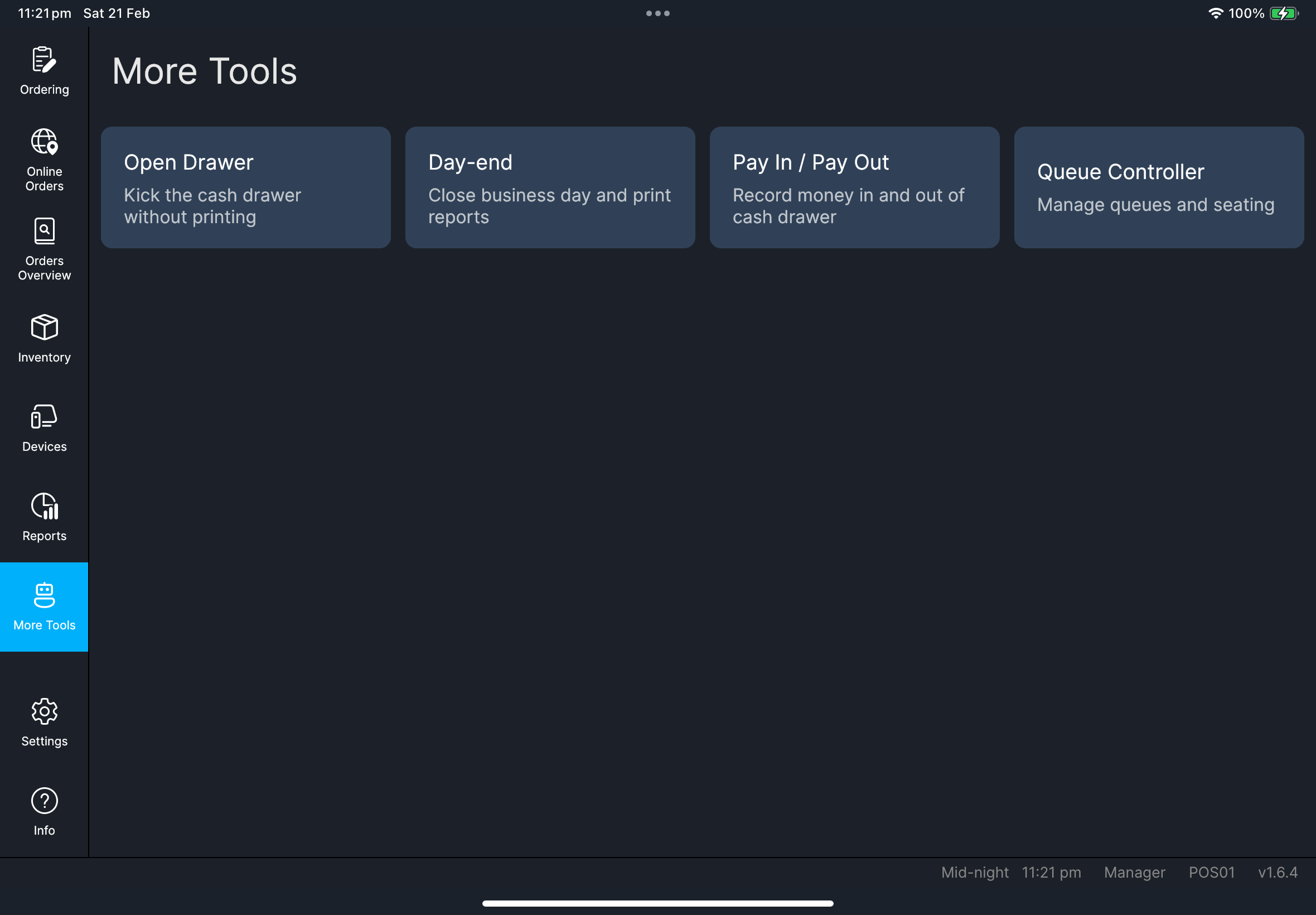
- Tap
More Tools. - Tap
Pay In / Pay Out. - Tap
Pay Inor tapPay Out. - Select a reason from
Select Pay In reasonorSelect Pay Out reason. - Enter an amount when prompted with
Please enter amount. - Review
Confirm this record?and tapOK.
What you should see
- A new record appears in the
Pay In / Pay Outlist with updatedReason,Amount,User, andTime. - A pay-in/pay-out slip prints if slip printing is enabled in your store.
Screenshot pending:
fn-pay-in-out-dialog.pngScreenshot pending:fn-pay-in-out-confirm-record.png
If something goes wrong
- If you see
No active business day. Please try again later., stop and check day status first. - If you see
No Pay In reasons are availableorNo Pay Out reasons are available, reason setup is missing. - If you see
Amount must be greater than zero, enter a positive amount. - If you see
Unable to save Pay In / Pay Out record, retry once after checking network and then escalate.
When to ask manager/admin
- You cannot access
Pay In / Pay Outbecause of role restrictions. - Reason lists are missing or incorrect.
- Save fails repeatedly or the printed slip does not match the recorded amount.