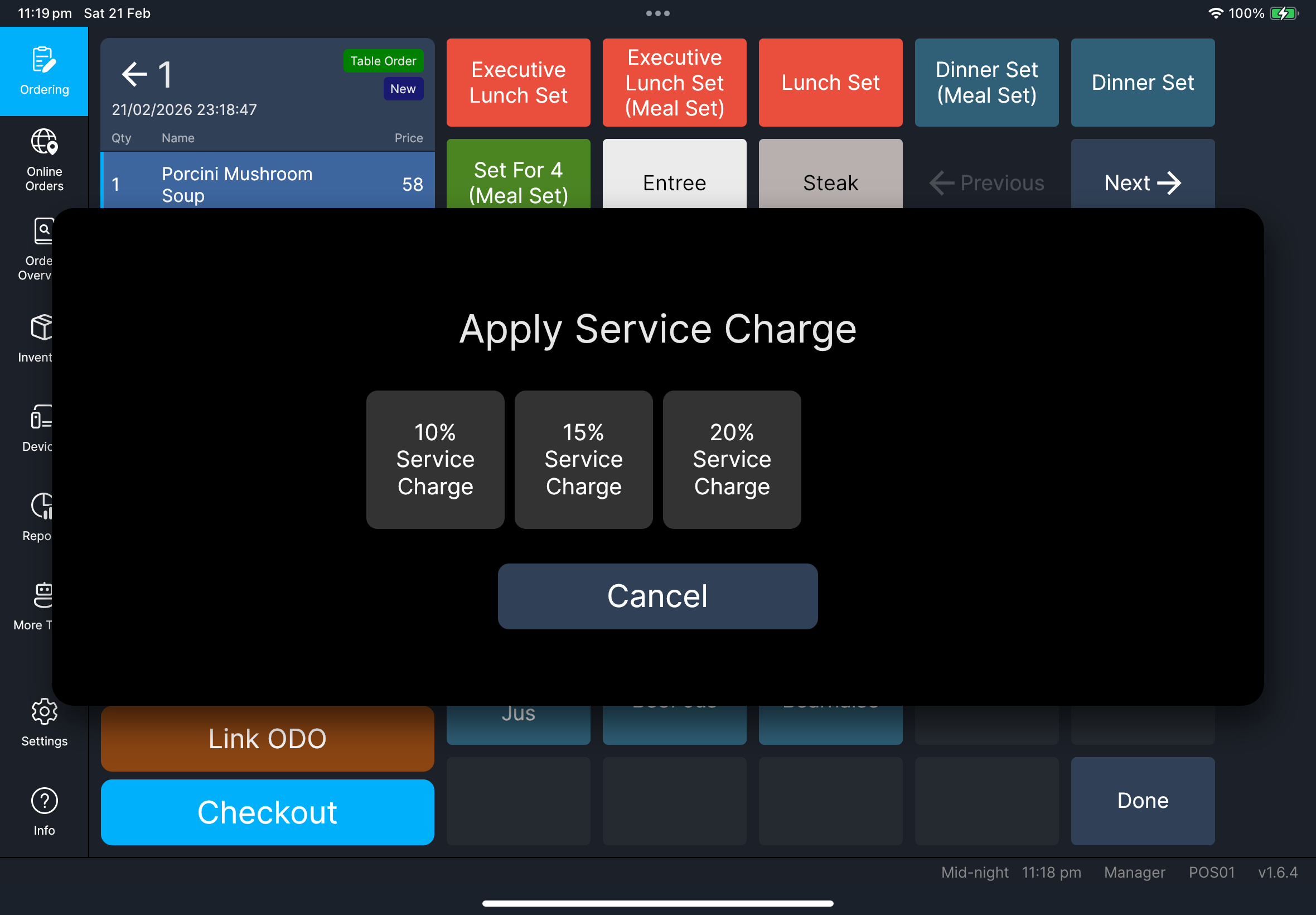
Apply Service Charge
Who this is for
Cashiers who need to add or remove service charge before checkout.
Before you start
- You are signed in and on
Ordering. - You have opened the correct order.
- Service charge rules for your store are confirmed.
Steps
- Apply Service Charge
- Cancel Service Charge
- Open the target order in
Ordering. - Tap the function button.
- In
Select Function, tapApply Service Charge. - If
Apply Service Chargeis on another page, tapPreviousorNext. - Select the service charge option.
- Confirm the service charge.
- Open the target order in
Ordering. - Tap the function button.
- In
Select Function, tapCancel Service Charge. - If
Cancel Service Chargeis on another page, tapPreviousorNext. - Select the service charge you want to remove.
- Confirm the cancellation.
What you should see
- After
Apply Service Charge, the order shows a service charge line and a higher total. - After
Cancel Service Charge, the service charge line is removed and the total returns.
If something goes wrong
Apply Service ChargeorCancel Service Chargeis missing: check user role permissions for this account.- The service charge list is empty: check store setup and reopen the order.
- The total does not update after confirm: close and reopen the order, then check again.
When to ask manager/admin
Manager only: a manager authorization prompt appears and you cannot continue.- Service charge options do not match store policy.
- Service charge is applied but checkout validation still blocks payment.