Order Contact
Who this is for
Cashiers and shift managers who need to save customer contact details on a takeaway order.
Before you start
- You are signed in and on
Ordering. - You have opened the correct takeaway order.
- You know the customer details your store is allowed to collect.
Steps
- Open the target takeaway order in
Ordering. - Tap the function menu (three dots).
- In
Select Function, tapOrder Contact. - If
Order Contactis on another page, tapPreviousorNext. - Enter the customer name in
Nameif needed. - Enter the customer phone number in
Phoneif needed. - Tap
Confirm. - Check the saved contact appears under the order header.
What you should see
- The
Order Contactdialog showsNameandPhone. - The saved contact appears on the takeaway order screen after you confirm.
- Receipt and kitchen printouts can include this contact when store print settings allow it.
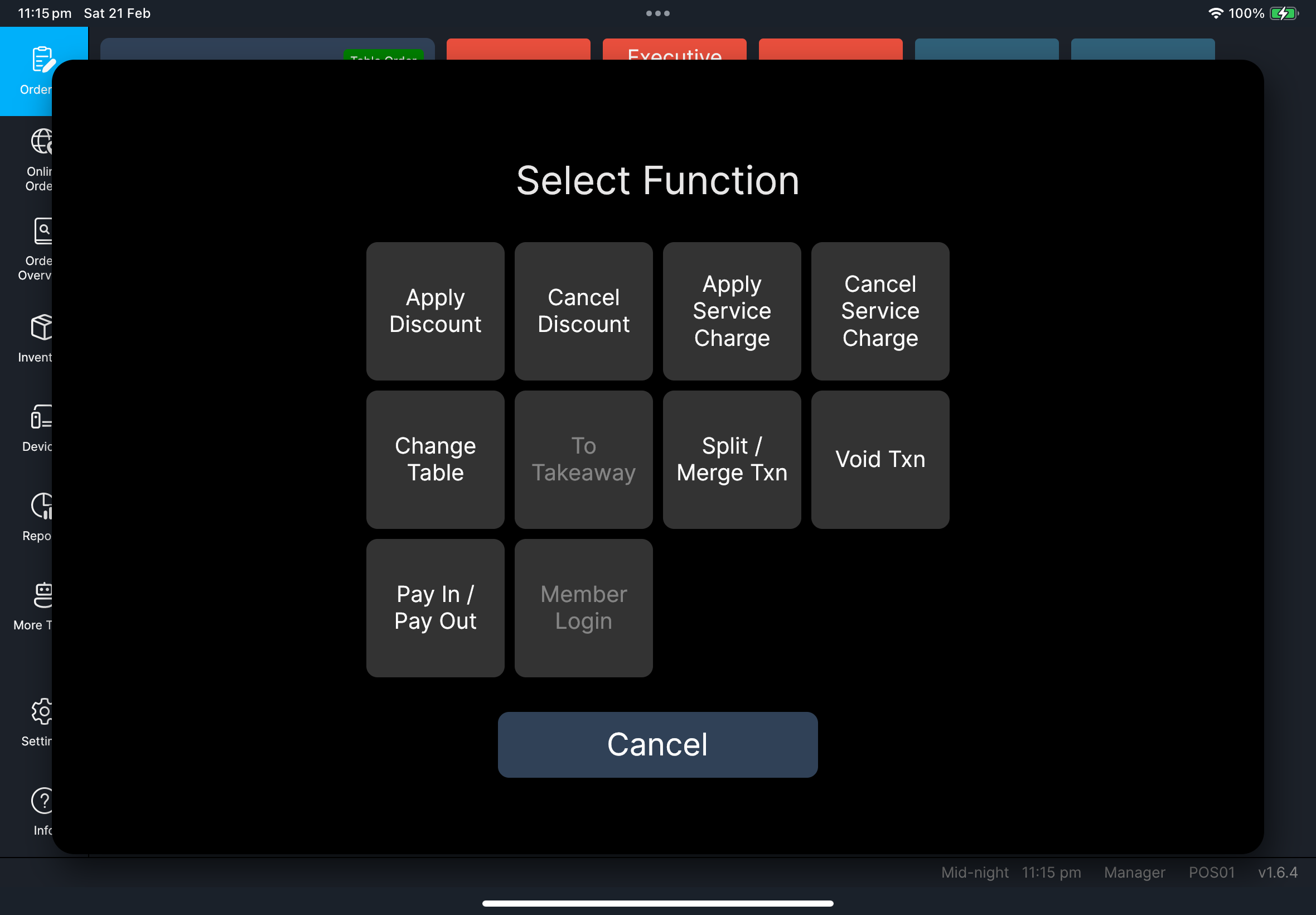
Screenshot pending:
fn-order-contact-function-menu.pngScreenshot pending:fn-order-contact-dialog-result.png
If something goes wrong
- If
Order Contactis missing, confirm the order isTakeawayand reopen the function menu. - If the contact does not appear under the header after
Confirm, reopenOrder Contactand enter the details again. - If the contact is saved on screen but missing from printouts, check
Settings->Printingfor the order-contact print toggles.
When to ask manager/admin
Manager only: your store requires approval before collecting customer phone numbers. Cashier fallback: leave the fields blank and continue the order.- You need order contact to print, but the print setting is locked or unavailable.
- Contact details still do not print after you retry with the correct settings.