會員登入
適用對象
需要把顧客會員連結到目前訂單的收銀員。
開始前
- 確認您已在
Ordering的有效訂單上。 - 確認顧客的會員編號 / QR 碼 / 條碼已準備好。
- 確認會員平台可用性(視門店設定而定)。
步驟
- 在
Ordering開啟目標訂單。 - 按功能選單(三點按鈕)。
- 在
Select Function中按Member Login。 - 如果
Member Login在其他頁,按Previous或Next。 - 如果出現
Select Member Provider,請選擇顧客所屬的正確平台。 - 掃描會員 QR 碼 / 條碼,或在輸入視窗輸入會員編號。
- 如您是手動輸入編號,請按
Confirm。 - 檢查畫面上顯示的
Member Details。 - 按
OK返回訂單。
您會看到
- 會員資料會連結到訂單。
- 訂單畫面可能會顯示會員標籤 / 標記(視門店設定而定)。
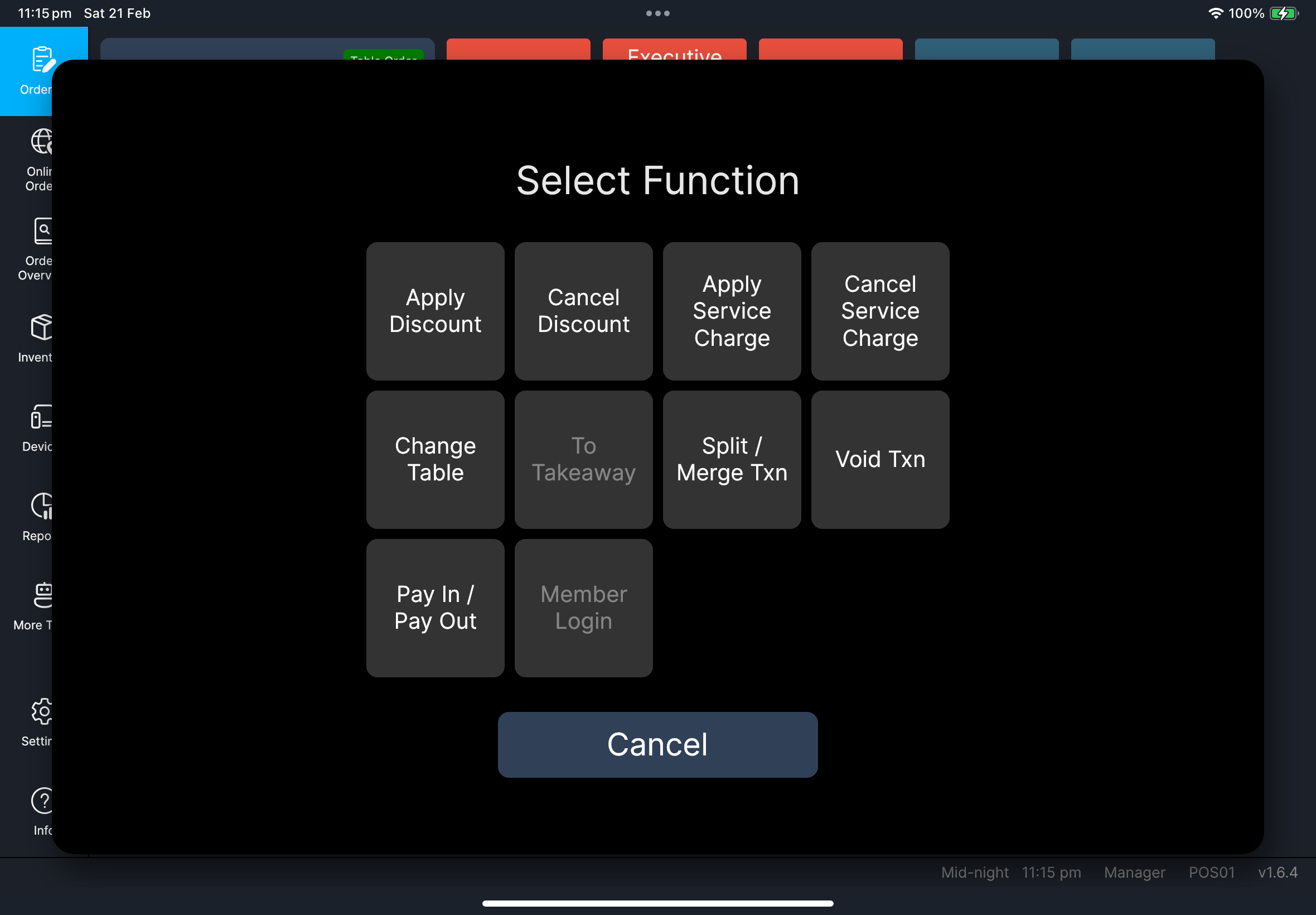
Screenshot pending:
fn-member-login-select-provider.pngScreenshot pending:fn-member-login-member-details.png
如果出現問題
- 如果找不到
Member Login,會員整合可能未為您的門店啟用。 - 如果看到
Member details unavailable,請先確認顧客編號,再重試一次。 - 如果看到
Invalid input,請按要求格式重新輸入會員編號。
何時需要找經理/管理員
- 顧客表示會員有效,但查詢一直失敗。
Select Member Provider沒有需要的平台。- 您需要移除或更換已連結到訂單的會員。