跳到主要内容

Member Login

Who this is for

Cashiers who attach a customer membership to the current order.

Before you start

  • Confirm you are on an active order in Ordering.
  • Confirm customer member ID/QR/barcode is ready.
  • Confirm member provider availability (store-configuration dependent).

Steps

  1. Open the target order in Ordering.
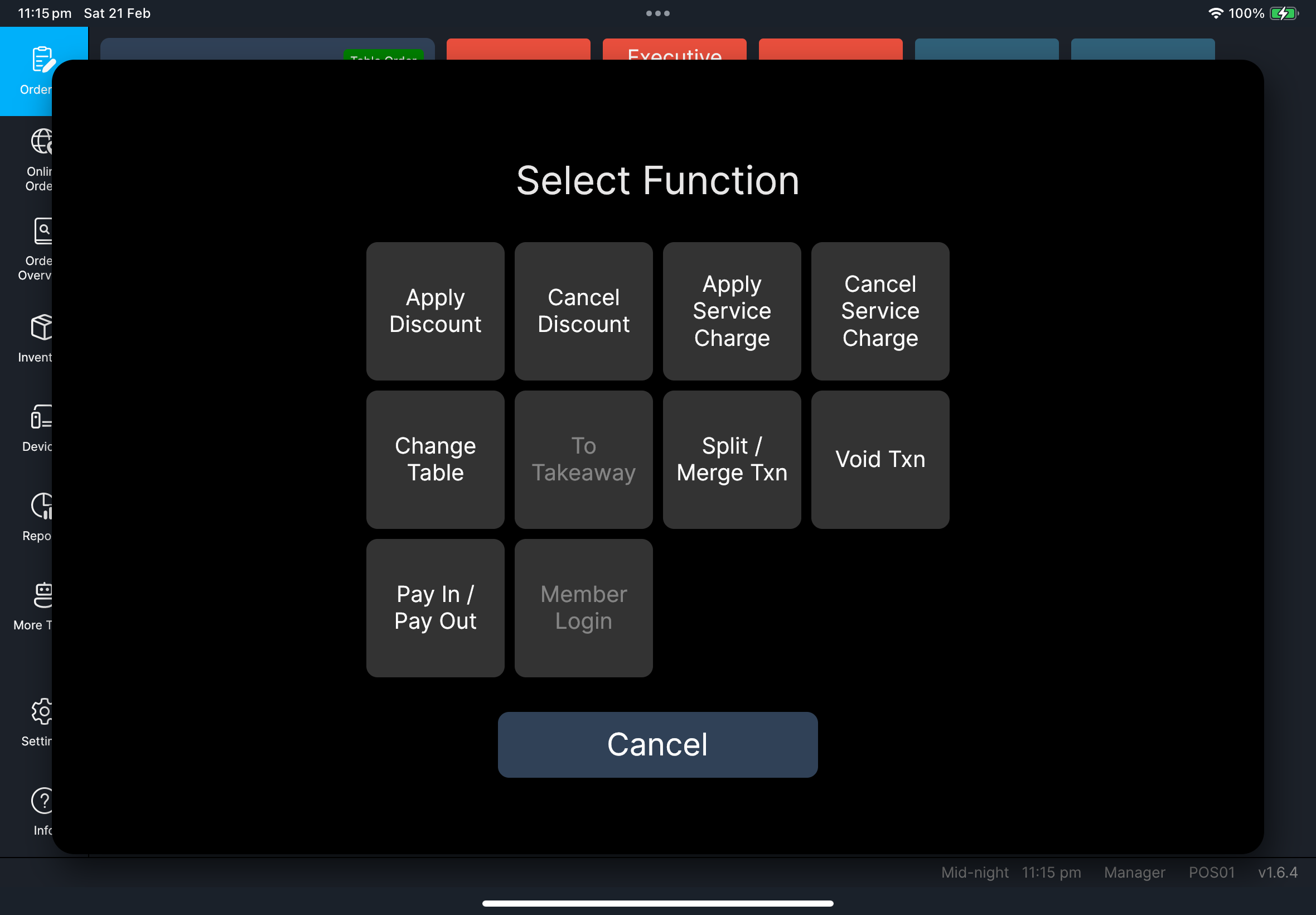
  2. Tap the function menu (three dots).
  3. Tap Member Login.
  4. If Select Member Provider appears, select the correct provider for the customer.
  5. Scan the member QR/barcode, or enter the member ID in the input dialog.
  6. Tap Confirm if you entered the ID manually.
  7. Review the Member Details shown on screen.
  8. Tap OK to return to the order.

What you should see

  • Member information is attached to the order.
  • A member tag/label may appear on the order screen (store-configuration dependent).

Order function menu

Screenshot pending: fn-member-login-select-provider.png Screenshot pending: fn-member-login-member-details.png

If something goes wrong

  • If Member Login is missing, member integrations may not be enabled for your store.
  • If you see Member details unavailable, verify the customer ID and retry once.
  • If you see Invalid input, re-enter the member ID in the required format.

When to ask manager/admin

  • Customer says membership is valid but lookup keeps failing.
  • Required provider is missing from Select Member Provider.
  • You need to remove or replace an already-linked member on the order.