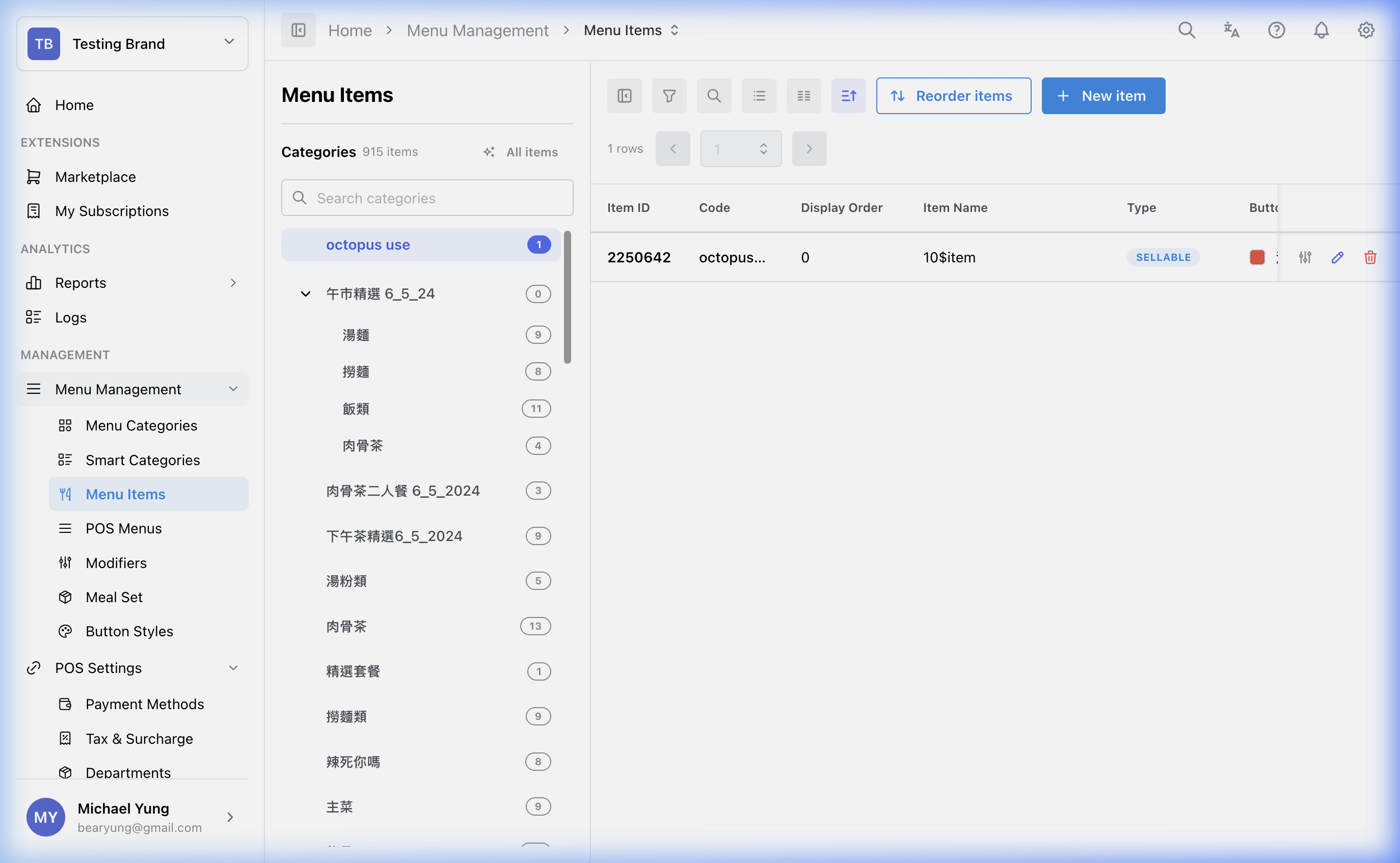
Menu Items
Admins who create or maintain the products sold, customized, or tracked in the POS.
Before you start
- Confirm the correct brand.
- Decide whether the record is a sellable item, modifier item, or set item.
- Confirm the target category and department before you save.
- If you are copying an item, prepare new
Item Codevalues that are not already used by active items.
Open this page
Open Menu Management -> Menu Items.
What this page controls
Menu Items is the main item database for the POS catalog.
Use this page to create or maintain:
- sellable items
- modifier items
- set or combo parent items
- item pricing and availability
- special item behavior
- item copies based on an existing item setup
When you edit an item in the drawer, the header shows the current Item Code and Item Name. If you use Skip to Next or Update & Next, the drawer keeps the active tab selected so you can continue the same workflow across records.
Main sections
Item type
Choose the correct item type before you continue:
- sellable item
- modifier
- set item
The item type affects where the item belongs and how the POS uses it.
Basic fields
| Field | What it controls | When to change it |
|---|---|---|
Item Code | Internal item identifier | When the SKU or integration code changes |
Item Name | Main HQ name | When the core record name changes |
POS Display Name | What staff see on the POS | When the selling name should differ from the HQ name |
Printed Name | What prints on receipts or kitchen output | When you need shorter or more operational wording |
| category and department fields | Browsing structure and reporting structure | When the item belongs in a different menu location or roll-up |
If the required Button Style does not exist while you are creating or editing an item, use Create button style beside the selector, enter Style Name, choose Color Palette, check Preview, and select Create Style.
Special behavior switches
Use the item switches carefully, because they can change how the POS behaves during checkout.
Examples include:
- manual price
- non-discountable
- non-service-charge
- non-taxable
- receipt visibility options
Auto-show modifier groups on POSAvailable in meal set groups
When Auto-show modifier groups on POS is on, POS opens the linked modifier groups immediately after staff add this item. When it is off, POS skips straight to any linked meal-set groups; staff can still select the item row later to adjust modifiers manually.
Turn on Available in meal set groups only for items that should be selectable inside a combo or set-meal group. HQ may keep this enabled automatically for mandatory seed items that POS needs for a complete default setup.
Item relationships
Use Item Relationships to attach modifier groups and meal set groups to the item. Select Manage Relationships after the item has been saved, then add the required Modifier Groups and Meal Set Groups.
If a modifier group or meal set group looks stale, reopen Manage Relationships and check that the correct group is still linked to the current item. A group that is no longer linked should not continue to appear in the item relationship graph.
HQ blocks meal-set loops. If a candidate group or item shows Loop, it already connects back to the current item through another meal-set path. Do not force that relationship; choose a different group or adjust the existing combo structure first.
Pricing, availability, and shop settings
Use the item's pricing, availability, and shop settings areas to control branch-specific selling price, per-shop enablement, and whether the item is enabled or out of stock.
In the shop settings area, Takeaway Surcharge is a per-shop amount added when the item is sold as takeaway. Enter a non-negative amount within the field limit, then save the item. Use Additional Settings to expand less frequently changed controls such as Out of Stock, Limited, Group Print, and additional printer assignments.
Copy an existing item
Use the copy action when a new item should start from an existing item's setup.
- Find the item you want to copy.
- Select the copy action in the
Actionscolumn. - Enter the new
Item Code,Item Name,Item Name (Alt),Item Kitchen Name, andItem Kitchen Name (Alt). - Confirm the destination
CategoryandDepartment. - Save the copy.
The copy includes the related setup from the source item, such as shop details, pricing, modifiers, meal set groups, and other item relationships.
Beast Mode copy
Use Beast Mode in the copy modal when you need to create several items from the same source item.
When Beast Mode is on, enter one target item per row:
Item CodeItem NameItem Name (Alt)Item Kitchen NameItem Kitchen Name (Alt)
The destination Category and Department are shared by all rows in the same save.
Before saving, check that every Item Code is unique in the row list and is not already used by an active item. If one target item cannot be saved, none of the target items are created.
Restore a recently removed item
Use the restore icon in the list toolbar when an item was removed by mistake. This icon-only control turns the recently removed view on or off.
- The control only shows items removed in the last 24 hours. Items removed longer ago are not included.
- Recently removed rows use a light gray background.
- A recently removed row only shows the restore action. The settings, edit, copy, and delete actions are hidden.
- Select the restore icon in the row to make the item active again.
- HQ blocks the restore if the item's category or department is not active, or if another active item already has the same
Item Code.
Steps
- Open
Menu Management->Menu Items. - Create a new item or open an existing one.
- Select the correct item type.
- Enter the item identity fields.
- Assign the item to the correct category and department.
- Apply any required special behavior switches.
- Review pricing and availability for the target shops.
- In each target shop, set
Takeaway Surchargeif takeaway pricing needs an item-specific amount. - Expand
Additional Settingswhen you needOut of Stock,Limited,Group Print, or additional printer controls. - In
Item Relationships, turnAuto-show modifier groups on POSon or off for the item. - Turn
Available in meal set groupson only if the item should be selectable inside meal-set groups. - Save the item.
- Select
Manage Relationshipsand attach the required modifier groups or meal set groups. - If a candidate relationship shows
Loop, stop and review the existing combo links before choosing another relationship. - Save the relationship changes.
- If you removed an item by mistake, select the restore icon in the toolbar to show recently removed items.
- Find the light gray row and select the row restore icon.
- If HQ blocks the restore, review the item's category, department, and any active item with the same
Item Codebefore trying again.
Needed file: hq/menu-catalog/menu-items-shop-takeaway-surcharge.png
What changes after you save
These changes affect the shared item record and may also affect shop availability, POS browsing, reporting, and checkout behavior depending on what you changed.
Relationship changes affect how POS guides staff after the item is added. Modifier groups should appear immediately when Auto-show modifier groups on POS is on. Meal-set groups still appear for set items that require combo choices.
How to check your change
- Reopen the item and confirm the saved values.
- Verify the item sits in the correct category and department.
- Check the target shop pricing, availability, or shop settings if those were changed.
- Test the affected POS behavior if you changed special switches.
- If you changed item relationships, add the item on POS and confirm modifier groups and meal-set groups appear in the expected order.
- If you copied an item, reopen the copied item and confirm the related setup was copied as expected.
If something goes wrong
- Confirm the wrong result is not caused by category, department, or availability settings.
- Check the item type first if the POS behavior is unexpected.
- If the item exists but is missing in one shop, review shop-level price or availability setup.
- If modifier groups or meal-set groups do not appear correctly on POS, reopen
Manage Relationshipsand confirm the current item is linked to the right groups. - If POS opens modifier groups when staff do not expect it, check
Auto-show modifier groups on POS. - If a meal-set candidate is marked
Loop, review the parent item and group links. The relationship would create a circular combo path. - If a copy fails, check for duplicate
Item Codevalues in the copy list or among active items. - If restore is blocked, check whether the category and department are active and whether another active item is using the same
Item Code.
When to ask owner/admin
- The change affects live pricing or customer-visible receipt behavior.
- You are unsure whether the item should be a sellable item, modifier, or set item.