POS Menus
Who this is for
Admins who decide which categories appear together on the POS for a given menu.
Before you start
- Confirm the correct brand.
- Make sure the categories you need already exist.
- Decide whether you should use a built-in menu or a custom menu.
Open this page
Open Menu Management -> POS Menus.
What this page controls
POS Menus controls which root categories appear together on the POS.
Use this page when the POS should expose different menu sets for different service periods or operating modes.
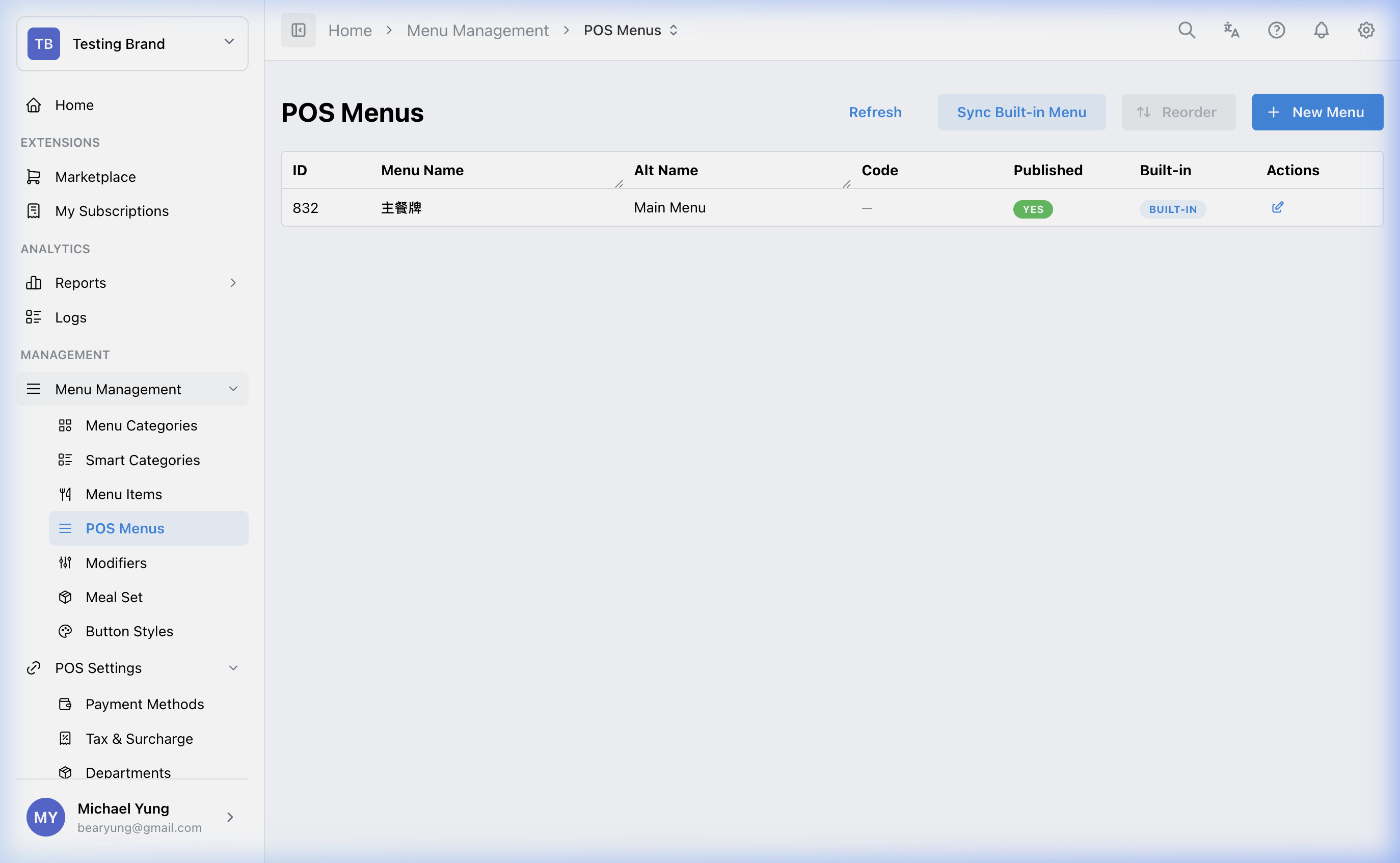
Main sections
Built-in menus
Built-in menus are system-provided and not deleted casually. The master or default menu can automatically include all published root categories.
Custom menus
Create a custom menu when the POS should show only a selected set of root categories.
Menu editor
The editor typically includes:
Menu NameAlt NameCodePublished- category assignment between available and assigned lists
Restore a recently removed POS menu
Use Show recently removed when a POS menu was removed by mistake.
- The toggle only shows POS menus removed in the last 24 hours. POS menus removed longer ago are not included.
- Recently removed rows use a light gray background.
- A recently removed row only shows the restore action. The edit, copy, and delete actions are hidden.
- Select the restore icon to make the POS menu active again.
- HQ blocks the restore if another active POS menu already has the same name or code.
Steps
- Open
Menu Management->POS Menus. - Decide whether to use a built-in menu or create a custom menu.
- Enter the basic menu details.
- Confirm the
Publishedstate. - Assign the required root categories to the menu.
- Arrange the assigned categories in the order staff should browse them.
- Save the menu.
- If you removed a POS menu by mistake, turn on
Show recently removed. - Find the light gray row and select the restore icon.
- If HQ blocks the restore, review any active POS menu with the same name or code before trying again.
What changes after you save
These changes affect which root categories are visible together on the POS when the menu is active.
How to check your change
- Reopen the menu and confirm the assigned categories.
- Check the order of the assigned categories.
- Verify the target POS uses the expected menu where the menu should be active.
If something goes wrong
- Confirm the category is a root category rather than a sub-category.
- Check whether the menu is unpublished.
- Review whether the issue belongs to the menu itself or to the underlying category setup.
- If restore is blocked, check whether another active POS menu is using the same name or code.
When to ask owner/admin
- The menu change affects a live service period or multiple shops.
- You are unsure whether a change belongs in category design or in menu assignment.