Devices
Cashiers and managers validating printers and connected devices.
Before you start
- You are signed in
- Device hardware is powered and connected
What this screen is for
Use Devices to check connectivity, maintain device configuration, and spot device alerts during operations.
Devices is for hardware and connectivity setup only (printers/payment/input/X1 products).
For cash controls and day closing, use More Tools.
Main tabs
PrinterPaymentsInput DevicesX1 Products
A badge on Devices or on a tab means one or more devices need attention. Open the affected tab and check the row labels before returning to service.
How to use each tab
- Printer
- Payments
- Input Devices
- X1 Products
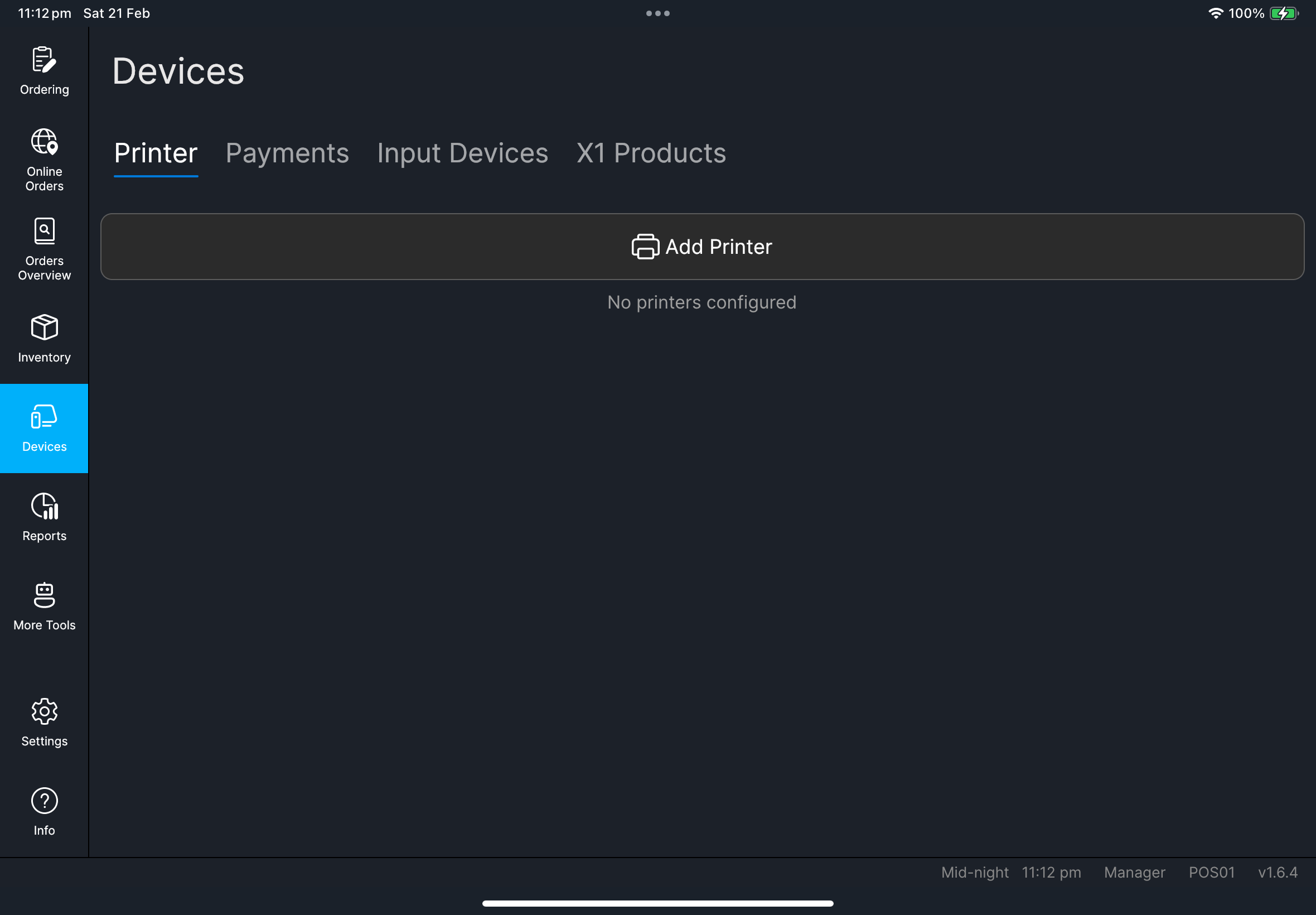
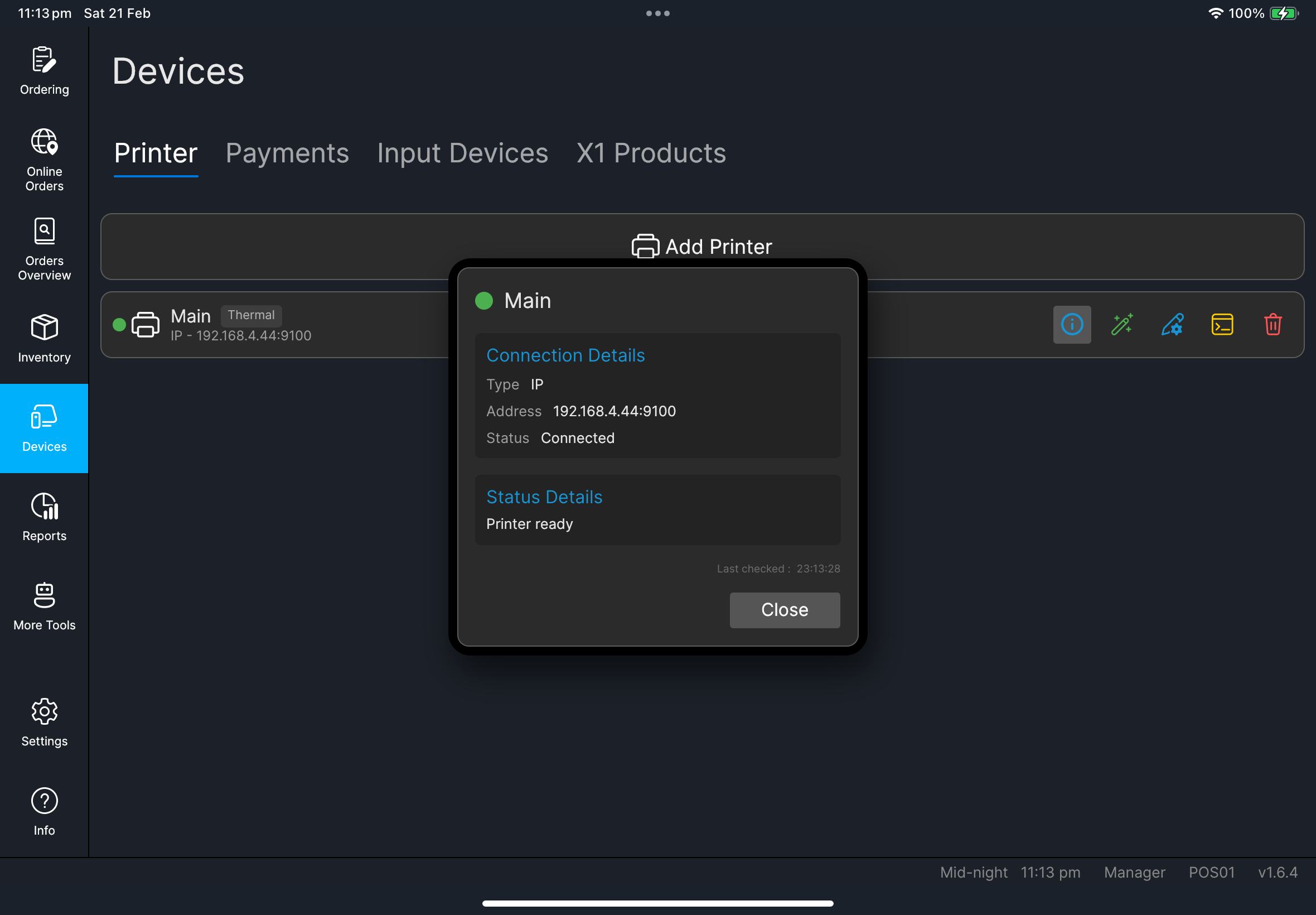
Use this tab for printer lifecycle and queue actions:
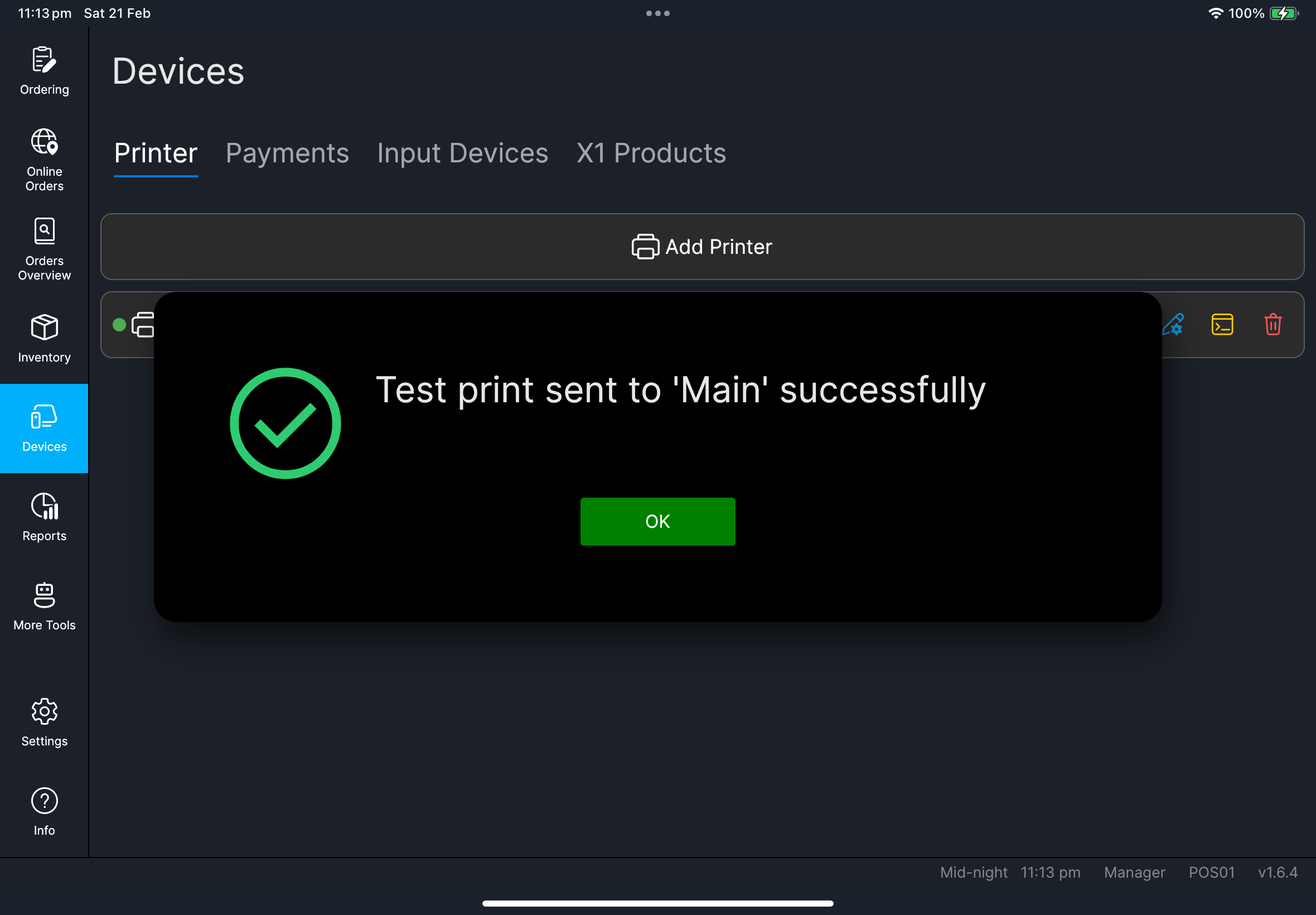
Add Printer, Info, Test Print, edit printer, Manage Spooler, and remove printer. Printer edit includes advanced output settings such as print scale, line feed, and dot-matrix density/color. Manage Spooler shows Queue, History, and Needs attention; open a job's Open print preview action when you need to inspect the rendered output before retrying.
Printers managed from HQ show an HQ badge. If a printer exists in HQ but has not been configured on this POS, the row shows Not configured; edit the row to add the local connection details before you test print. Rows can also show a failed-job badge such as 1 error or 3 errors when the spooler has error jobs.
Use this tab for payment terminal status/configuration:
Info, edit payment device settings (including Linkly EFTPOS terminal pairing/setup and Octopus V3 Device ID), and the Setup required label when a device is not ready.
Use this tab for scanner/input settings:
Info, edit input device settings (for example barcode/QR scanner source selection), USB/Bluetooth scanner test input, camera fallback, and the Setup required label when a device is not ready.
Use this tab for customer-facing/pairing products:
Info, edit X1 product settings, plus customer display host, pickup display pairing, express kiosk pairing flows, and the Setup required label when a product needs setup.
Steps (general)
- Tap
Devicesfrom left menu. - Select the tab you need.
- Check any badge or row label first.
- Tap
Infoif you need quick diagnosis. - Run the tab-specific action (test print/edit/pairing/spooler).
- Verify status before returning to operations.
What you should see
- Device entries with status indicators
- Badges for failed print jobs, HQ-managed printers, or setup-required devices
- Actions for maintenance (for example printer test/info)
Need files: client/cl-34-devices-payments-tab-list.png, client/cl-35-devices-input-devices-tab-list.png, client/cl-36-devices-x1-products-tab-list.png
If something goes wrong
POS Code is requiredOpen Settings -> General, fill POS Code, tap Save, then retry.
When to ask manager/admin
- You cannot edit required device settings
- Repeated test failures after local checks
- Device-specific pairing/configuration is unclear