Start Shift
Who this is for
Cashiers and shift managers preparing a terminal before taking the first order.
Before you start
- Terminal is powered on and online
- You know your login PIN
- At least one printer is physically available
Steps
- Enter your PIN and tap
SIGN IN. - Open
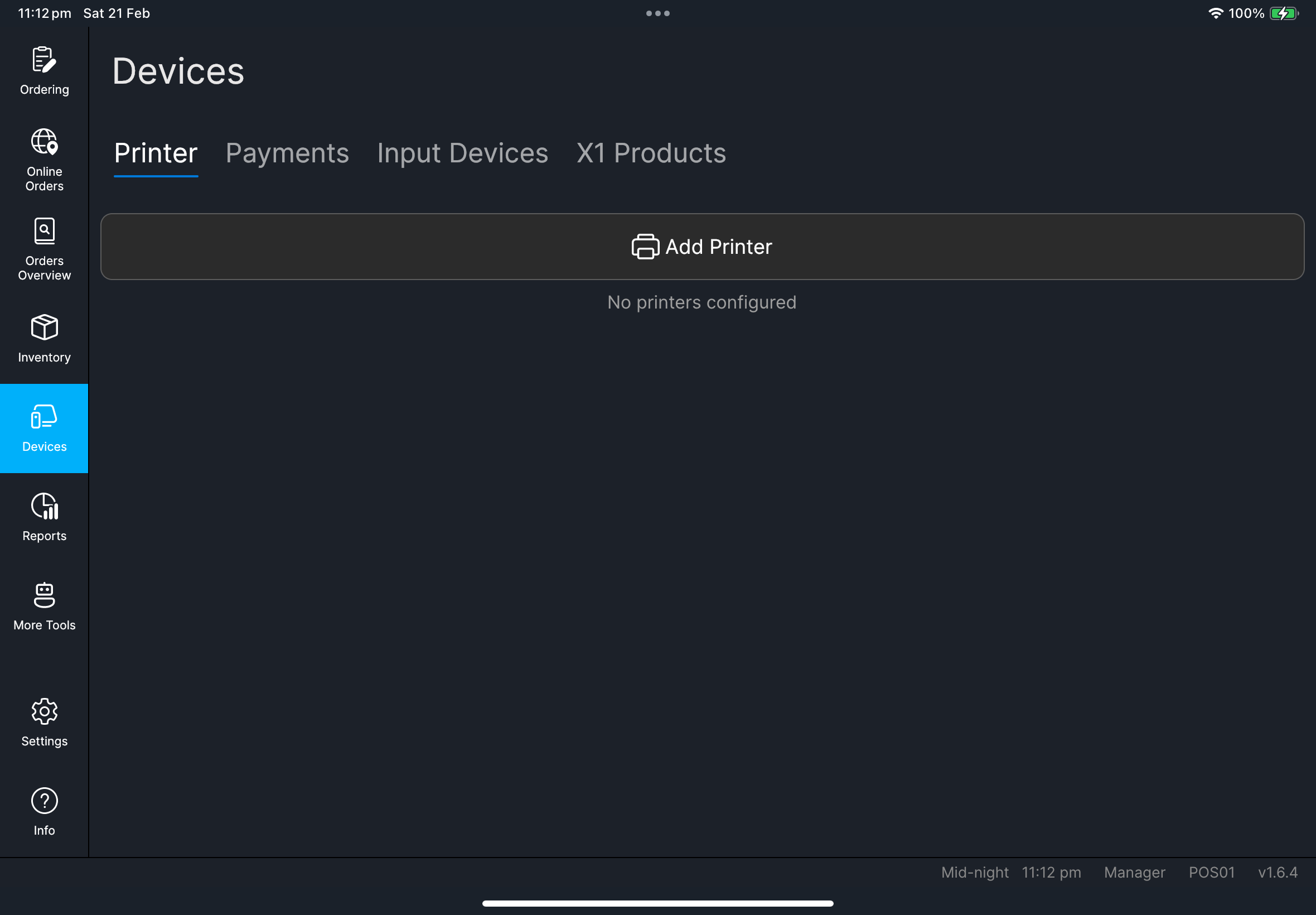
Devicesfrom the left menu. - Go to
Printertab. - Tap
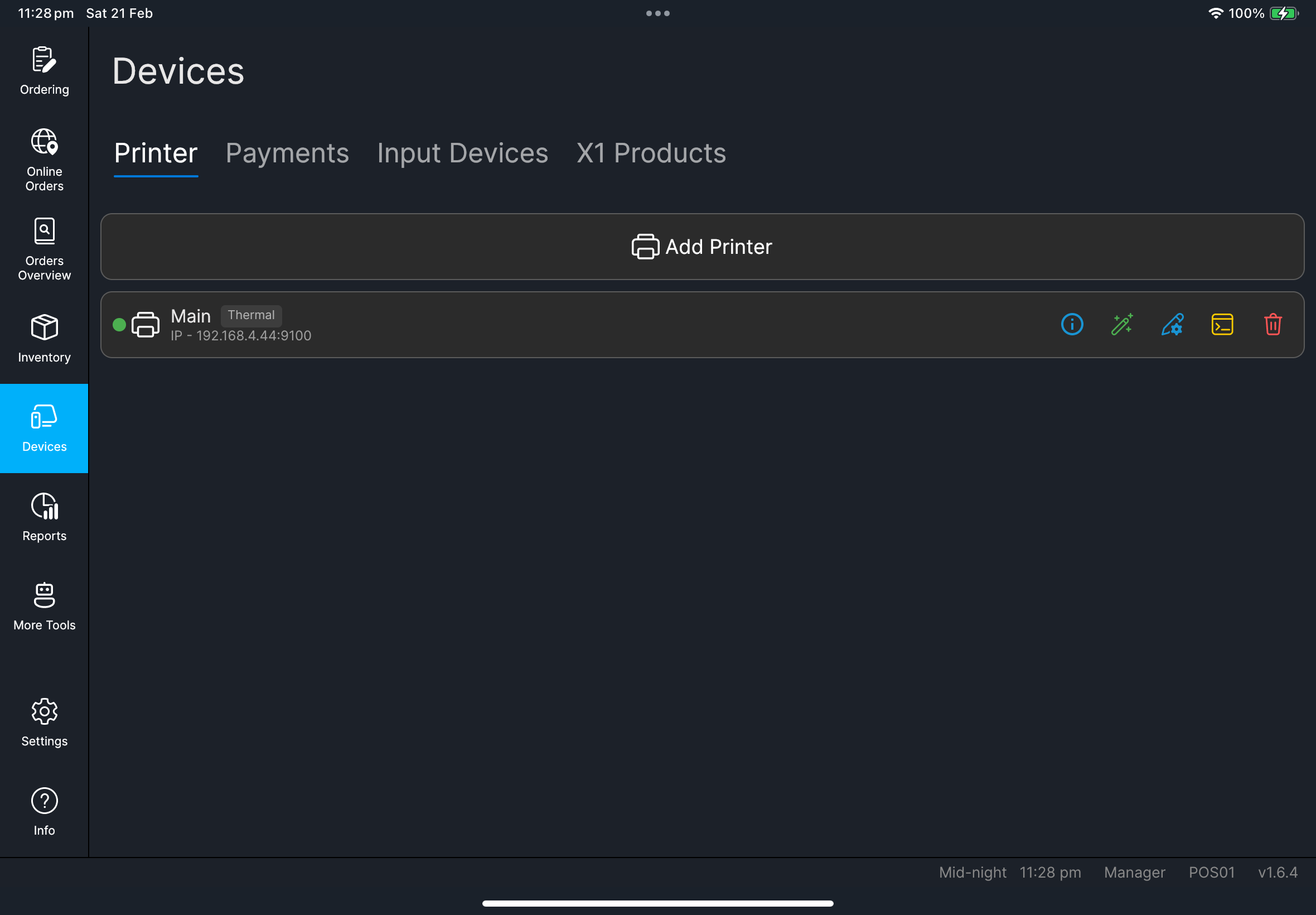
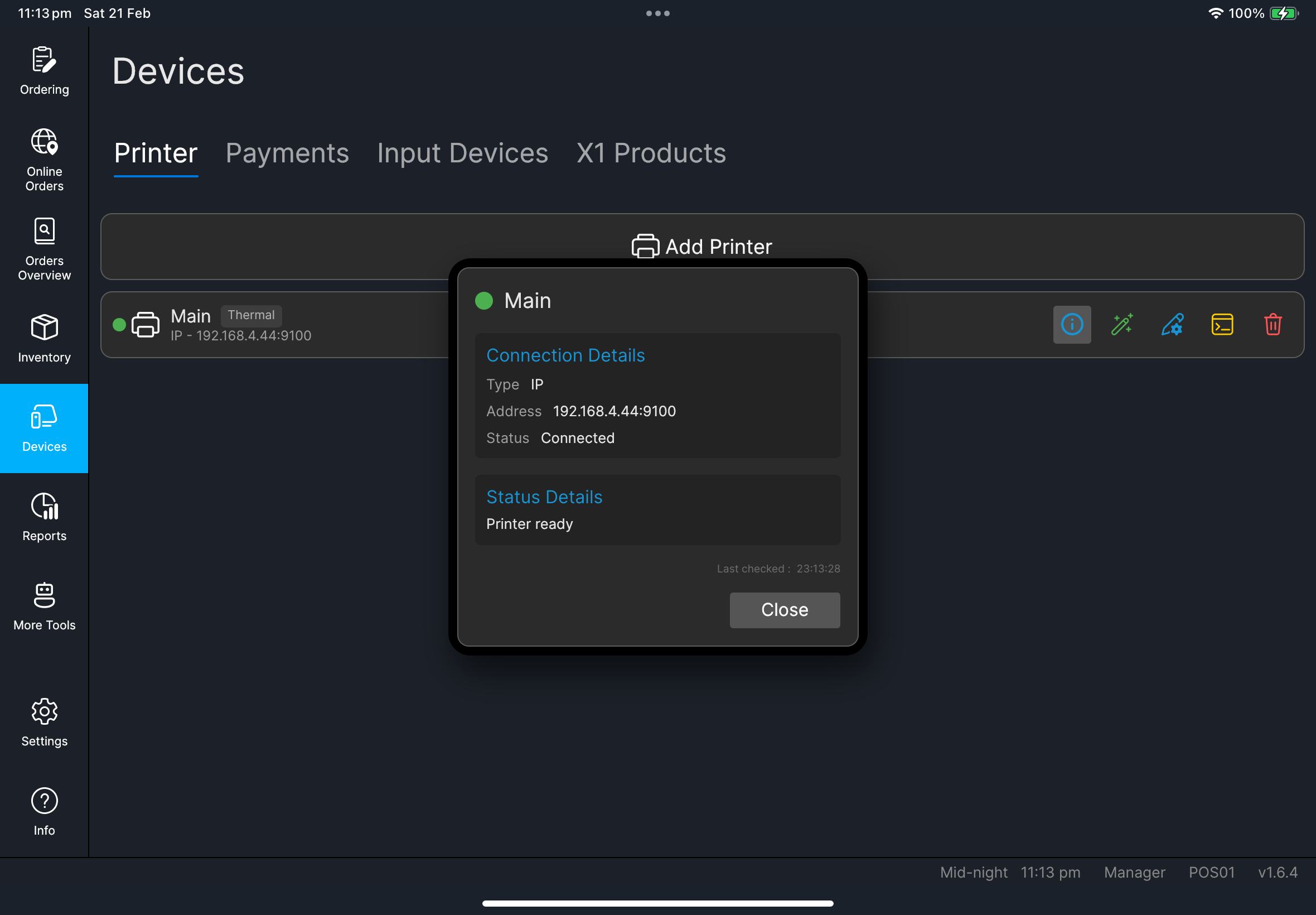
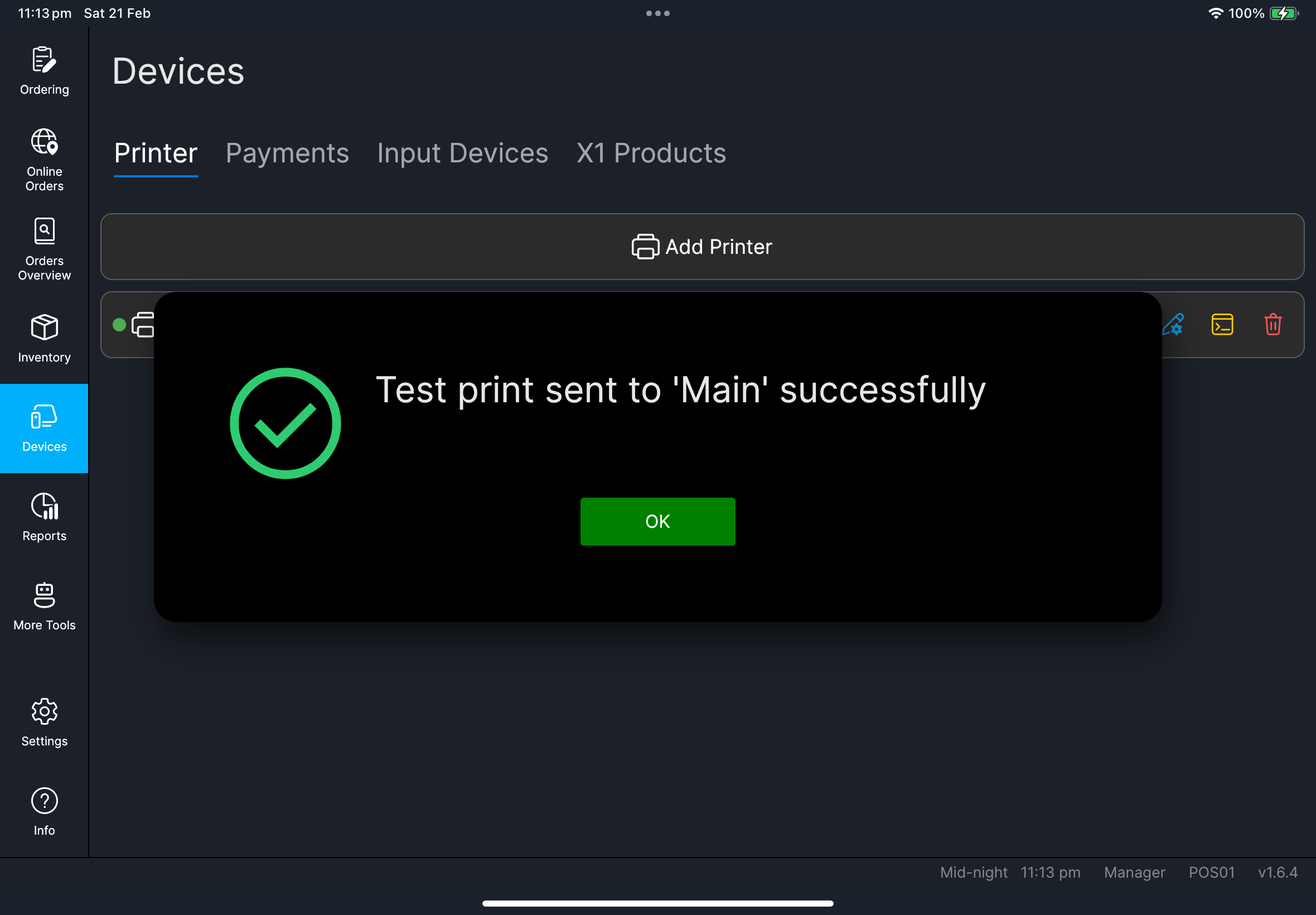
Test Printon the active printer. - Confirm there is no
POS Code is requiredwarning. - Return to
Ordering.
- With roster
- Without roster
- Tap the roster button on the login screen.
- Tap
Clock In. - Continue with normal sign in.
- If roster options are not shown, continue directly to normal sign in.
- No extra action is needed.
What you should see
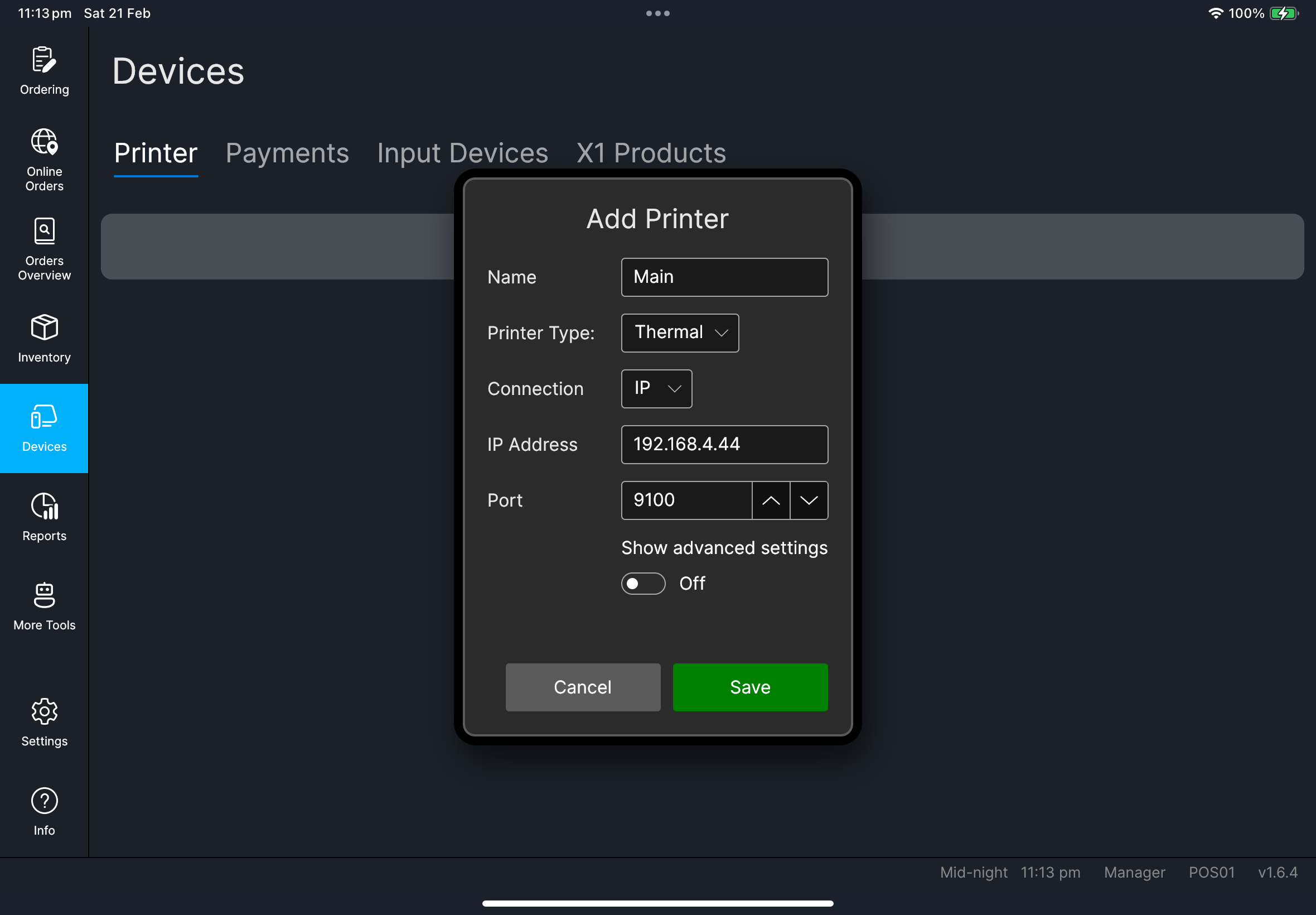
Devicespage opens and printer status is healthyTest print sent ... successfullymessage appearsOrderingpage loads table/order screen normally
If something goes wrong
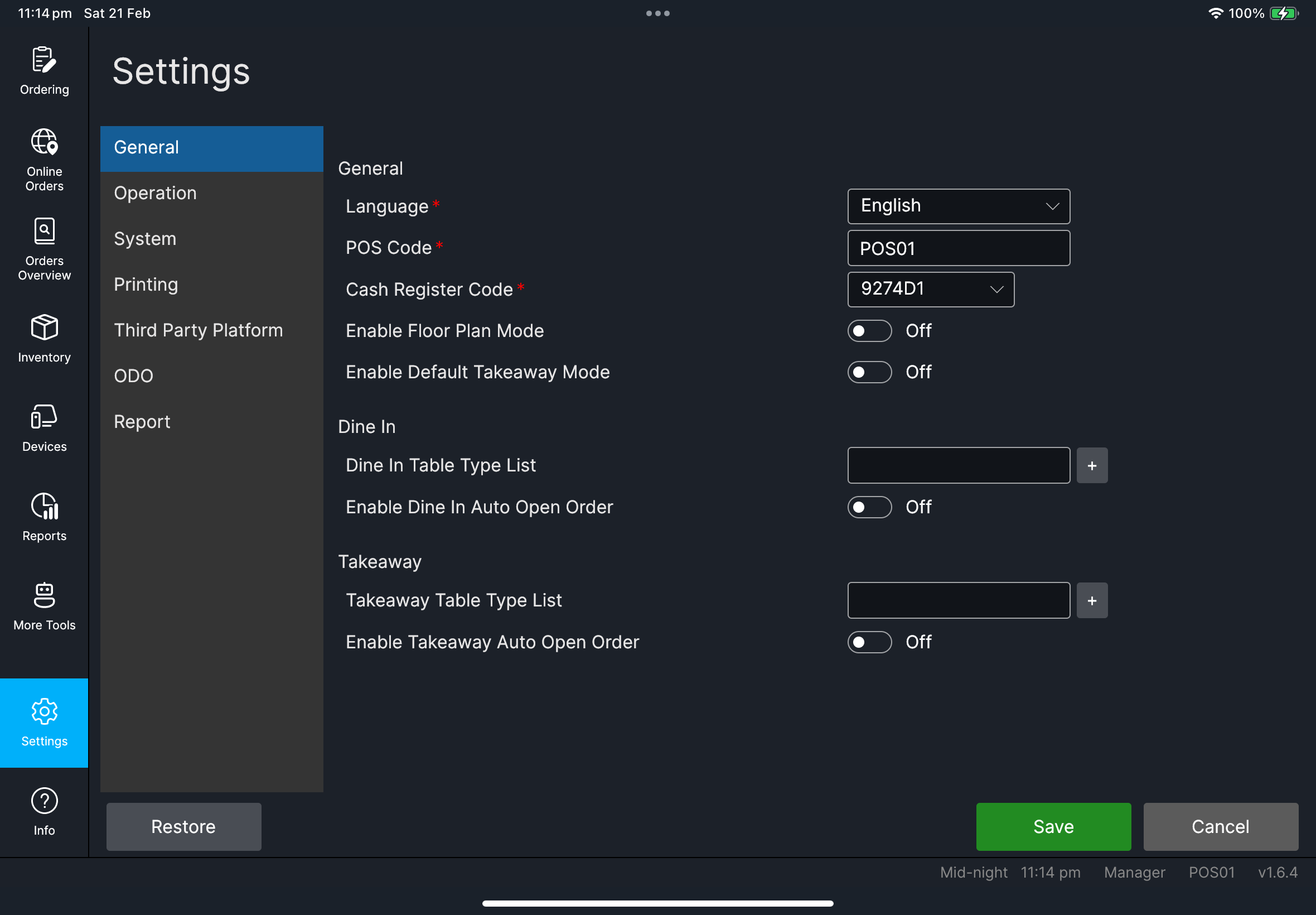
POS Code is requiredGo to Settings -> General, fill POS Code, then tap Save.
Printer not ready
Check paper/cover/network first, then run Test Print again.
When to ask manager/admin
- You cannot edit settings (
POS Code, system fields) - Printer still fails after local checks
- Login/subscription warnings block start of shift