设备
需要检查打印机和连接设备的收银员与经理。
开始前
- 你已经登录
- 设备硬件已通电并连接
这个页面的用途
使用 设备 来检查连接状态、维护设备配置,并在营业中发现设备警示。
设备 只负责硬件和连接设置(打印机 / 支付设备 / 输入设备 / X1 产品)。
现金控制和日结请使用 更多工具。
主要选项卡
打印机支付设备输入设备X1 产品
设备 或某个选项卡上出现数字标记,表示一台或多台设备需要处理。先打开对应选项卡并检查设备行上的标记,再返回营业。
各选项卡怎么用
- 打印机
- 支付设备
- 输入设备
- X1 产品
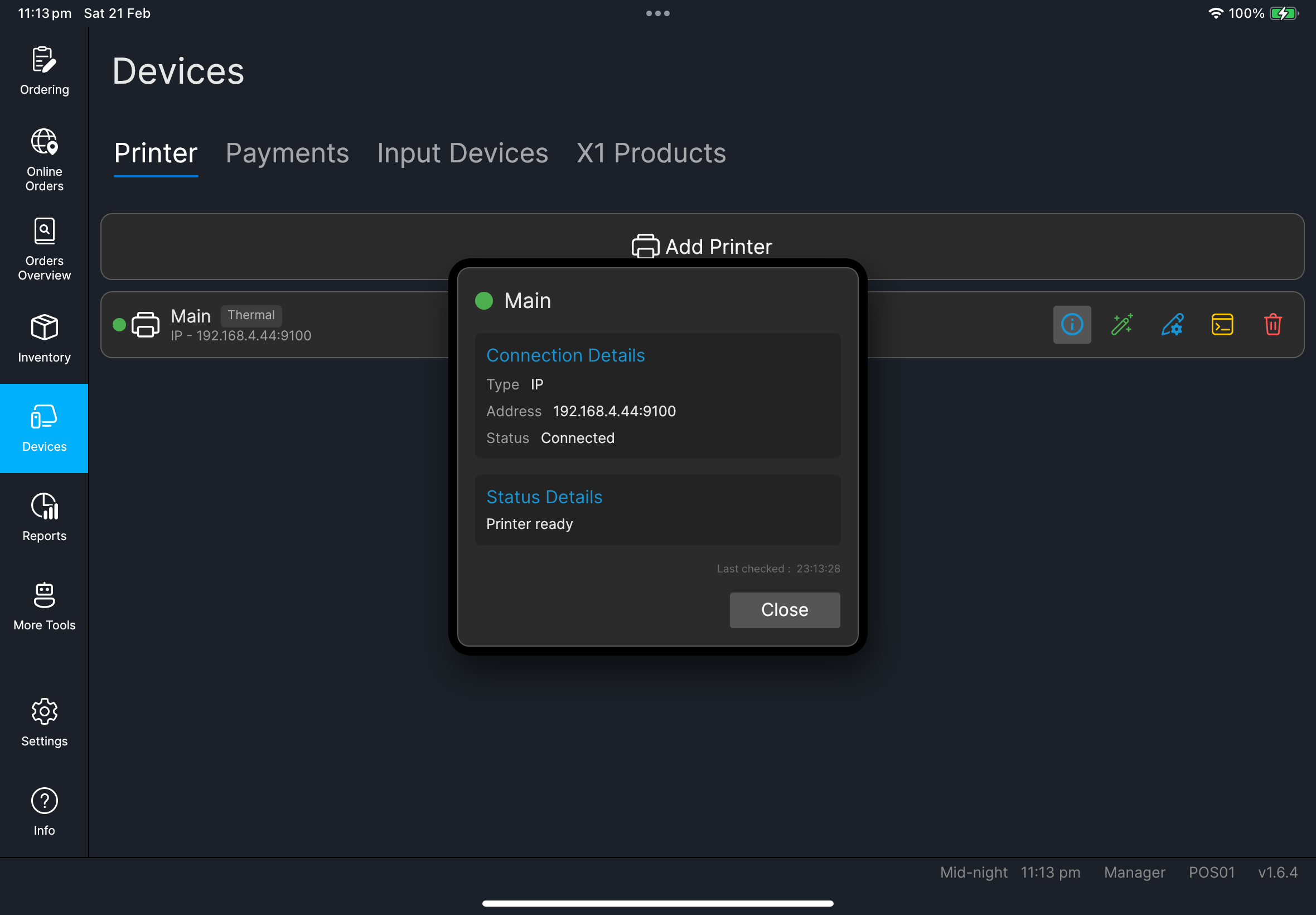
用于打印机的新增、查看和队列操作:
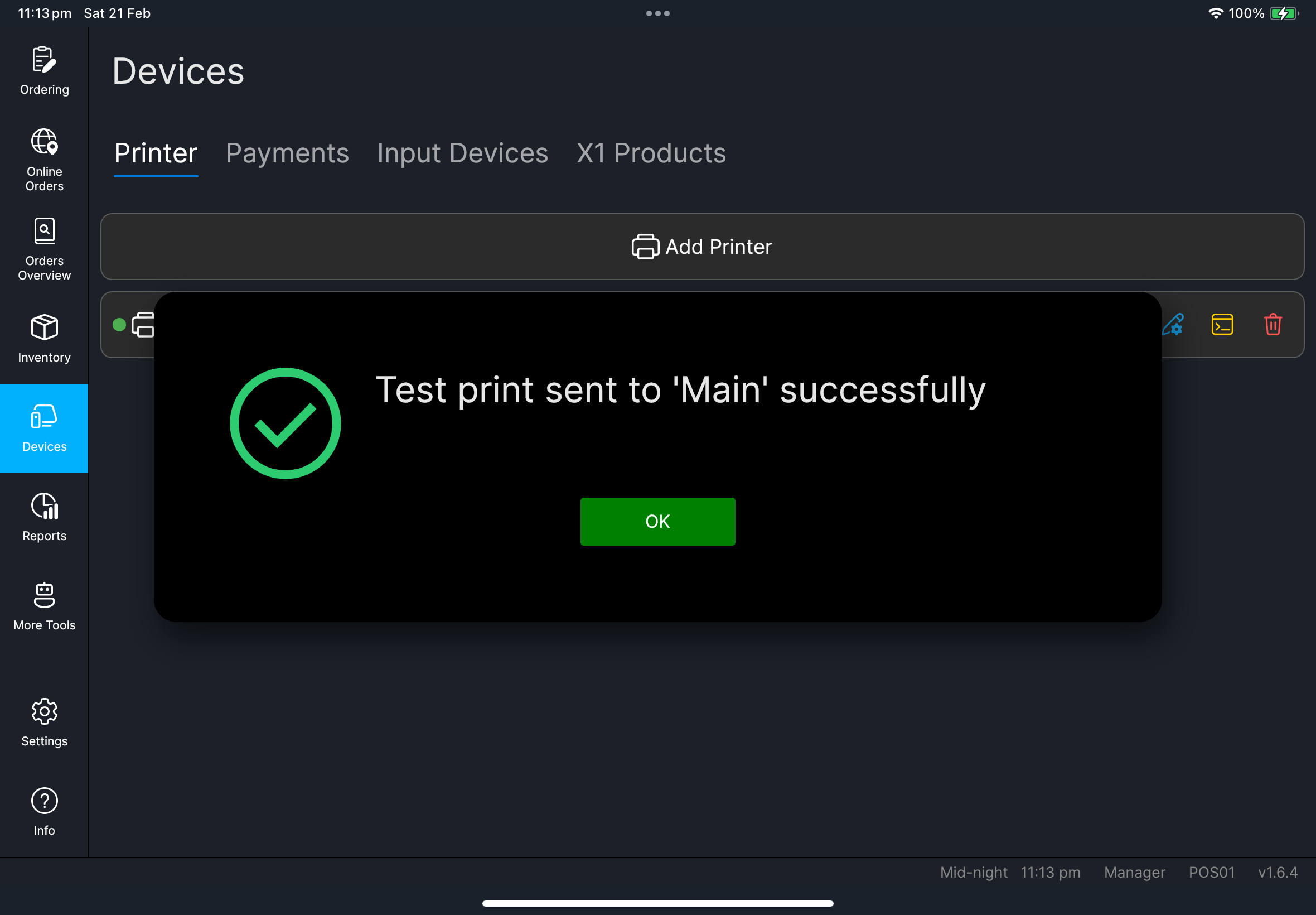
添加打印机、信息、测试打印、编辑打印机、管理打印队列 和移除打印机。编辑打印机包含高级输出设置,例如打印缩放、走纸行数,以及针式打印密度/颜色。管理打印队列 会显示 队列、历史 和 需要处理;如果要在重试前检查打印结果,请打开任务的 打开打印预览。
由 HQ 管理的打印机会显示 HQ 标记。如果打印机已存在于 HQ,但还没有在此 POS 配置,设备行会显示 尚未配置;请先编辑该行并填写本机连接资料,再进行测试打印。打印队列有错误任务时,设备行也会显示 1 error 或 3 errors 等错误数量标记。
用于查看和配置支付终端状态:
信息、编辑支付设备设置(包括 Linkly EFTPOS 终端配对/设置和八达通 V3 设备编号),以及设备未准备好时的 需要设置 标记。
用于扫描器/输入设备设置:
信息、编辑输入设备设置(例如条码/二维码扫描器的扫描输入来源)、USB/蓝牙扫描器测试栏位、相机备用,以及设备未准备好时的 需要设置 标记。
用于面向顾客的配对产品:
信息、编辑 X1 产品设置,以及顾客显示主机、取餐显示配对、快速结账自助机配对流程,和产品需要配置时的 需要设置 标记。
通用步骤
- 在左侧菜单点击
设备。 - 选择你需要的选项卡。
- 先检查任何数字标记或设备行标记。
- 如果要快速诊断,点
信息。 - 执行该选项卡对应的操作(测试打印 / 编辑 / 配对 / 队列)。
- 返回营业前,先确认状态正常。
你应该会看到
- 带有状态标记的设备条目
- 打印失败任务、HQ 管理打印机或需要设置设备的标记
- 用于维护的操作(例如打印机测试 / 信息)
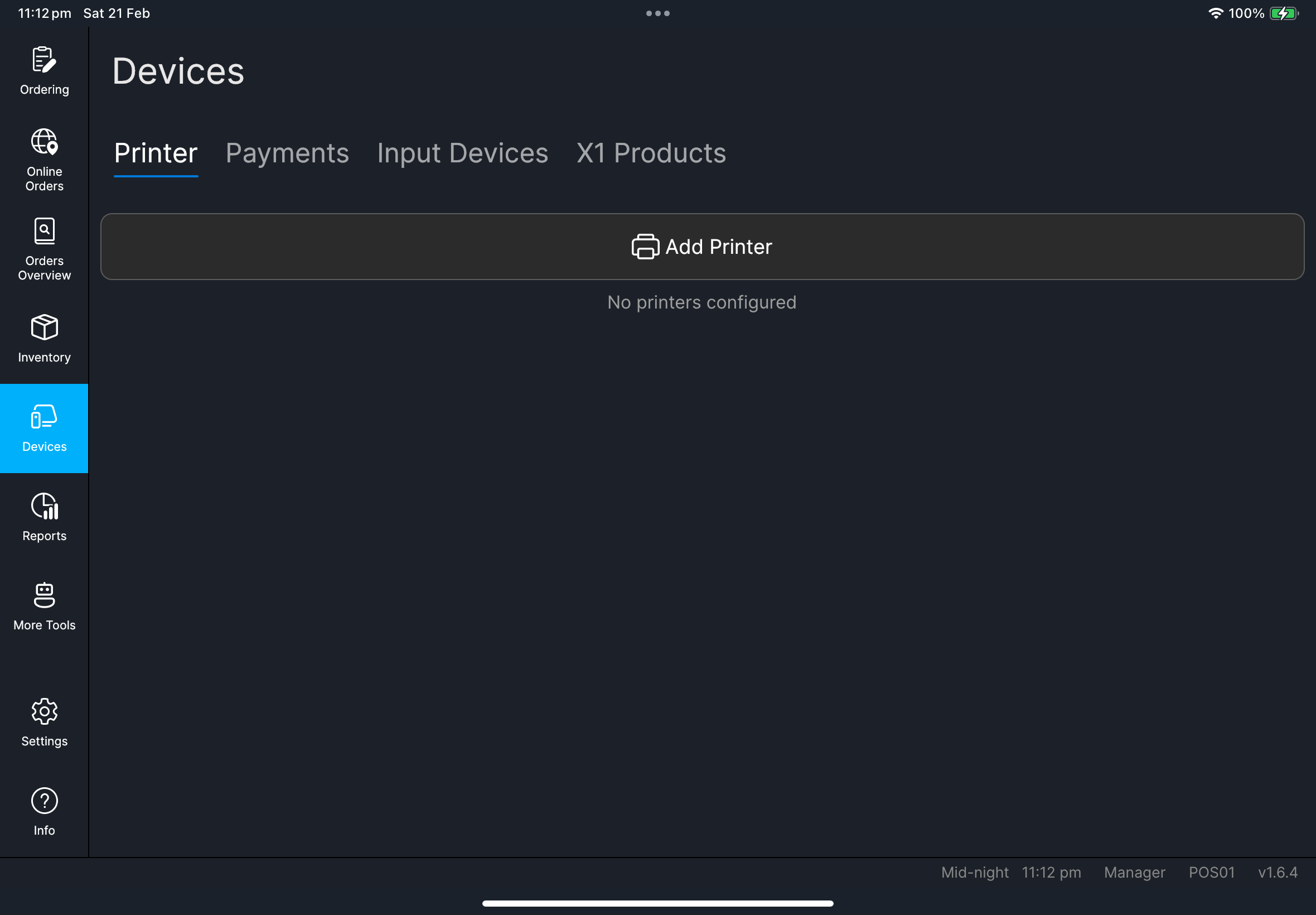
Need files: client/cl-34-devices-payments-tab-list.png, client/cl-35-devices-input-devices-tab-list.png, client/cl-36-devices-x1-products-tab-list.png
出现问题时
需要收银机代码进入 设置 -> 常规,填写 收银机代码,然后点击 保存。
何时找经理/管理员
- 你无法编辑必填设备设置
- 本地检查后测试仍然失败
- 设备配对/配置不明确