Reprint Receipt
Who this is for
Cashiers and shift managers handling customer requests for an extra receipt copy.
Before you start
- Confirm the transaction is completed and available in
Orders Overview. - Confirm receipt printer is online with paper loaded.
Steps
- Tap
Orders Overview. - Select the completed transaction.
- On the
Completed orderpanel, tapReprint Receipt. - Wait for the receipt to print.
What you should see
- A new receipt copy is printed for the selected transaction.
- The action buttons on the
Completed orderpanel includeReprint Receipt.
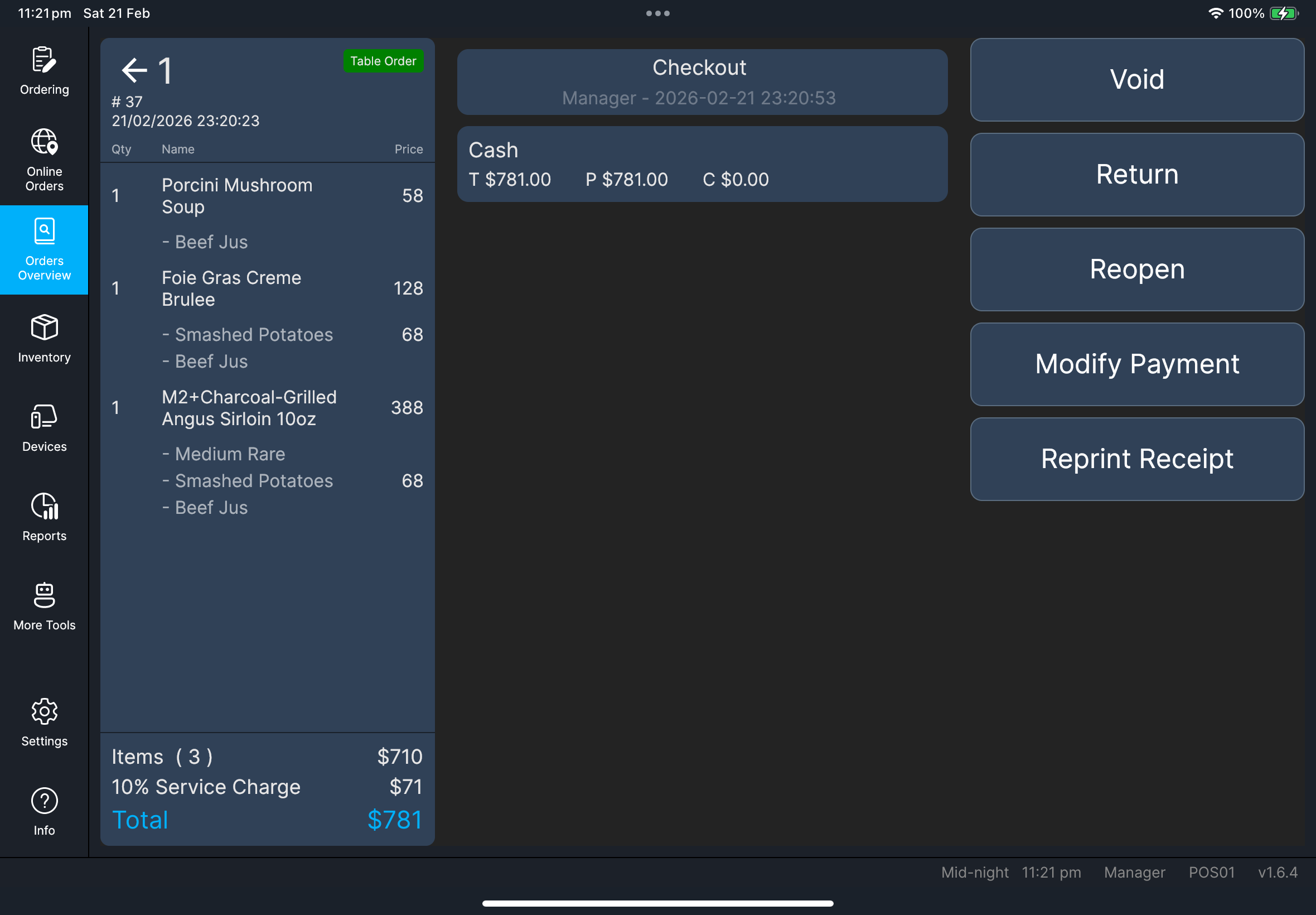
Screenshot pending:
fn-reprint-receipt-select-completed-transaction.png
If something goes wrong
- If nothing prints, check printer connection and paper, then retry once.
- If printing still fails, run
Test PrintfromDevicesto confirm printer path. - If transaction cannot be found, verify date/time range and transaction ID in
Orders Overview.
When to ask manager/admin
- Reprint fails after one retry and
Test Printalso fails. - You need policy confirmation before printing duplicate receipts.
- Transaction history appears missing or inconsistent.