Access and Navigation
Who this is for
All store staff who sign in to the POS terminal.
Before you start
- Terminal is initialized and online
- You have a valid login PIN
Login screen basics
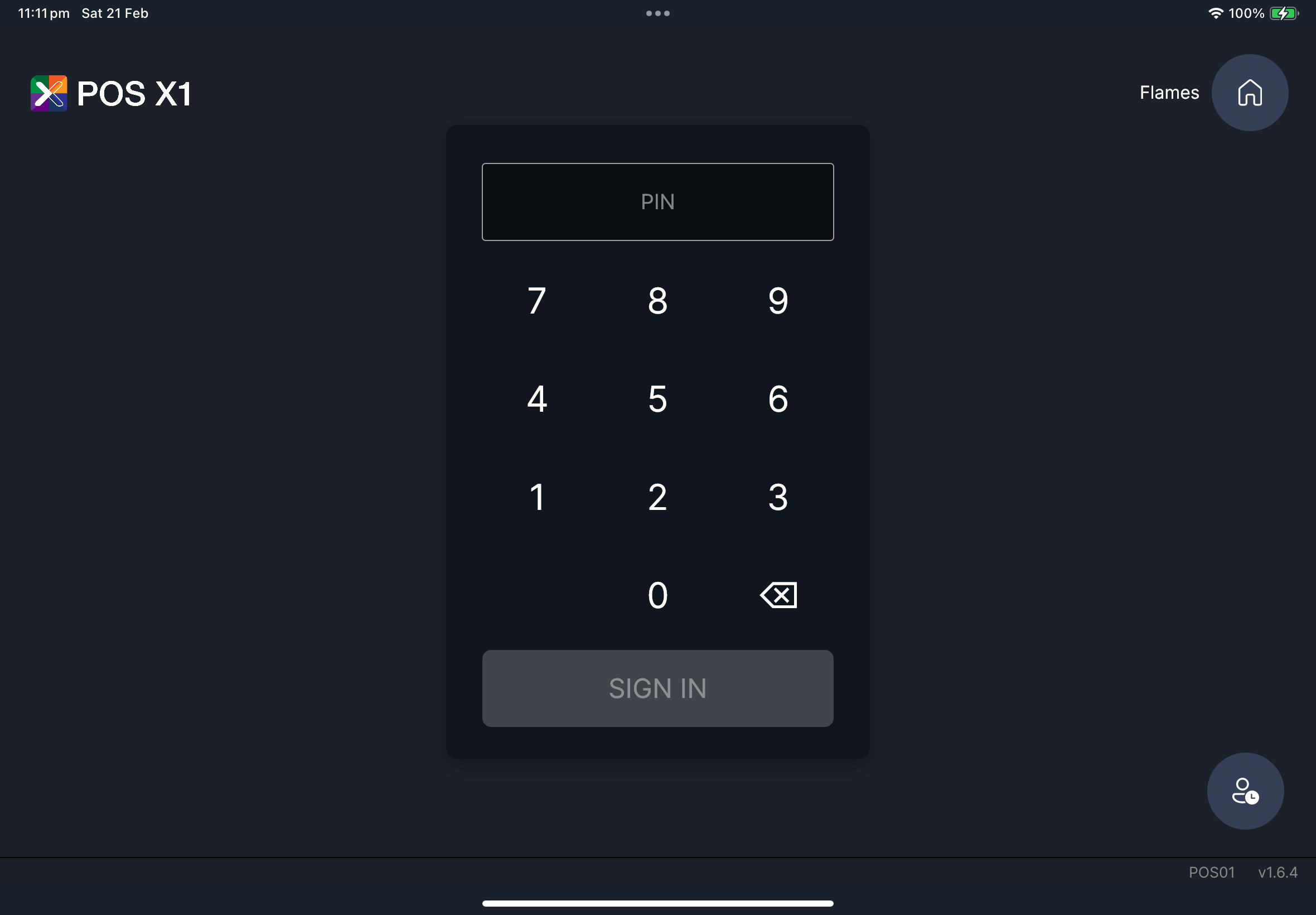
You will see:
- Current shop name
- Home icon (switch shop)
- Optional quick language-switch button (
EN/繁/简) when enabled by manager - PIN keypad
SIGN INlogin button
Steps
- Quick language switch (if shown)
- Sign in
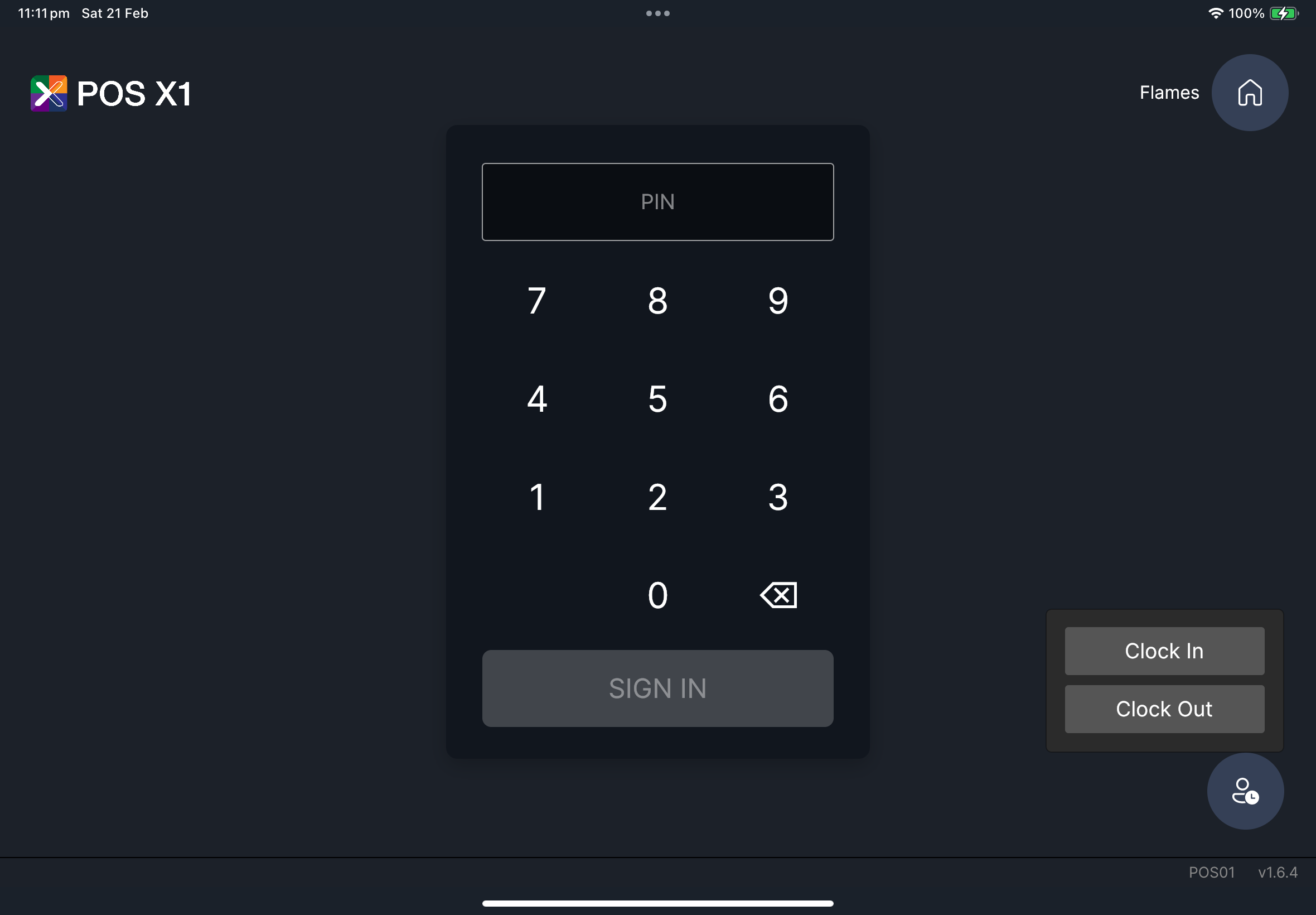
- Clock in/out (if enabled)
- Sign out
- Tap the round language button (
EN/繁/简) on login screen. - Confirm screen text changes to the next enabled language.
- Continue normal sign in.
- Enter PIN (or scan card if configured).
- Tap
SIGN IN. - Wait until
Orderingscreen loads.
- Tap roster button on login screen.
- Tap
Clock Inat shift start, orClock Outat shift end. - Continue sign in as normal.
- Go to table/order screen.
- Tap top-right red sign-out button.
- Confirm you return to login screen.
What you should see
Screenshot pending
Needed file: getting-started/gs-10-login-quick-language-switch.png
If something goes wrong
SIGN IN does not workRe-enter PIN carefully and retry once.
Login is blocked by service warning
If subscription/offline warning appears, restore connection and retry sign in.
When to ask manager/admin
- PIN keeps failing after retry
- Subscription/offline block does not clear
- You cannot access the correct shop/role