Troubleshooting
How to use this page
Use the symptom index first, then open only the matching issue card below.
Quick Symptom Index
| Symptom | First action | Jump to |
|---|---|---|
| Cannot sign in | Retry PIN once, check internet | Login fails |
| Printer/device not ready | Check status, run Test Print | Printer or device not ready |
POS Code is required | Fill POS Code in Settings | POS code required |
| Payment fails or is unclear | Retry once only if clearly failed | Payment cannot complete |
| Cannot modify completed payment | Check third-party/payment lock rules | Modify payment is blocked |
| Cannot split/merge/void | Send pending items, clear edits | Split, merge, or void is blocked |
| Day-end cannot proceed | Re-check business date and pending transactions | Day-end cannot proceed |
Global Triage Rules
Stop repeated retries
For payment and financial actions, do not retry repeatedly when result is unclear. Retry once, then escalate.
Always capture evidence before escalation
Keep transaction number, terminal POS code, timestamp, and the exact on-screen message.
For log handling and retention expectations, see Data Retention and Storage.
Issues by Symptom
Login fails
Open steps
- Re-enter PIN carefully and tap
SIGN IN. - Confirm correct staff account/role is being used.
- Verify internet is stable.
Escalate to manager/admin when:
- Login still fails after two attempts.
- Subscription/offline warning blocks login.
Printer or device not ready
Open steps
- Open
Devices->Printer. - Check status dot and open
Info. - Run
Test Print. - Check paper, cover, and network.
- Use
Manage Spoolerif queue is stuck. - Open the spooler job details and check
Status,Attempts,Next retry, andError. - If the job is
Waiting for auto retry, bring the printer back online and wait for the retry. If it isPermanent error, remove the failed job and resend the print request after the printer is ready.
Escalate to manager/admin when:
- Test print keeps failing.
- Printer remains offline after local checks.
- Spooler jobs keep returning to
Errorafter automatic or manual retry.
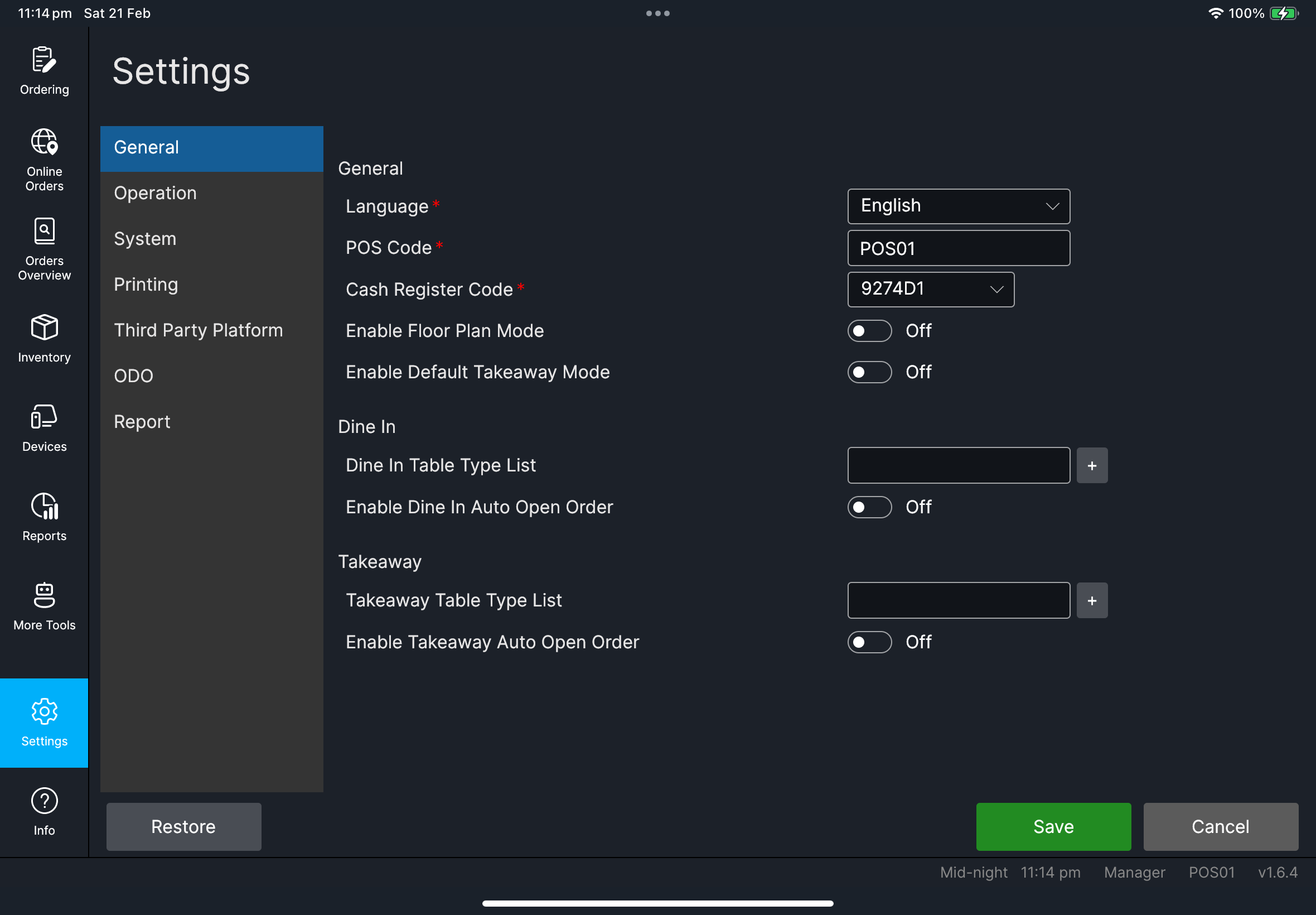
POS code required
Open steps
- Open
Settings->General. - Fill
POS Code. - Tap
Save. - Return to
Devicesand retry.
Escalate to manager/admin when:
- Cashier cannot edit settings.
- POS code is unknown or rejected.
Payment cannot complete
Open steps
- Confirm selected payment method is valid for this order.
- If discount rules require a method (for example Octopus-linked), use that method.
- Retry once only if status is clearly failed/cancelled.
- If still failing, switch method based on store policy.
Escalate to manager/admin when:
- Payment outcome is unclear (duplicate risk).
- Payment flow appears stuck.
Modify payment is blocked
Open steps
- Check whether payment is third-party linked.
- Follow store policy for correction (often
Returnflow). - Record transaction details before handoff.
Escalate to manager/admin when:
- Financial impact requires approval.
- Both modify and return paths are blocked.
Split, merge, or void is blocked
Open steps
- Send unsent items.
- Clear pending edits.
- Retry action once.
Escalate to manager/admin when:
- Action stays blocked after clean retry.
- Operation needs manager approval.
Day-end cannot proceed
Open steps
- Re-check business date/time.
- Confirm no active/pending transactions remain.
- Retry with manager account.
- If you see
Day-end has already been processed for the selected day, do not retry the same date. - Select another date, or review the existing report for that date.
Escalate to admin when:
- Business date appears incorrect.
- Day-end validation remains blocked.
- Selected-date turnover/report output is inconsistent after successful day-end.
Escalation Data Template
Always provide:
- Terminal POS code
- User name
- Transaction/receipt number (if applicable)
- Exact screen/action
- Error message text
- Timestamp